JPG, PNG, WebP, or AVIF? Here's what our comparison showed
Written · Updated · Operator (individual)
You want a small image for a website, but your application form accepts only JPG. Start with where the file will go. Use JPG for that form, try WebP for web publishing, and consider PNG for a transparent logo or a pixel-exact copy.
Which would we choose for this image?
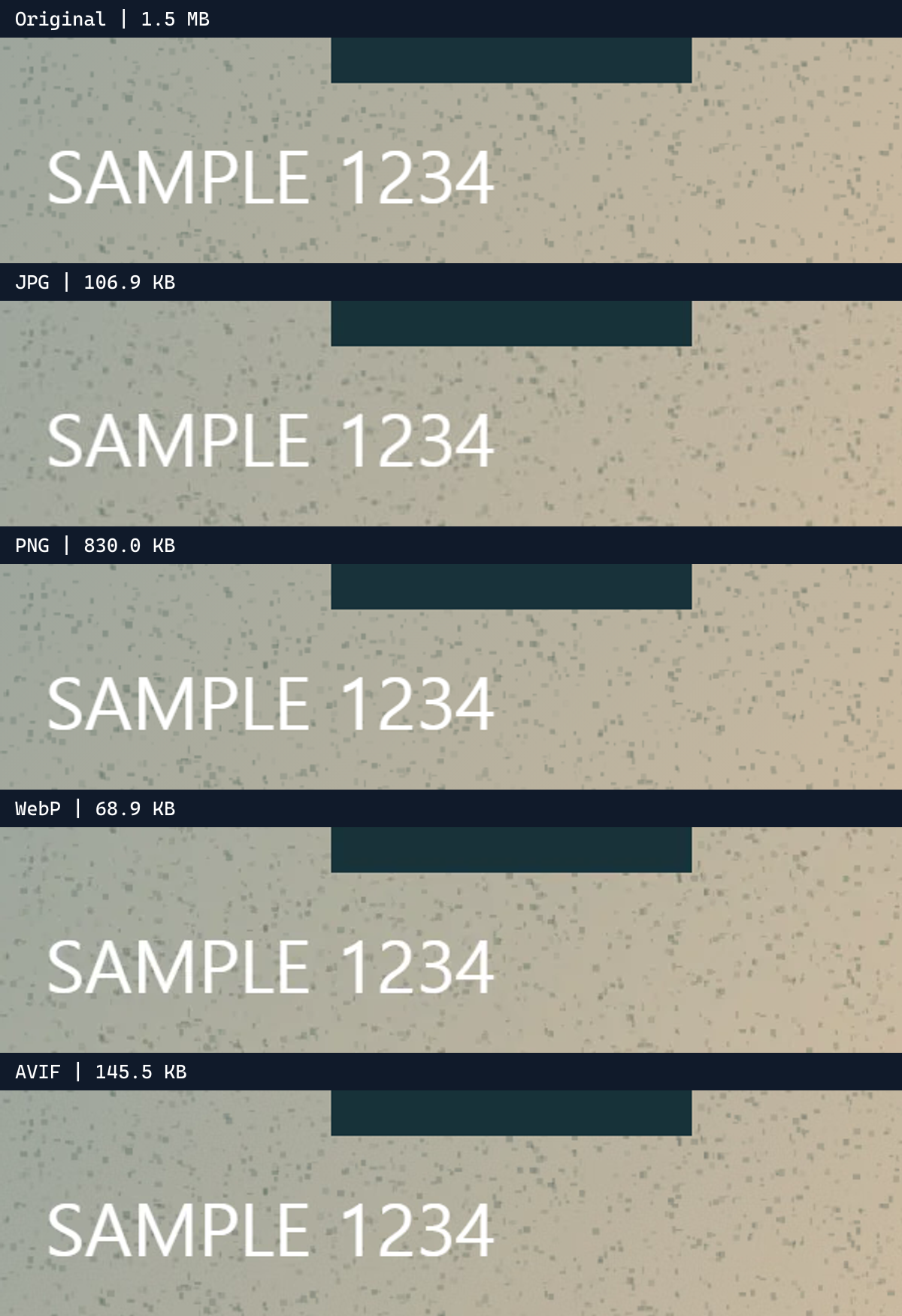
Our WebP was 68.9KB and the JPG was 106.9KB: a 35.5% saving. WebP's PSNR was about 0.5dB lower. For publishing this illustration on the web, we would try WebP first for its size advantage, then check the text and line edges in the enlarged comparison below.
AVIF was 145.5KB, larger than both, with the highest PSNR among the lossy outputs. PNG was 830.0KB and matched the original pixels. That gives us a useful choice: WebP for a small web copy, PNG to preserve the pixels, or JPG when the receiving service requires it.
What did we hold constant?
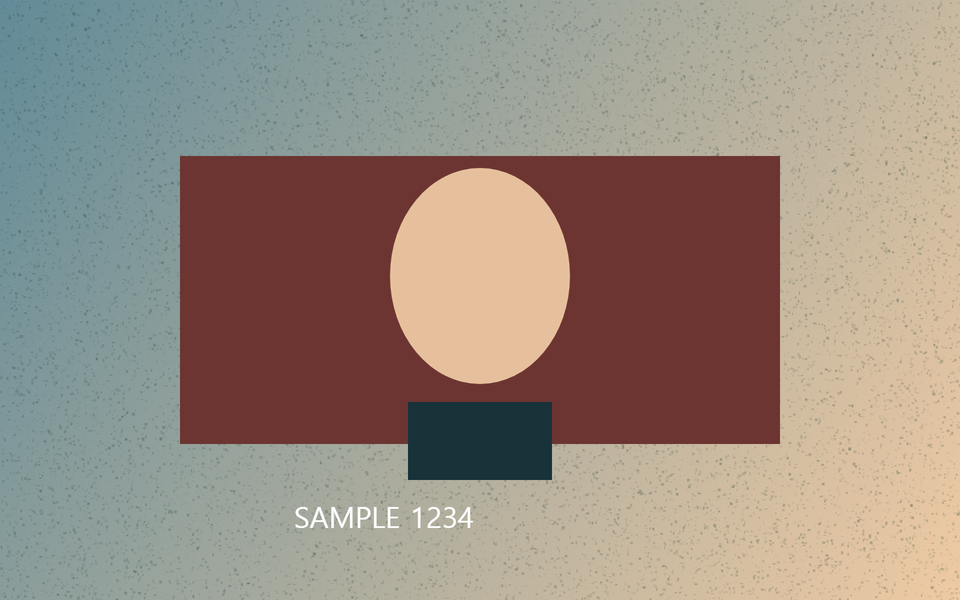
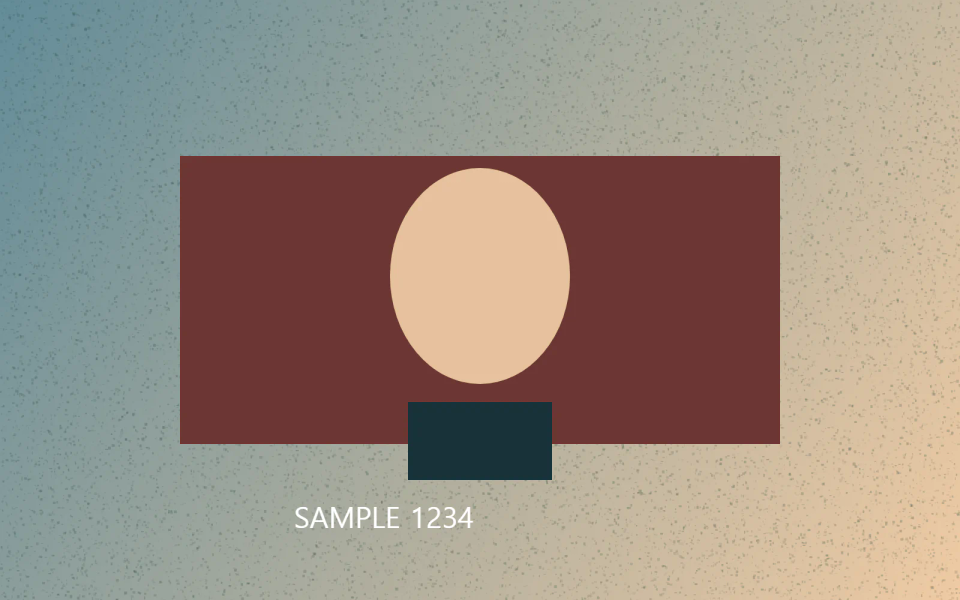
We drew one 1600×1000 illustration containing gradients, small textures, shapes, and lettering. JPG, WebP, and AVIF used a quality setting of 85; PNG retained the colors. Quality scales differ between encoders, so read the actual sizes alongside the measured differences.
PSNR compares all RGB values at the original resolution; a higher value means a closer numerical match. Use the same-crop images to judge the details that matter to you. Look at the intended display size as well as an enlargement.
Why start with JPG for attachments?
JPG is a practical choice for photo attachments and older software. Follow the destination's accepted-format list. If you are converting a transparent logo, choose and check the background that will fill the empty areas.
Start at the default quality. Add a file-size target when needed, and compare fine text or facial detail. If an unedited JPG already fits the allowance, using it as it is saves another encoding step.
When does PNG make sense?
Look at logos, charts, and screenshots with important sharp edges. PNG can retain the current pixels and transparency. Our textured illustration produced a relatively large PNG, so keeping an archival copy and making a separate web copy is useful.
Check transparent edges against light and dark backgrounds. White lettering and soft shadows can disappear against one background. If you reduce the color count for a smaller file, look for bands in gradients and changed colors around small text.
How should I compare WebP and AVIF?
Make a WebP copy and check that your publishing service accepts it. Try AVIF on the same image and compare its size, appearance, and encoding time. A larger AVIF, as in this test, may still be useful if you value its extra detail enough.
Choose comparison points for the image: leaves and sky for a landscape, eyes and hair for a portrait, small letters for a screenshot. Test one image before processing a whole batch. Keep your original separately so another format is easy to make later.
What's the quick workflow?
- Check the destination. If it specifies JPG, choose JPG first.
- Compare PNG for a pixel-preserving or transparent copy, and WebP for a small web copy.
- Save and reopen the result. Check edges, orientation, file size, and one real upload before processing the rest.
Once the format is settled, match the dimensions you need. Create each final version from the original and name copies by purpose so a web thumbnail stays separate from a future print source.
Open the related toolMeasured with MiruKit
| Setting | Actual size | Similarity to original |
|---|---|---|
| JPG | 106.9 KB | 42.9 dB |
| PNG | 830.0 KB | Matches original |
| WebP | 68.9 KB | 42.4 dB |
| AVIF | 145.5 KB | 44.9 dB |
PSNR compares the original color values; higher means more similar. Check important details in the enlarged images too. Sizes use 1,024 bytes per KB.
Good to know
These measurements describe the single illustration above. Check your own important details at the same zoom level.
Reducing a PNG's color count can change colors; converting a JPG to PNG preserves the current pixels rather than restoring earlier detail.
Multi-image or animated inputs use the first image, so keep the original if you need the full animation.