iPhone photo won't upload? Make a JPG copy of the HEIC
Written · Updated · Operator (individual)
You've reached the photo attachment on an application, but your iPhone picture is grayed out. Check whether the form accepts HEIC. If it asks for JPG, make a copy of the photo you need and keep the original in your library.
What does the upload form need?
Read the format, dimensions, and file-size limit separately. A form asking for JPG needs a conversion; a 200KB limit adds a compression step. If it also specifies width and height, get those right before matching the file size.
Start with the original where possible. A picture forwarded through messages may already be smaller. Check its dimensions if you have several similarly named copies. Give the new file a name such as application-photo.jpg so it is easy to find in the upload picker.
How do I make the copy?
- Open the HEIC file in Convert. On first use, wait for the processing-file download shown by the progress indicator.
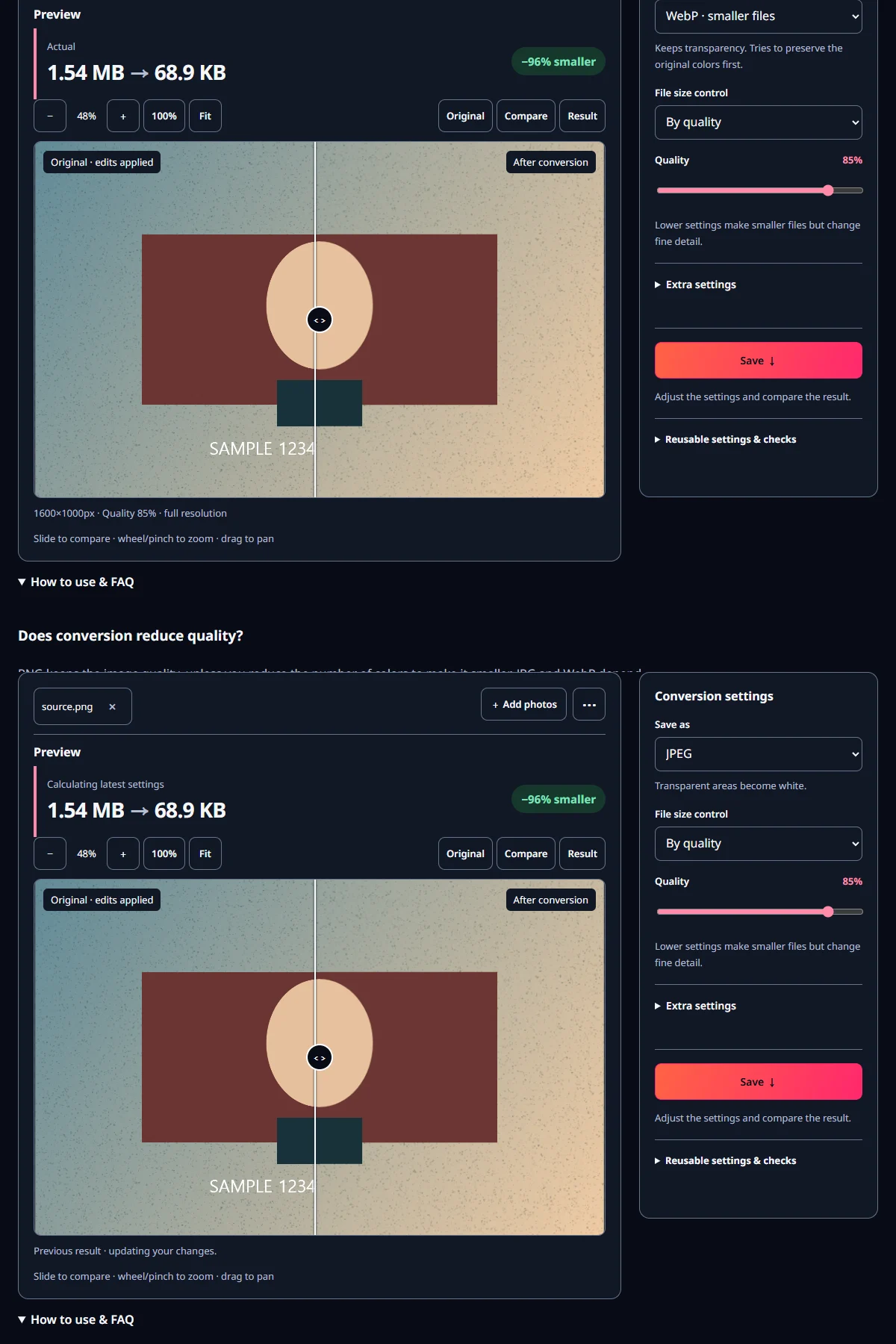
- Choose JPG. Start with the default quality and add a target file size if the destination requires one.
- Compare a face or small lettering, then save. Open the saved JPG to check its orientation and dimensions.
For a batch, try one photo in the actual attachment form before converting the rest. This catches a format or dimension mismatch early. Keep the job in one tab while the first processing file downloads, rather than starting the same preparation in several tabs.
The browser processes the photo on your device. It downloads the website and processing files from the internet. Your temporary work library stays in this browser, so open the original yourself if you switch to another browser.
What happened in our test?
A public libheif HEIC example became a 311.9KB JPG from a 701.3KB input, at 1280×854px. This particular conversion provided a compatible copy and a smaller file. The table below records the saved result.
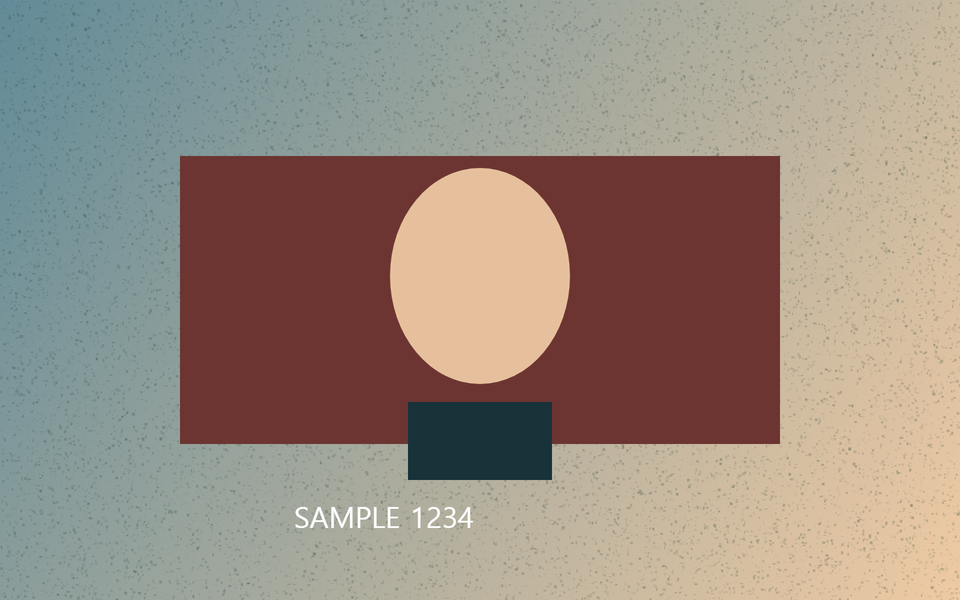
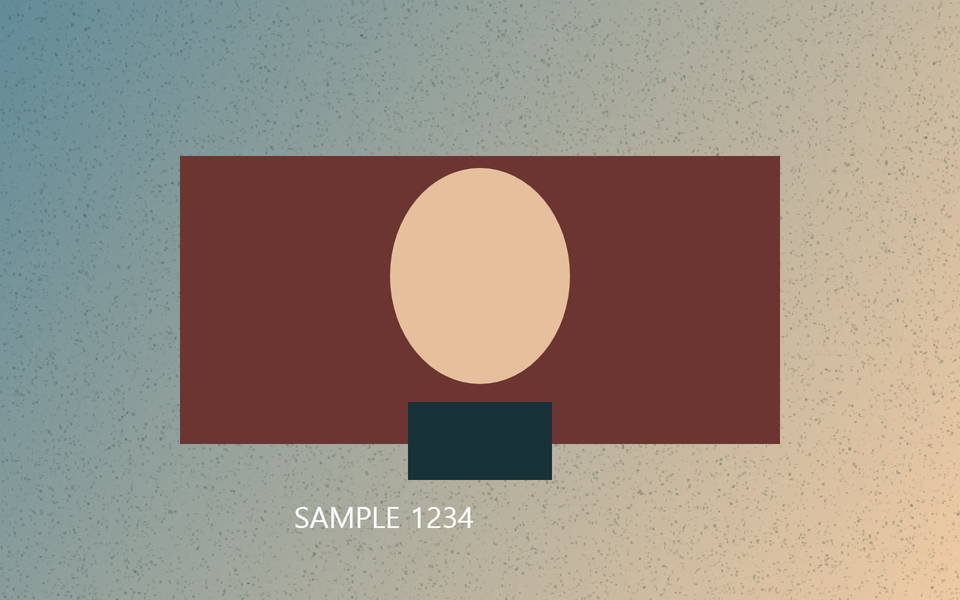
The HEIC photograph is not republished here. Our illustrations and tool screenshots use a separate image we drew. The measurements describe that one HEIC input; the illustrations show how to choose the output settings.
If your JPG is still too large, look at the required dimensions next. An attachment viewed at a small size may need fewer pixels than your original. Keep a full-size original for future editing or printing.
Can I shoot JPG next time?
On supported iPhones, Settings → Camera → Formats → Most Compatible saves subsequent ordinary photos as JPEG. That can be convenient for frequent attachments. Keep High Efficiency if you prefer its storage savings, and make JPG copies as needed. Apple's instructions are linked below.
Existing HEIC photos can be converted separately. On a Mac, Photos or Preview can also export to JPEG. After transferring a file, check the format that arrived rather than repeating the conversion automatically.
What should I check before sending?
View the original and copy in the same app on the same screen. If highlights look different, consider HDR display behavior as well as compression. Check eyes, hair, and small text at actual size, then look at the whole image at its intended display size.
Finally, attach the saved copy and check the destination's preview. Read any error and fix the named requirement first. A recognizable filename makes it much easier to avoid choosing the original again.
Open the related toolMeasured with MiruKit
| Setting | Actual size | Observed result |
|---|---|---|
| HEIC → JPGInput 701.3 KB | 311.9 KB | 1280×854 px |
Good to know
Renaming .heic to .jpg leaves the contents unchanged. Export a new JPG file.
The JPG copy contains the first image. Keep HEIC originals for extra images, depth data, or HDR features you need later.
For passport photos, follow the destination's official capture and editing rules as well as its file requirements.
Official sources

Sources checked 2026-10-15