Remove location data before sharing a photo
Written · Updated · Operator (individual)
You're posting a photo of something for sale and wonder whether its home location will travel with it. Remove capture information from the sharing copy, then check the filename and anything visible in the picture. Keep your private original separately.
Where is location stored?
A photo can hold latitude and longitude alongside capture time and camera information. These extra fields are often called EXIF. Start by opening the capture-information view and checking which fields your file actually contains.
Look at the picture separately. A building sign through a window, an apartment number, or a shipping label can give a location away. Rename the sharing copy if the filename includes a name or address. Treat metadata, visible contents, and filename as three checks.
How do I remove it in MiruKit?
- Open the source in Convert and use the capture-information view to check for location data.
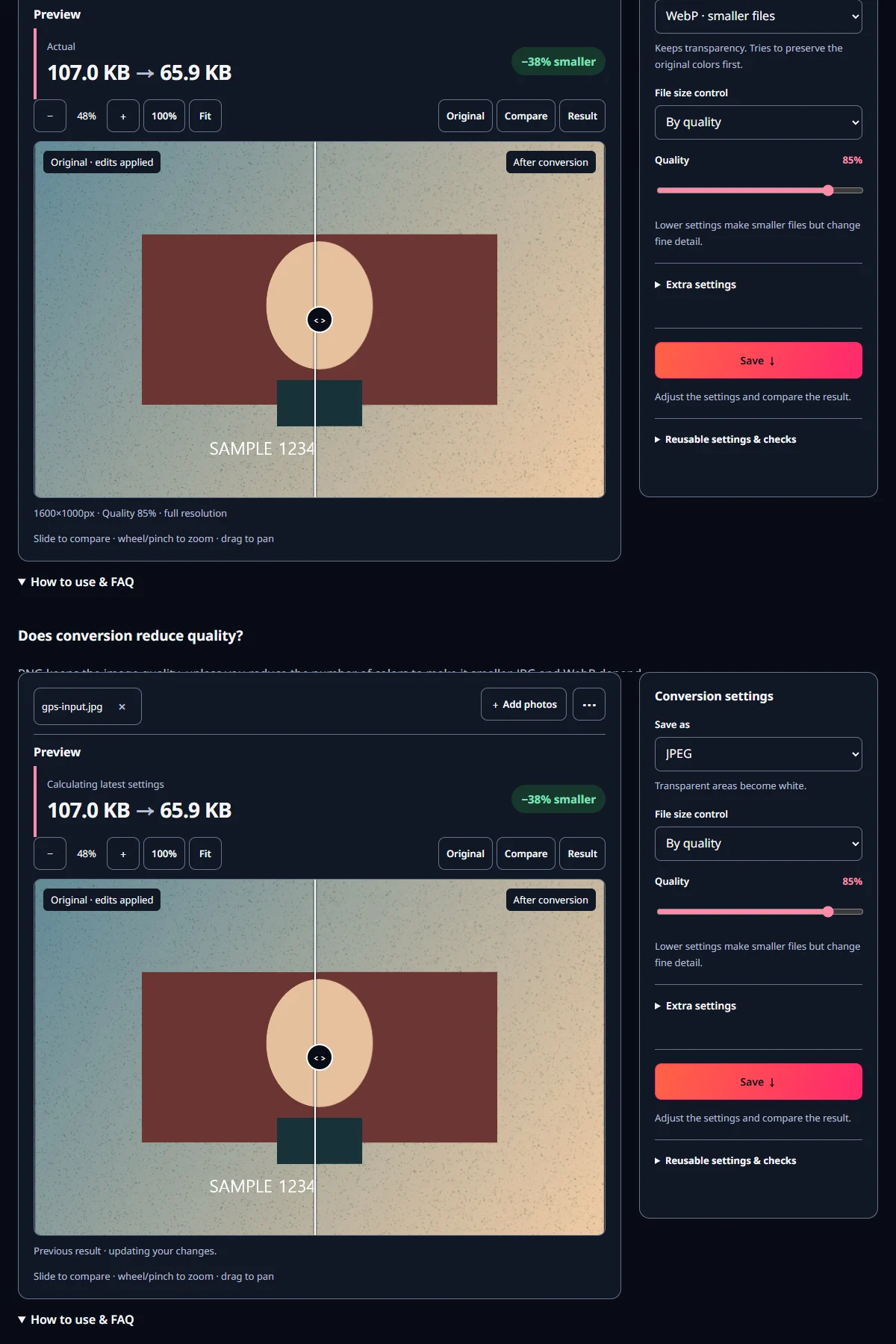
- Choose metadata removal in the save settings. Review whether any basic information needs to be retained for this particular copy.
- Reopen the saved file and check the location fields, picture contents, and filename before sharing.
MiruKit removes capture information by default. If you choose to retain basic details such as date or camera information, check whether those fields are useful to the recipient. Keeping a private original and a separate public copy makes that decision easier.
Did removal work in our test?
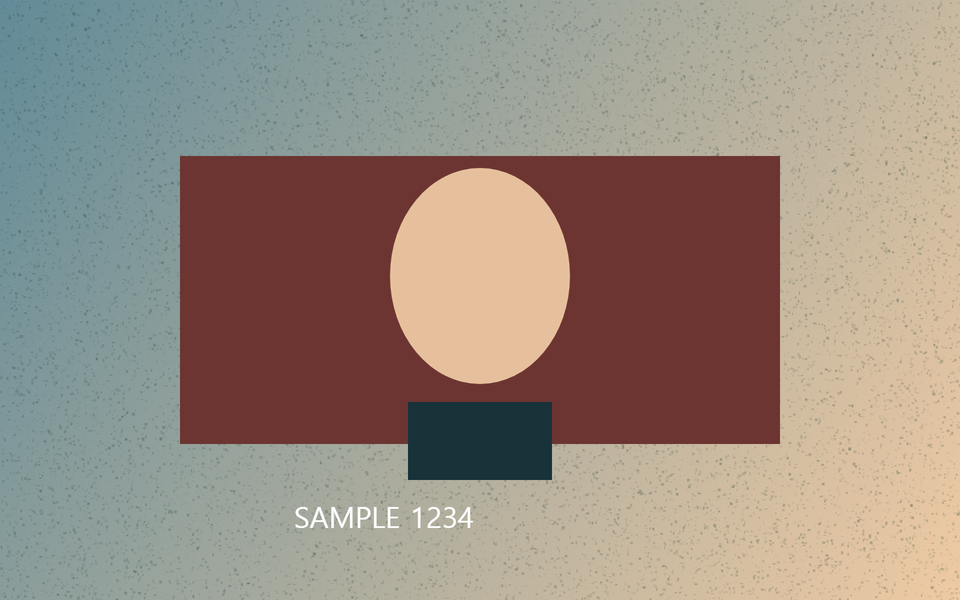
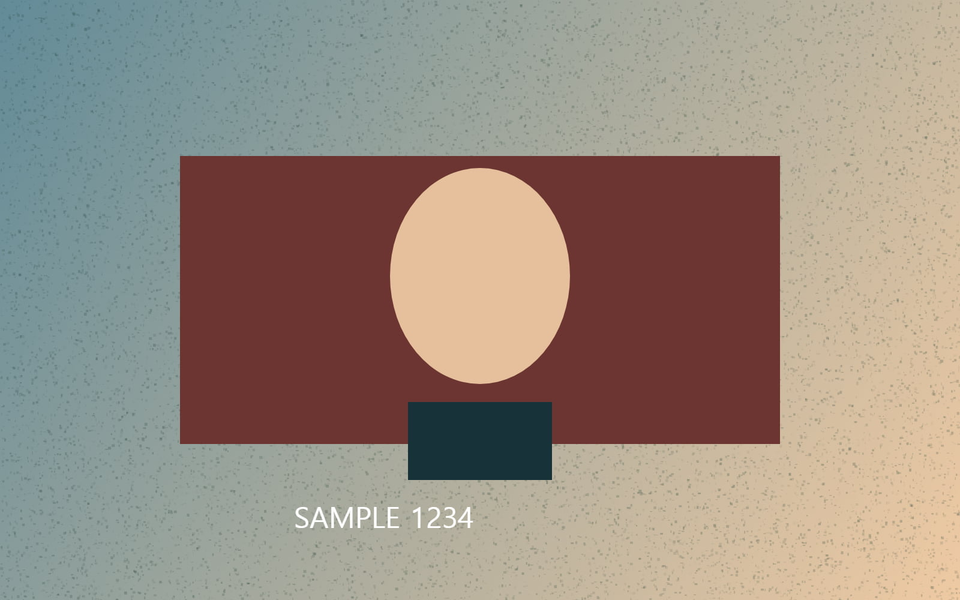
We added invented GPS coordinates to our own JPG and saved it through MiruKit with metadata removal. GPS tags were present in the input and absent in the output. The table records that change and the actual file size. The invented coordinates describe no real person's location.
Inspecting the output checks both the setting and what was saved. Use the copy you intend to send for your own check. A private original can keep its location while a sharing copy has it removed.
Can I keep the image quality?
If an already small JPG needs no visual edits, use a workflow that avoids unnecessary recompression. MiruKit checks whether it can reuse the original image data while honoring the metadata setting. Reopen the result and check its information and appearance.
If you also need a crop or rotation, work from the source and apply information removal to the final copy. Carrying the work between tools is easier to manage than repeatedly exporting intermediate JPGs. Separate source and sharing folders help you choose the right file later.
What about addresses and faces in the picture?
Crop away unnecessary edges. For a face or number plate, select the area in Cutout and apply mosaic. Inspect sensitive lettering at full size and check reflections for a second copy of it. A smaller, cleaner composition also leaves less to inspect.
Check every image in a batch. A label covered in the first photograph may remain visible in the next. Keep completed copies together in a sharing folder so an untouched original is less likely to be selected accidentally.
Should I clear the browser work library?
The work library stays in this browser. Expired work is cleaned up when you next open the site; the default period is 24 hours. You can also clear it immediately in saved-data settings. Another browser or device has its own separate storage.
Manage downloaded copies and connected-folder backups in their own locations. You can clear temporary editing work while retaining the final file you saved yourself. Keeping temporary and long-term copies separate makes later cleanup simpler.
What is the final check?
Open the final copy and review metadata, visible contents, and filename in that order. Select it directly in the message or upload picker. A name such as sharing-copy helps distinguish it from the original. After posting, check that the intended image appeared.
If you already shared the original, replace or remove it through that service. Keep track of which copies you updated so another untouched attachment is not overlooked.
Open the related toolMeasured with MiruKit
| Setting | Actual size | Observed result |
|---|---|---|
| Remove capture information | 107.3 KB | GPS tags: present → absent |
Good to know
Our test checks EXIF GPS removal in JPG. Inspect the saved information when using other formats too.
A landscape or label can still reveal a location after GPS removal, so inspect the picture as well.
Deleting a local copy leaves files already shared elsewhere to be managed through those services.