Hide faces and number plates, then check the saved photo
Written · Updated · Operator (individual)
A shipping label is visible in a listing photo, or a stranger's face appears in a travel picture. Select a little beyond the area you want to hide and apply mosaic. For sensitive numbers, consider an opaque cover or cropping the information out entirely.
What should I look for first?
After faces and plates, check badges, phone numbers, shipping labels, and screens. Windows and mirrors can show the same information again. Scan the image in sections from the top left to make small details easier to spot. Check each photo in a batch.
Mosaic groups detail into larger blocks. Adjust the block size to the lettering or face in your photo. For a short, sensitive number, consider the surrounding words too. If that area adds nothing useful to the image, removing it can be the clearest choice.
How do I apply mosaic in MiruKit?
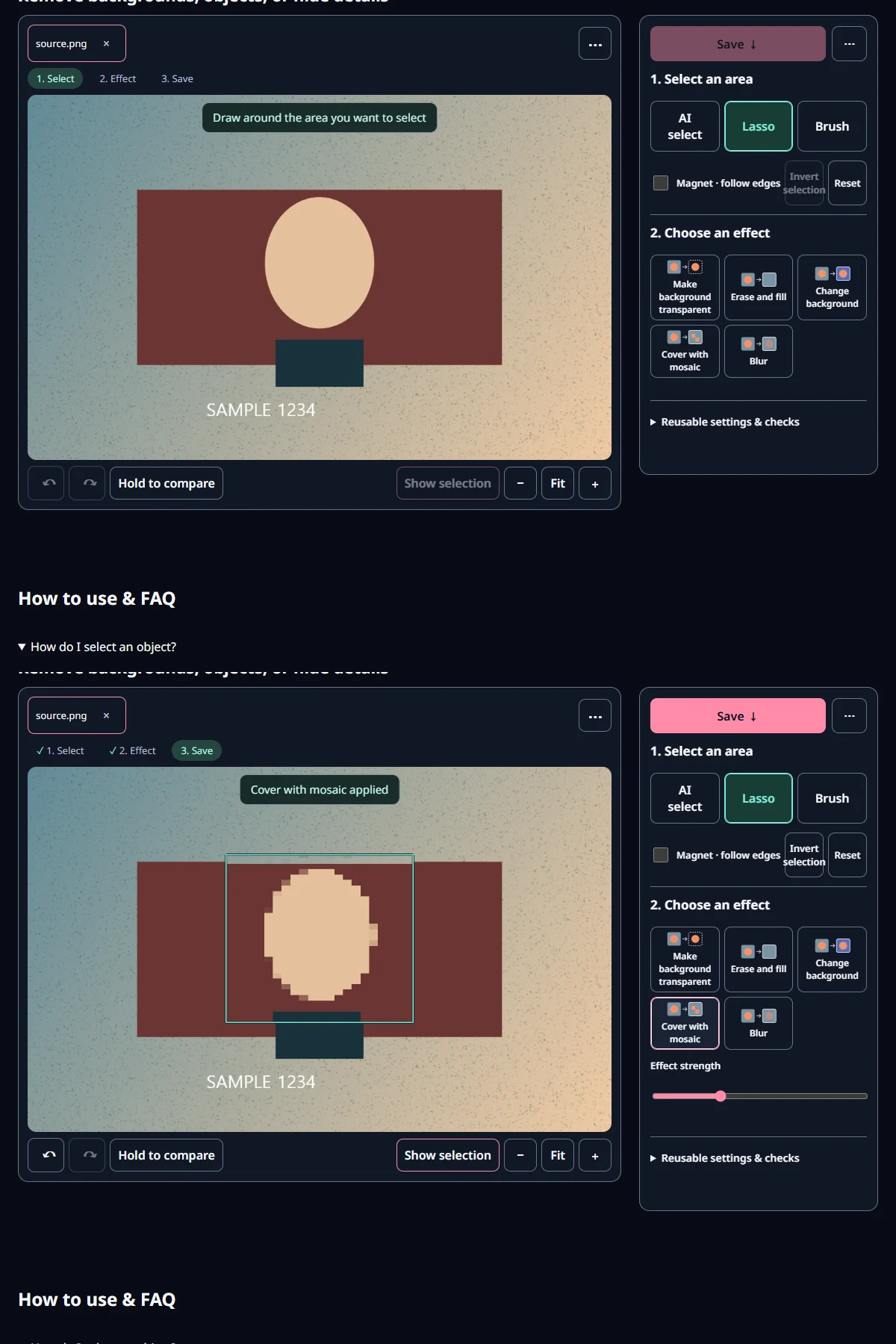
- In Cutout, use Lasso or Brush to select the area, leaving a little margin around letters or the plate edge.
- Apply Mosaic and adjust its block size. Enlarge the result to inspect what detail remains.
- Save and reopen the copy. Turn off the selection outline so you can look at the picture itself.
The mint outline marks a selection; pressing an effect applies the change. Hold Compare to see the original and release it for the result. Once you have checked the difference, use Save to create the sharing copy.
How large should the blocks be?
Check at actual size. A number that looks hidden in a small fitted preview may still be readable when enlarged. Increase the block size or widen the selected area, then inspect again. Look at the final publishing size as well.
Strong feathering weakens an effect along its edge. For private text, include the last character and keep the soft boundary small enough to inspect clearly. After subtracting from a selection, look again for a digit that has become visible.
Blur or mosaic: which fits the task?
Blur is useful for making a background less distracting. When hiding private information, focus first on what remains visible. A short number, distinctive clothing, or surrounding words can still identify something even when fine detail is reduced.
For an address or document reference that must stay private, an opaque cover or a crop makes the intent clearer. Save the edited picture as a new sharing copy and keep the editable source private. A separate folder helps prevent sending the wrong version.
What does the example below show?
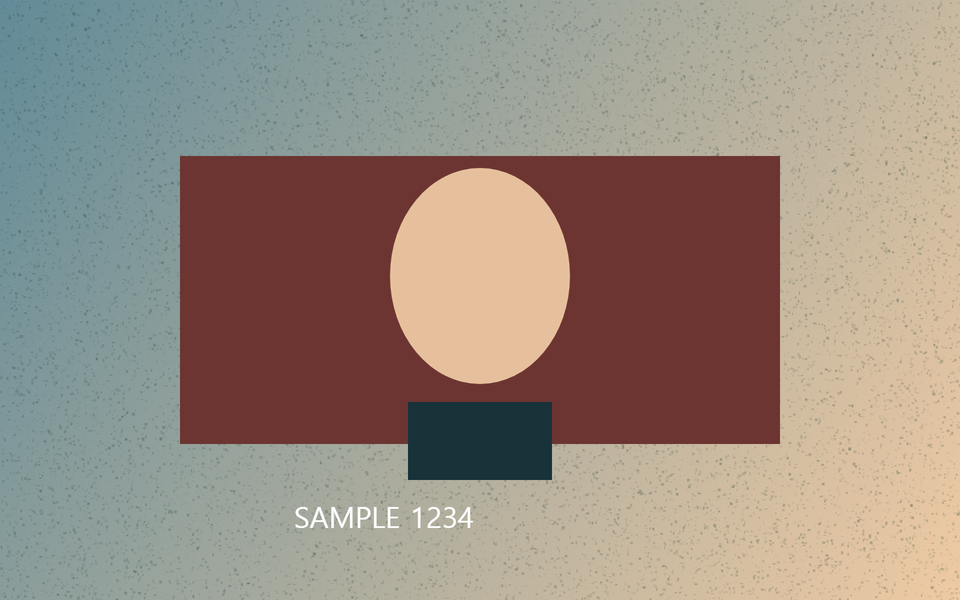
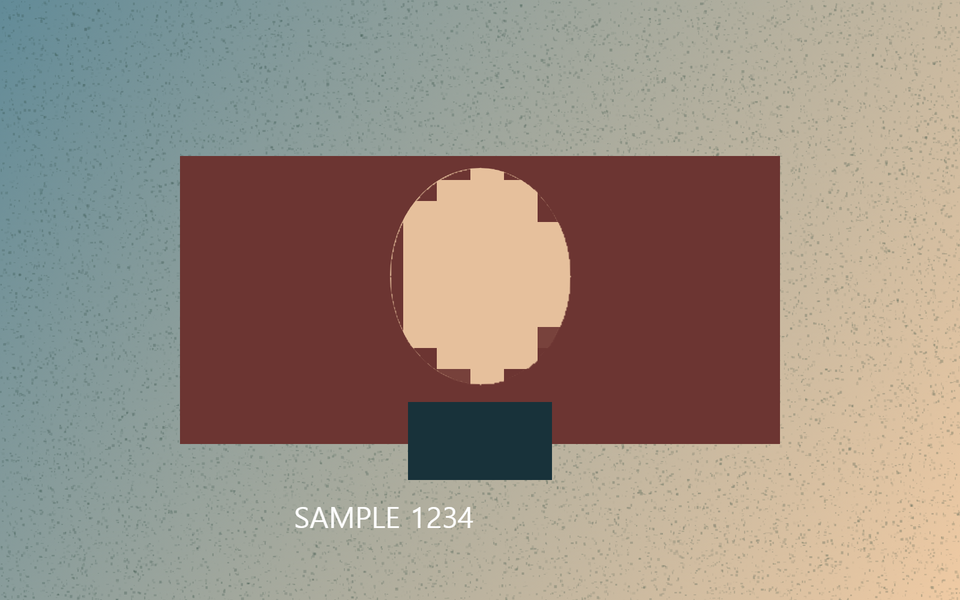
We applied mosaic to a known ellipse in our own illustration. The table records saved file size and changed pixels outside that area. The images show the effect's position and boundary, using the shared MiruKit renderer.
We also reopened the saved result to compare the same location. Follow that step with your own photo. Without the tool's outline and messages, missed text or an uncovered corner is often easier to see.
Should I check location data too?
Remove capture information such as location in the save settings. Rename a copy whose filename includes a personal name or phone number. Reviewing visible contents, capture information, and filename together makes a sensible sharing check.
If the original is already online, replace or delete it through that service. After making a new copy, check the places where you actually shared the image. Temporary browser work and downloaded files can be cleaned up separately.
How should I finish on a phone?
Open the new file from Downloads. If the gallery displays both source and result, use the filename or save time to identify the edited copy. Share the saved file rather than a screenshot taken while holding Compare, which shows the original.
Inspect the other photos in a batch too. Different face sizes and camera distances call for different selections and block sizes. A second person's check can help spot a small piece of text before a public post.
Open the related toolMeasured with MiruKit
| Setting | Actual size | Observed result |
|---|---|---|
| Mosaic | 1.5 MB | Changed pixels outside selection: 934 |
Good to know
Mosaic and blur do not make information reliably unrecoverable. Cover or crop sensitive content sufficiently.
Our example checks effect placement, rather than resistance to face identification or text reconstruction.
Before sharing, confirm that you selected the edited copy instead of the original.