Put several photos into one PDF: page order and paper margins
Written · Updated · Operator (individual)
Someone asks you to send three receipts as one file. A long stitched image makes them scroll and zoom, and sending separate attachments makes it easy to miss a page. A PDF with one photo per page is easier to review in order and print when needed.
Should I make one image or a PDF?
A vertical collage produces one tall image. It is useful for a message or a product description, but the image itself does not define separate sheets of paper. A PDF can hold individual pages, making it a better fit for receipts, assignments and scanned forms with a clear reading order.
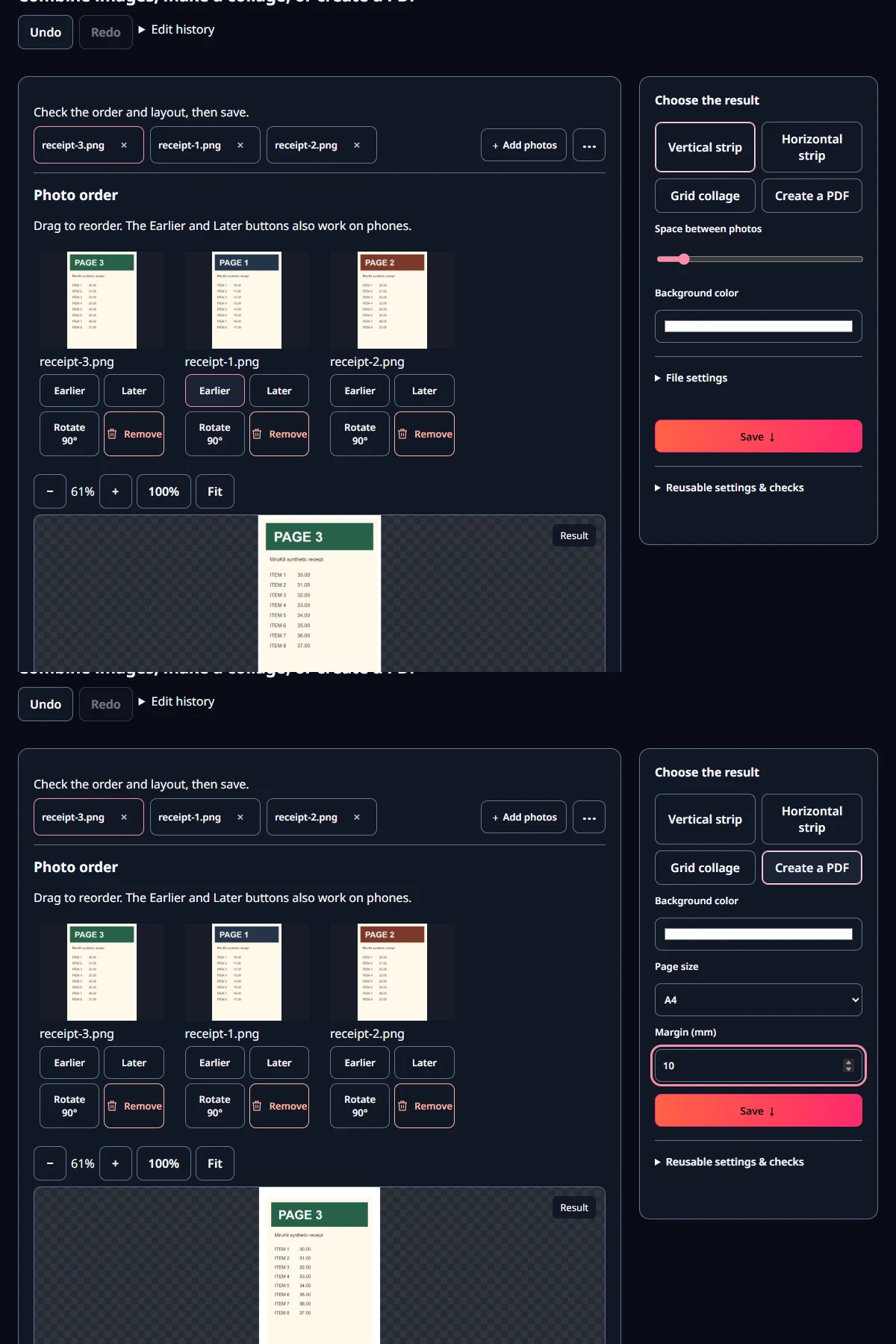
In MiruKit’s Combine & PDF tool, choosing PDF puts each photo on its own page. You can use A4, Letter or page dimensions based on the original image. Follow the recipient’s requested format and paper size first; a readable attachment is more useful than an unexpected layout.
How do I keep the pages in the right order?
Do not assume that the order in the file picker matches the dates or names you have in mind. Check the thumbnails and move pages forward or backward. Also check which edge is the top. Numbering source files 01, 02 and 03 can make them easier to find again later.
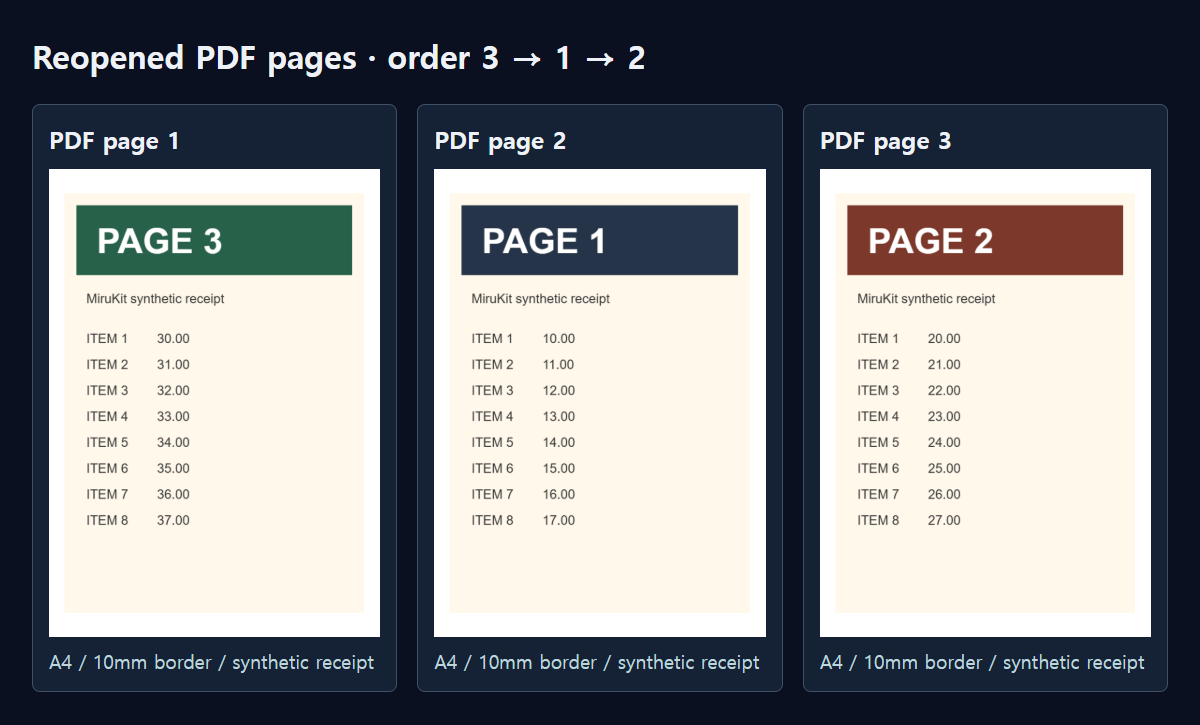
For our test, we drew three synthetic receipts containing no personal or payment information. Each includes a large PAGE 1, PAGE 2 or PAGE 3 label. We sent them through MiruKit’s shared PDF generator in the order 3→1→2, reopened the resulting file and rendered its pages. The pictures below come from the saved PDF, rather than an editor’s layout estimate.
Which paper size and margin should I choose?
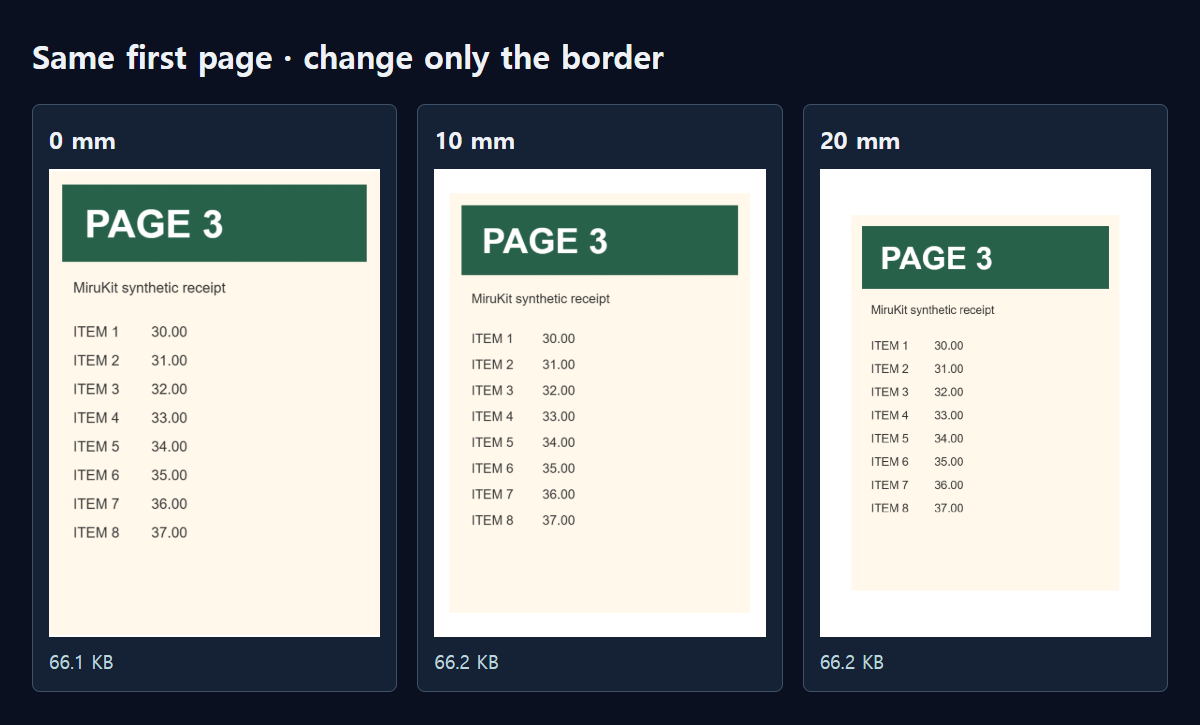
A4 measures 210×297mm. Letter measures 8.5×11 inches. Choose the size your recipient or printer expects. The photo keeps its proportions and fits within the available space, so the unused area becomes a margin. The requested margin is a minimum border; a differently shaped photo may leave more space on another side.
We made three A4 versions with margins of 0, 10 and 20mm. Their sizes were 66.1KB, 66.2KB and 66.2KB, with three pages in each file. Every page measured 595.276×841.89 PDF points, matching A4. Increasing the border made the picture smaller on paper, but barely changed the file size. Use margins to improve layout, rather than to compress the PDF.
How do I make the file in MiruKit?
- Open Combine & PDF and choose your photos. You can practice with our synthetic receipts before using real documents.
- Check each thumbnail, move it into the correct order and rotate any sideways image.
- Choose PDF. Select A4 or Letter when you need a consistent paper size.
- Start with a 10mm margin and check the smallest text. Reduce the border if you need a larger image on the page.
- Save, then reopen the PDF to check its page count, first and last pages, rotation and text near the edges.
Reopening the actual attachment catches mistakes that a preview alone can miss. You might have selected a different saved file or remembered the order incorrectly. Our downloadable sample contains only invented receipts, so you can check the result without handling anyone’s real documents.
Can I search the words in this PDF?
The tool places pictures on pages. It does not perform OCR to turn the photographed writing into searchable text. If the recipient requires a searchable PDF, check its accepted workflow or use an appropriate text-recognition step. Also inspect small lettering visually before sending.
What if the PDF is too large?
Check the input image dimensions before changing the margins. Several full-resolution phone photos can require substantial memory. Reduce dimensions only as far as small text remains readable, rebuild the PDF and zoom into the saved result. Always compare the final PDF with the attachment limit. Compressing a source JPG does not guarantee the same reduction in the PDF, because the tool decodes and embeds the image again.
Open the related toolMeasured with MiruKit
| Setting | Saved size | Reopened file |
|---|---|---|
| A4 · 0 mm | 66.1 KB | 3 pages · order 3→1→2 |
| A4 · 10 mm | 66.2 KB | 3 pages · order 3→1→2 |
| A4 · 20 mm | 66.2 KB | 3 pages · order 3→1→2 |
The shipped mergePDF saved three synthetic receipts in order 3→1→2. Each PDF was reopened to verify three A4 pages and rendered with Poppler. The border is a minimum; aspect-ratio fitting may leave extra space.
Open the sample PDF · synthetic receipts only
Good to know
Our test receipts are synthetic. For real paperwork, remove unnecessary account numbers, addresses or other personal details before sharing.
Mixed portrait and landscape inputs can leave different amounts of blank space. Confirm the recipient’s paper-size and file-size requirements on the final saved file.
Official sources
Sources checked 2026-10-15