Fix yellow or blue photos with white balance and the eyedropper
Written · Updated · Operator (individual)
The mug on your desk is white, but the photo makes it look yellow. Raising Exposure only makes it a brighter yellow. Try adjusting the color balance instead. A part of the scene that you know was white or gray gives you a useful starting point.
Is the problem brightness or color?
Look at a plain wall or a sheet of paper. If it is dark but reasonably neutral, start with light adjustments. If it is bright enough but yellow or blue, start with Color balance. For a photo with both problems, roughly correct the brightness before judging the color. Changing several controls together makes it harder to see which one helped.
White balance sets the relationship between colors using a neutral reference. MiruKit groups Temperature, Tint, Auto and the eyedropper under Color balance. Think of Temperature as a warmer/cooler adjustment, and Tint as a way to correct green or magenta casts.
Where should I click with the eyedropper?
Choose something that really was neutral when the photo was taken: a blank part of a sheet, gray fabric or a gray reference card. Clicking a yellow object because you want it to become white can push the rest of the picture toward the opposite color. Knowing the original surface matters more than finding a bright-looking spot.
Avoid a shiny reflection that has become solid white, or an almost black patch. Those areas contain little usable color information. MiruKit samples a small area around your click, so use the inside of an even surface rather than an edge mixed with lettering or another object.
What happened in our controlled test?
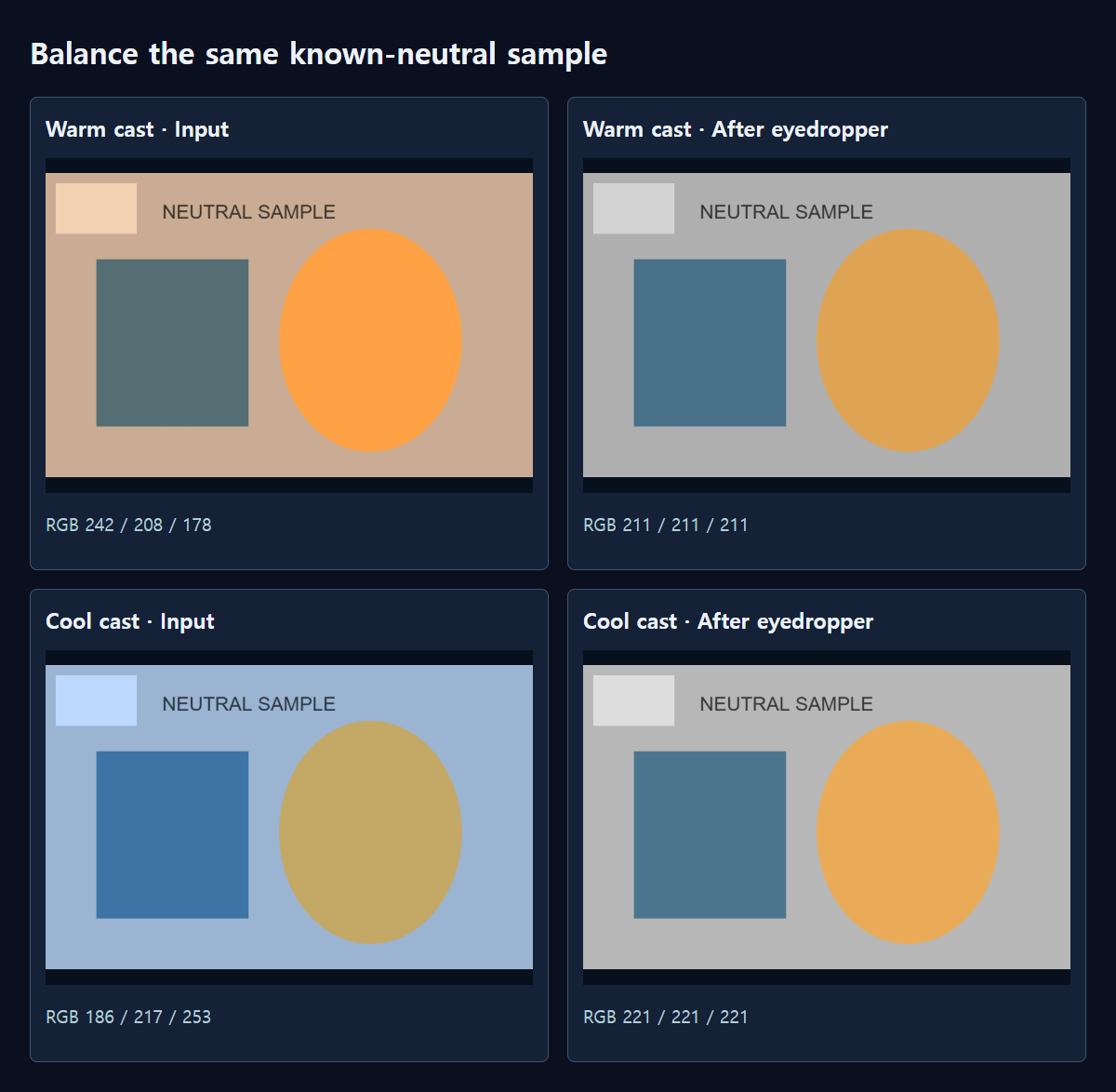
We drew a 960×600 scene with a light-gray sample and blue and yellow objects. We added a warm cast and a cool cast separately, then passed the same gray area through MiruKit’s actual neutral-sample calculation. This is a synthetic test with a known reference, rather than a camera photograph.
In the warm version, the sample’s red, green and blue values were 242, 208 and 178. After correction they were 211, 211 and 211: the spread between the highest and lowest channel fell from 64 to zero. The cool version changed from 186, 217 and 253 to 221, 221 and 221, reducing its spread from 67 to zero. Sampling the neutral surface removed both casts in this example.
Notice that the corrected grays have different brightness values, 211 and 221. The calculation balanced the sample; it did not perfectly recreate every original color or brightness. Look at the blue and yellow objects alongside the sample in the comparisons below. A neutral-looking patch is a useful checkpoint, not the entire editing decision.
How do I use the controls in MiruKit?
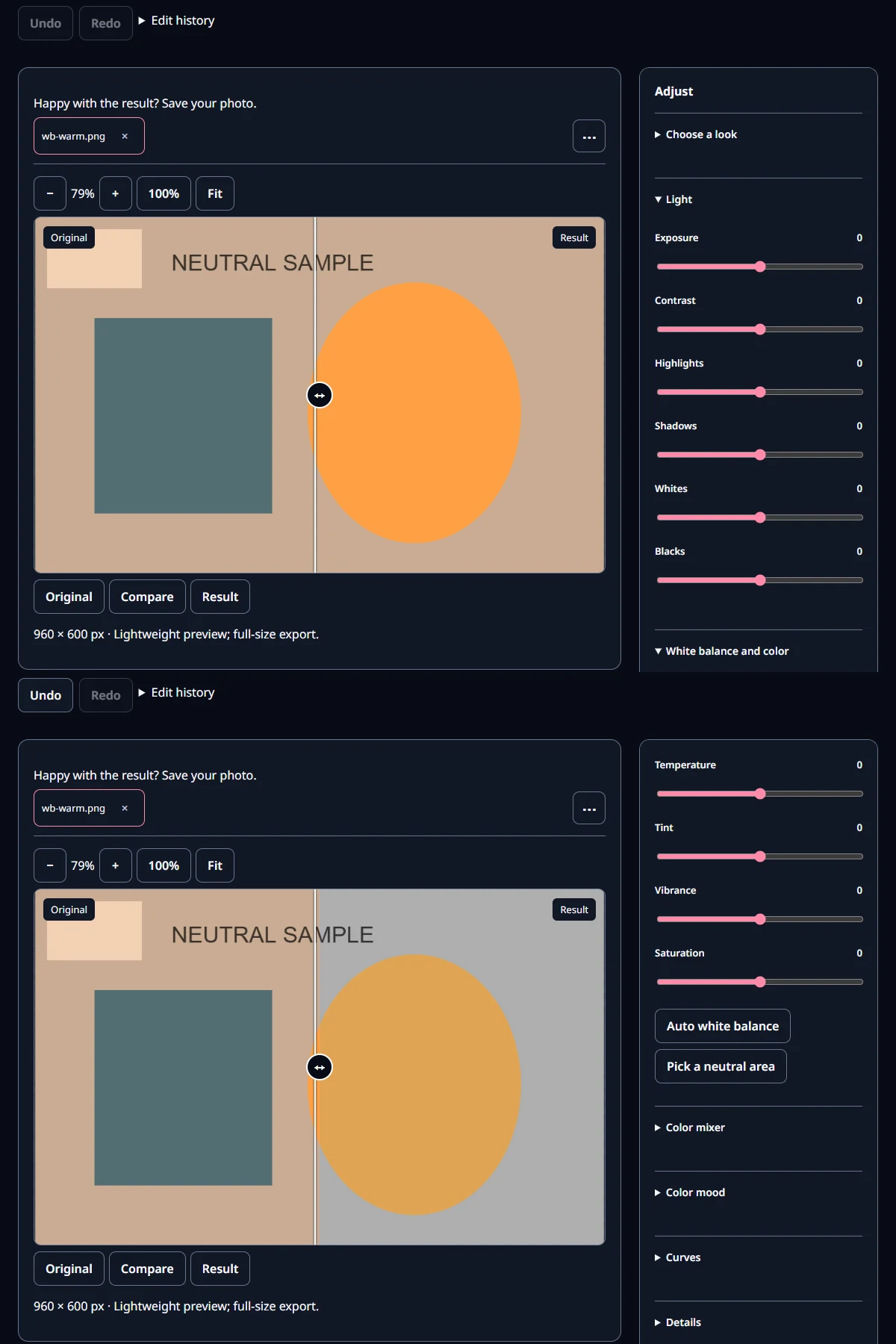
- Open the original in the photo adjustment tool and expand Color balance. Start without a preset to see the correction clearly.
- Try Auto once. If the scene looks natural, you may need only a small refinement.
- If you know a neutral surface in the scene, choose the eyedropper and click inside that surface.
- Return to the full view and check skin, white objects and important product colors. Fine-tune Temperature and Tint if needed.
- Compare with the original, then save a copy. Keep the screen brightness consistent while comparing.
Why can Auto make a photo look worse?
A green woodland or orange wall may genuinely dominate a scene. An automatic calculation has to work with the colors in the picture, so compare its answer with the original rather than treating it as a fixed target. If you have no reliable neutral surface, make small manual changes and watch familiar objects or skin tones.
Mixed lighting is another challenge. A lamp and a window can produce different casts in different areas. A whole-image adjustment may fix one while leaving the other. Prioritize your main subject. For repeat product shoots, using consistent lighting and including a gray card in a reference frame makes later editing easier.
Why does the result look different on another screen?
A phone’s night mode or warm-display setting changes the way white appears. Keep those settings consistent during comparison and view the original and edit on the same screen. For a product listing, also compare important colors with the physical item. The aim is a useful representation of what the buyer will receive.
Open the related toolMeasured with MiruKit
| Sample | Input RGB | Corrected RGB |
|---|---|---|
| Warm | 242 / 208 / 178 | 211 / 211 / 211 |
| Cool | 186 / 217 / 253 | 221 / 221 / 221 |
The same 5×5 known-gray sample in a synthetic 960×600 scene was passed to the shipped neutralGain eyedropper calculation. Values are display RGB (0–255), not a color-chart accuracy certification.
Good to know
These measurements check RGB neutrality in a synthetic sample. They are not a certification of color accuracy across a real photograph.
Choose a surface whose original color you know, and keep the original file. Even a white object can look different across shadows and mixed lighting.
Official sources
Sources checked 2026-10-15