Text or logo watermark: placements that crop out easily, and ones that don’t
Written · Updated · Operator (individual)
The most common place for a credit on a photo is the bottom-right corner. A corner mark, though, disappears when someone trims a thin strip off the edge. We drew a sea photo and a mug photo, marked them with text and a logo in several places using MiruKit’s Watermark tool, and measured from the actual output how much of each photo you would have to throw away to crop the mark out.
What does the Size value mean?
Size, under Details, is a share of the photo’s width. On a 1600×1067 photo, Size 20 makes the mark about 320 pixels wide. This is where text and logos differ. A one-line text such as “© MIRU STUDIO” was 313 pixels wide but only 53 pixels tall. A square logo image at the same Size 20 came out at 320×320 pixels: about the same width, but roughly six times taller. Picking the same number, the logo covers far more of the photo than the text does.
How easily does a corner mark crop out?
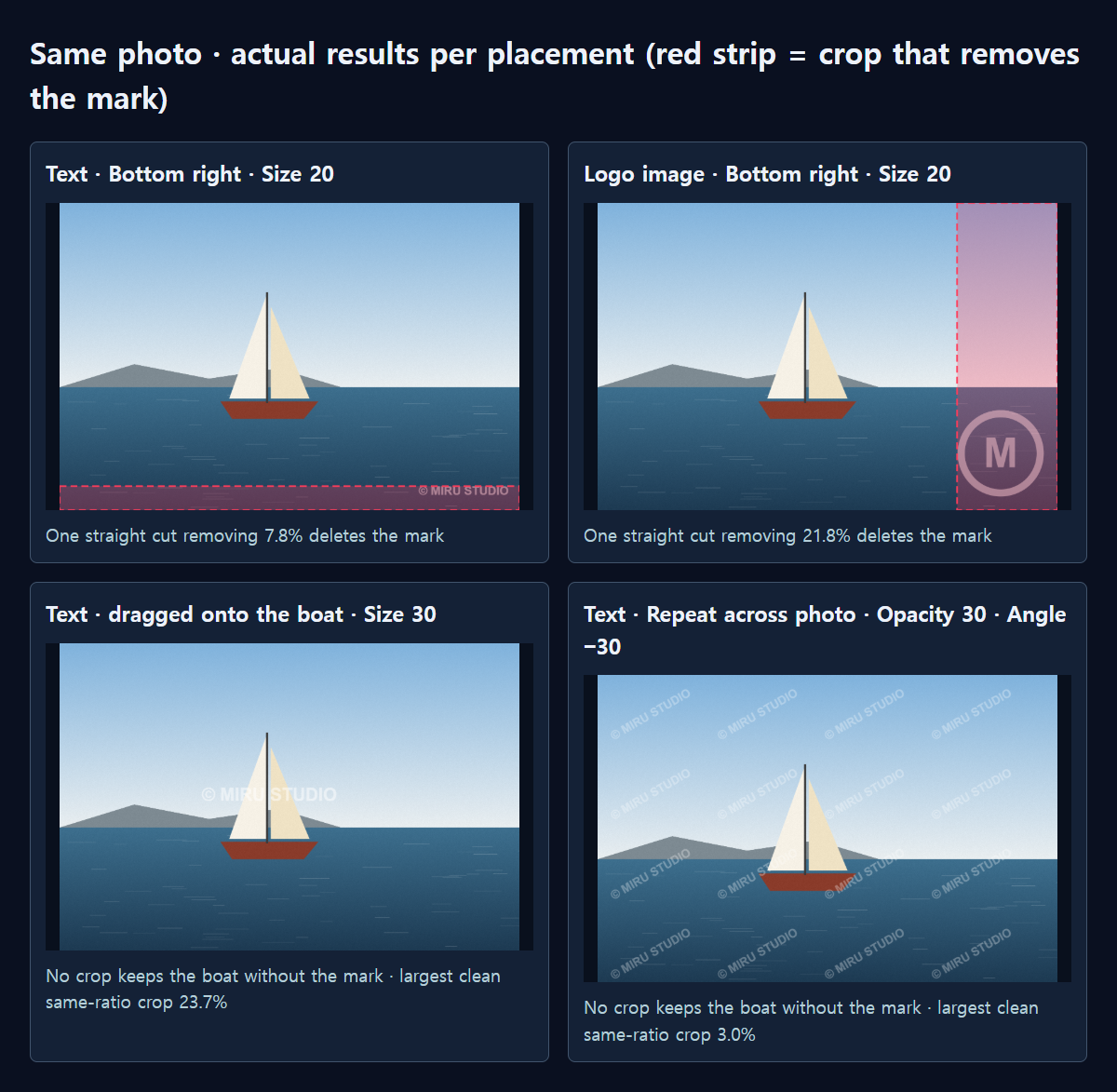
With text at Size 20 in the bottom-right corner of the landscape photo, one straight cut removing just 7.8% of the photo along the bottom deleted the mark completely. Raising the size to 35 only pushed that to 11.0%. On the portrait photo the figures were even smaller: 4.3% and 5.7%. Even a crop that keeps the photo’s original aspect ratio could still keep a mark-free 85.1% of the area. In other words, someone can crop the mark away and hardly anyone would notice.
A logo holds out a little longer because it is taller. The same corner logo at Size 20 needed a 21.8% cut from the right side to disappear, and at Size 12 it needed 14.0%. Either way, the boat, the subject of the photo, survived intact. A mark sitting in a corner, text or logo, is not much of an obstacle for someone who wants to crop it out.
Where should it go to be harder to crop?
Things change when the mark overlaps the subject. When we dragged the text onto the boat, there was no crop that kept the boat and removed the mark. The largest mark-free crop with the same aspect ratio was 23.7% of the photo, and the boat did not fit inside it. Text at Size 40 in Center gave a similar 22.9%.
Choosing Repeat across photo under Position is stronger still. Text at Size 20 repeated at an Angle of −30 left a mark-free same-ratio area of only 3.0% of the landscape photo and 1.2% of the portrait one. A repeated logo at Size 12 left 1.1%. The trade-off is that a repeated pattern gets in the way of viewing the photo, so it suits shared copies rather than the image you want people to enjoy.
What does Opacity change?
Opacity does not change where the mark sits. At Opacity 15 the mark crops out exactly as it does at 30 or 80. What changes is how visible it is. White text over the dark sea changed the pixels by 57.5 on average at Opacity 30 (on a 0–255 scale) and was clearly readable. White text placed over the bright sky and white sails changed them by only 11.4 at Opacity 30 and 19.1 at Opacity 50, and it was barely visible even in the preview. When the mark has to sit on a bright area, pick a darker color with the Background color control (it sets the text color) or raise the opacity.
How to try it in MiruKit
- Add photos to Watermark and pick Text or Logo image under Your watermark.
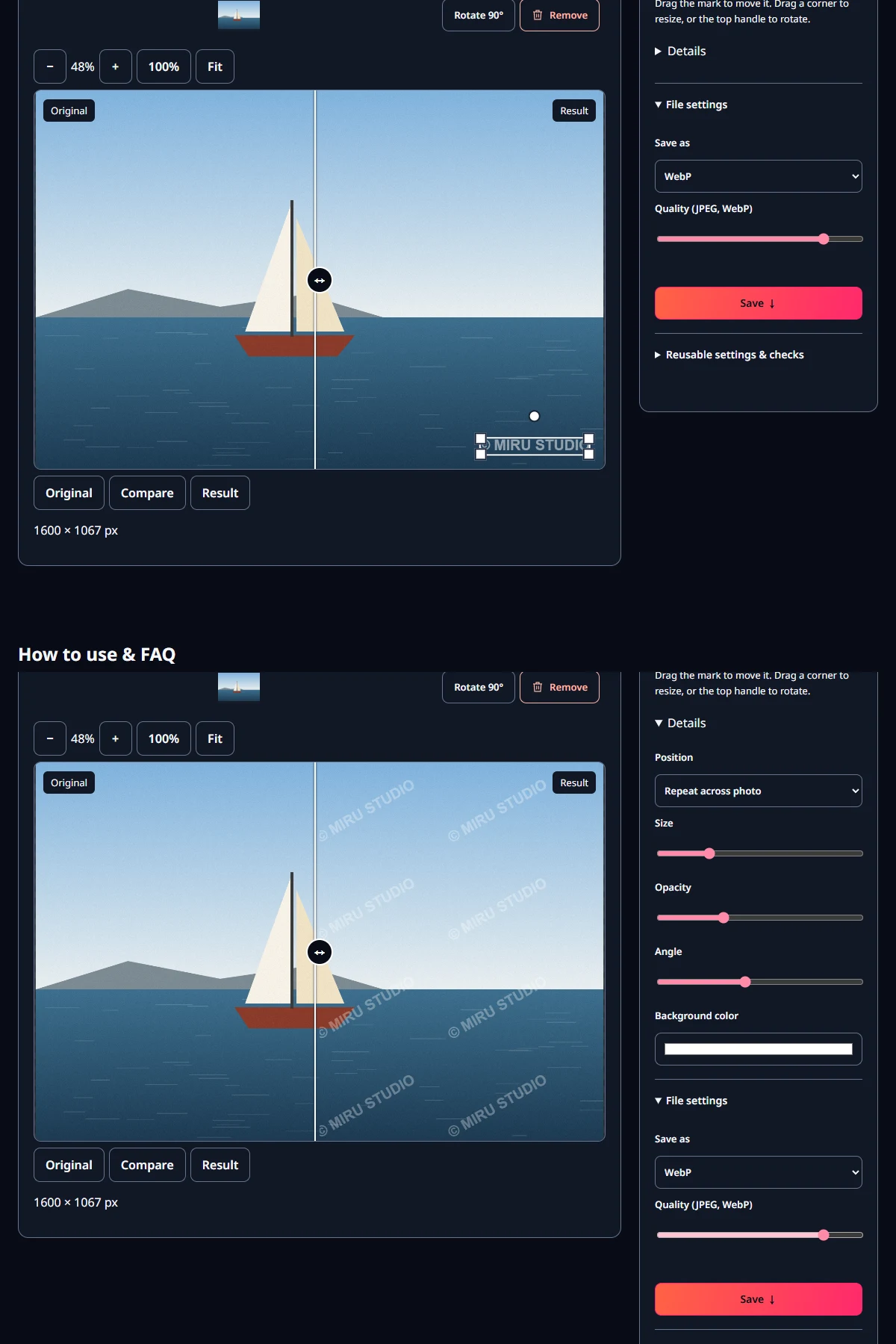
- Open Details and set Position, Size, Opacity and Angle.
- To overlap the subject, drag the mark on the photo.
- Switch between Original, Compare and Result to check the mark is visible on bright parts too.
- Open the saved file and see whether a small trim of the corner leaves the mark behind.
Measured with MiruKit
| Placement · size | Landscape: one cut removes it | Portrait: one cut removes it | Landscape: largest clean same-ratio crop | Change at opacity 30 (landscape) |
|---|---|---|---|---|
| Text · Bottom right · 20 | 7.8% | 4.3% | 85.1% | 57.5/255 |
| Text · Bottom right · 35 | 11.0% | 5.7% | 79.4% | 60.3/255 |
| Logo · Bottom right · 12 | 14.0% | 10.1% | 74.1% | 58.7/255 |
| Logo · Bottom right · 20 | 21.8% | 15.3% | 61.6% | 60.1/255 |
| Text · Center · 40 | Not possible (subject is cut) | Not possible (subject is cut) | 22.9% | 11.3/255 |
| Text · on the subject · 30 | Not possible (subject is cut) | Not possible (subject is cut) | 23.7% | 11.4/255 |
| Text · Center · 70 · −30° | Not possible (subject is cut) | Not possible (subject is cut) | 23.4% | 28.1/255 |
| Text · Repeat · 20 · −30° | Not possible (subject is cut) | Not possible (subject is cut) | 3.0% | 34.6/255 |
| Logo · Repeat · 12 | Not possible (subject is cut) | Not possible (subject is cut) | 1.1% | 36.5/255 |
Two photos drawn for this test (a 1600×1067 sea with a sailboat and a 1067×1600 mug on a table) and a drawn 512×512 transparent round logo were marked in white by the Watermark tool’s own drawing code. The mark area is every pixel that differs from the original by 3 or more on any channel when drawn at opacity 100. “One cut removes it” is the smallest share of the photo a single straight cut from one edge must discard to delete every mark pixel; if that cut enters the subject’s box (boat or mug) it is listed as not possible. “Change” is the mean difference from the original inside the mark area, on a 0–255 scale.
Good to know
These numbers come from two photos we drew for this test. A different composition or subject position will give different results. The PNG saved from the page matched the drawing output we measured pixel for pixel.
We measured cropping only. We did not test erasing the mark with a removal tool or AI editing. A watermark shows where a photo came from; it does not stop anyone from copying it.