How much can Sharpen rescue a blurry photo?
Written · Updated · Operator (individual)
You open a slightly out-of-focus photo, push Sharpen all the way, and it still looks soft. That is common. To see what the Details controls in MiruKit’s Photo adjustments and filters can and cannot fix, we tested them on a picture where we knew exactly how much blur had been added.
What is in Details?
Details holds Texture, Clarity, Reduce haze, Sharpen and Reduce noise. For blur, the relevant ones are Texture, Clarity and Sharpen. Sharpen increases the difference between a pixel and its immediate neighbours, Texture works on slightly larger patterns, and Clarity on broader contrast. MiruKit’s Sharpen is deliberately gentle on strong edges, so black text is unlikely to grow a bright halo.
We measured with a known blur
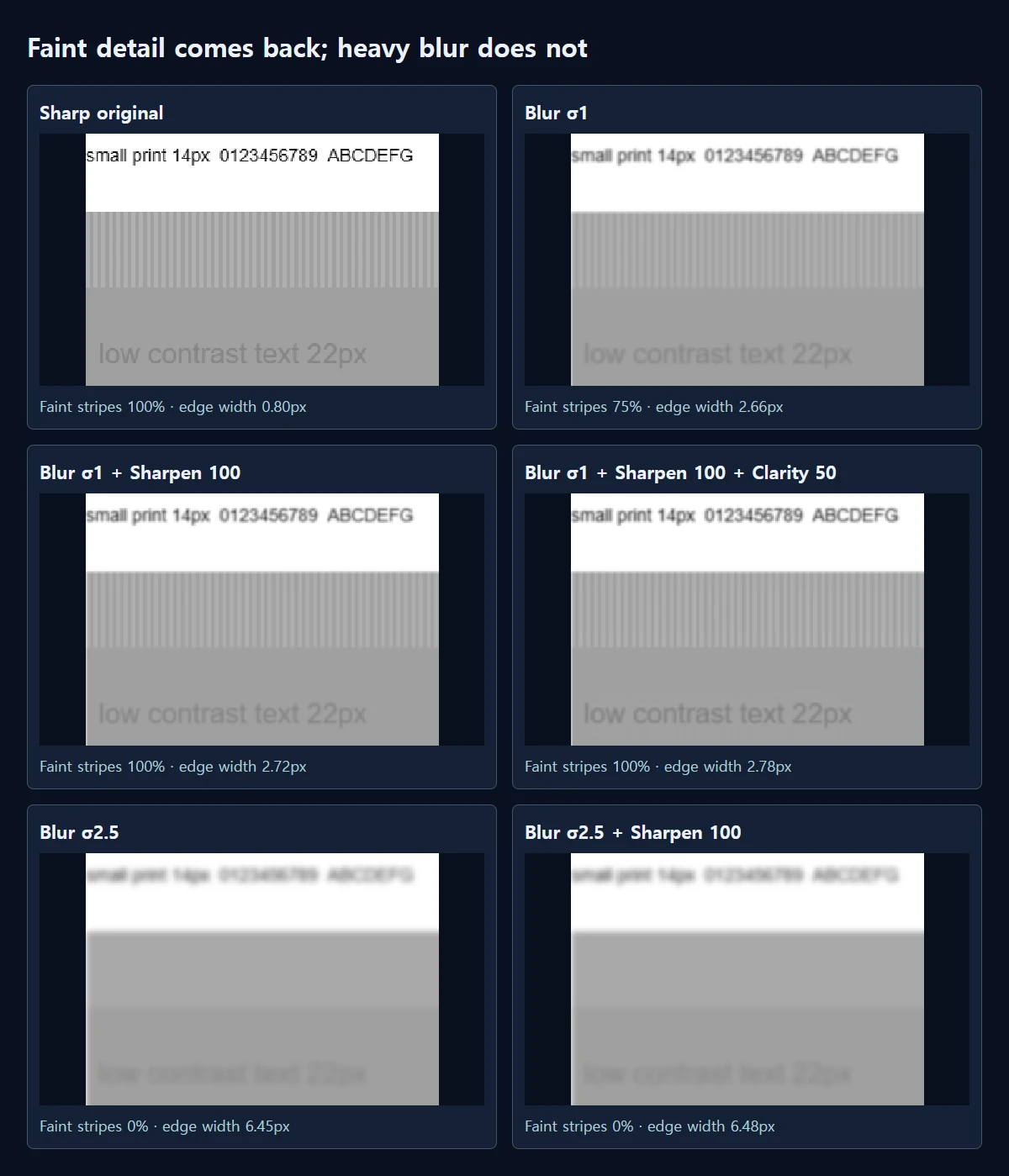
The 1200×800 test picture has a black rectangle with a hard edge, bold and small text, dark stripes 2 pixels apart, and faint stripes and faint text that differ from their background by only 16 brightness levels. We applied an exact, calculated blur at two strengths, σ1 and σ2.5, and processed the results through the same path Photo adjustments and filters uses when saving.
With the mild σ1 blur, the faint stripes dropped to 75% of their original contrast. Sharpen 50 brought them back to 87% and Sharpen 100 to 100%. Texture 100 pushed them to 125%, stronger than the original, while Clarity 50 left them at 76%. The hard edge of the black rectangle, however, stayed practically the same: 2.66 pixels wide when blurred and 2.72 pixels after Sharpen 100. The dark stripes moved only from 29% to 30%, and no bright halo appeared beside the edge in any test.
With the heavy σ2.5 blur, the faint stripes were gone at 0%, and Sharpen 100 left them at 0%. The edge width went from 6.45 to 6.48 pixels. Whole-picture PSNR rose from 17.40 dB to 17.44 dB, a gain of only 0.04 dB. Once detail has been smeared together, this control cannot separate it again.
Which kind of blur do you have?
Zoom to 100% and look at a dark edge such as text or a window frame. In our test, the mild blur spread an edge over 2.66 pixels and the heavy blur over 6.45 pixels of grey. If edges change within a pixel or two and only faint texture looks weak, Sharpen will help. If edges are smeared over several pixels, expect very little change.
Text is another quick check. With the mild blur, 14-pixel small print was soft but readable. With the heavy blur it stayed unreadable even after Sharpen 100. Sharpen will not make unreadable text readable.
When is it worth using?
It suits photos that are just a little soft, photos that lost some bite after being reduced in size, and subjects with fine low-contrast texture such as fabric or hair. A shaken photo with doubled letters or a badly missed focus is hard to fix this way, and a reshoot or another original will get you further. AI restore · keep size in Upscale images works differently; we did not test it here.
On an already sharp picture, Sharpen 100 pushed the faint stripes to 137% of the original. On crisp photos that can make skin or walls look rough, so use less. And if a soft photo still looks soft at 100, there is nowhere further to go with the slider; the limit is in the original.
Why does the preview look weaker?
The preview is calculated at a smaller size so it stays quick, but saving recalculates at the photo’s original size. The area Sharpen looks at also grows with the photo’s size. That is why a difference can be invisible in the fitted view and visible at 100%. Judge at 100% and on the saved file.
How to adjust it in MiruKit
- Open the photo in Photo adjustments and filters and press 100% in the zoom bar to see actual pixels.
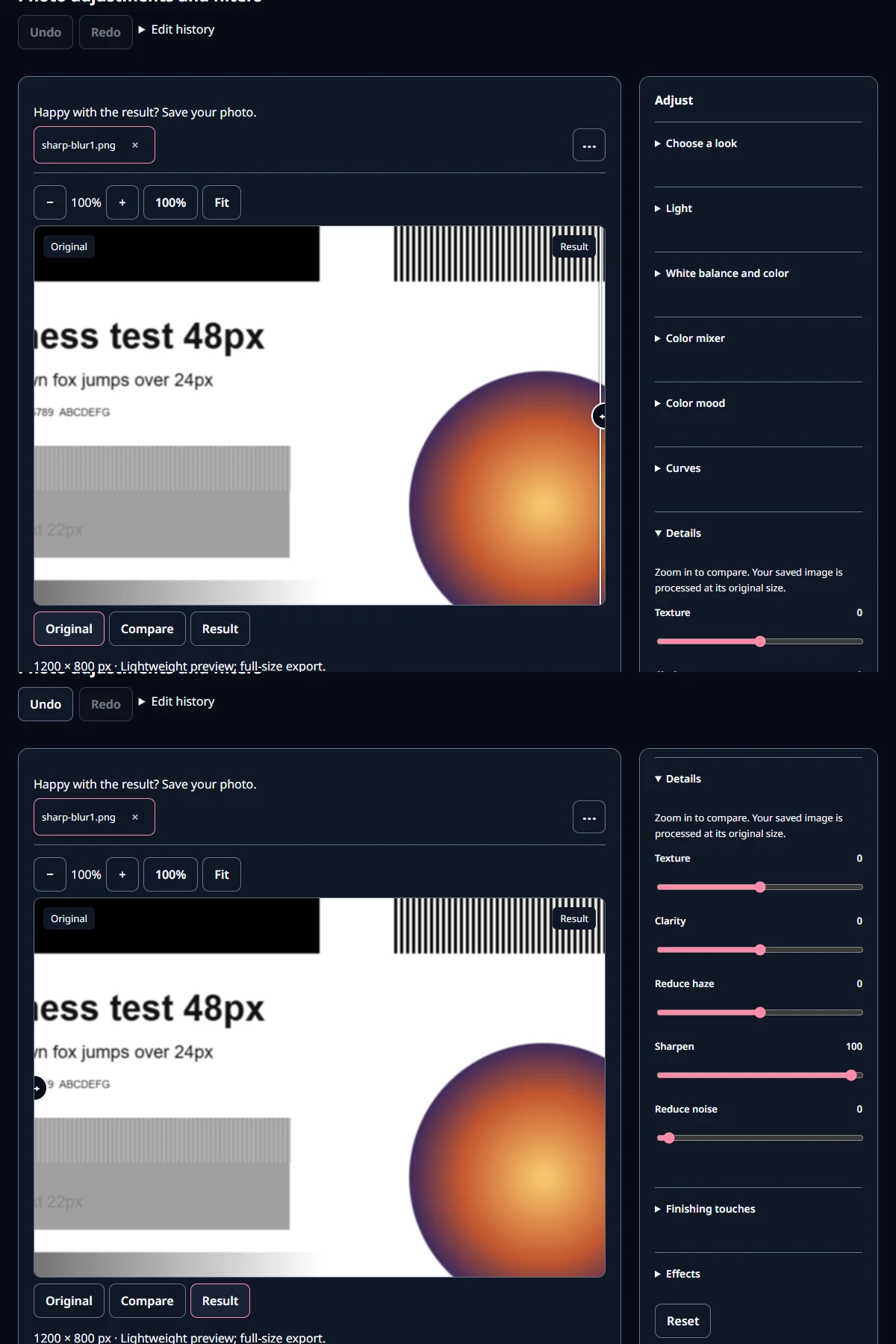
- Expand Details and raise Sharpen, starting around 50. Switch between Original and Result to compare.
- If hair or fabric needs more, add a little Texture. If skin starts to look rough, back it off.
- Open the saved file and check the same spot. Your saved image is processed at its original size.
Raising several sliders at once makes it hard to tell which one helped. Try one at a time and return any that made no visible difference to 0. In our test, adding Clarity 50 on top of Sharpen 100 gave almost the same result as Sharpen 100 alone.
Open the related toolMeasured with MiruKit
| Input · setting | Edge width | Faint stripes | Whole PSNR |
|---|---|---|---|
| Blur σ1 | 2.66 px | 75% | 21.61 dB |
| Blur σ1 + Sharpen 50 | 2.69 px | 87% | 21.65 dB |
| Blur σ1 + Sharpen 100 | 2.72 px | 100% | 21.66 dB |
| Blur σ1 + Clarity 50 | 2.69 px | 76% | 21.62 dB |
| Blur σ1 + Texture 100 | 2.69 px | 125% | 21.65 dB |
| Blur σ1 + Sharpen 100 + Clarity 50 | 2.78 px | 100% | 21.67 dB |
| Blur σ2.5 | 6.45 px | 0% | 17.40 dB |
| Blur σ2.5 + Sharpen 100 | 6.48 px | 0% | 17.44 dB |
| Blur σ2.5 + Sharpen 100 + Clarity 50 | 6.57 px | 0% | 17.50 dB |
| Sharp original + Sharpen 100 | 0.80 px | 137% | 51.62 dB |
A synthetic 1200×800 scene received a computed Gaussian blur (σ1, σ2.5); Details settings were then applied through the same processImage path the Filters save uses. Edge width is the 10–90% rise across a black/white edge in pixels; faint stripes is the contrast of a 16-level pattern relative to the original.
Good to know
These results come from a synthetic picture with a calculated blur. Real camera shake and focus blur have different shapes, so results can differ.
Sharpen does not create lost detail. Keep an untouched original of any photo that matters.