Turn phone photos of paper documents into one PDF: size and orientation first
Written · Updated · Operator (individual)
You photographed a contract or an application form and want to send it as a PDF, but the three-page file is several megabytes and you hesitate to attach it. Document photos straight from a phone are larger than expected. We drew documents, styled them like phone shots, combined them into PDFs, and measured how file size and small print change when you reduce the photos first.
How large is a PDF of phone photos as taken?
Our test photos are 3024×4032 pixels, about 12 megapixels. We put the paper slightly tilted on a desk with uneven light and a little sensor-like noise to resemble a real capture. The three JPGs totalled 9.3 MB, and saving them with Create a PDF in Merge & PDF (A4, 10 mm margin, Photo quality Normal) produced a 7.8 MB file. Saving the same photos through the real tool screen gave a file of exactly the same size. The screen showed 3-page PDF · one photo per page, and it took about 13 seconds from pressing Save to receiving the file.
For every page, MiruKit tries both a compressed and an uncompressed version and keeps whichever adds less to the PDF. Detailed pages such as photos go in compressed, while simple graphics such as receipts stay smaller uncompressed. Images with transparent areas are always kept uncompressed. Even so, 7.8 MB for three pages is on the large side for some mail services and upload forms, so reducing the pixel dimensions is still the most effective way to shrink the file.
How far should I reduce them?
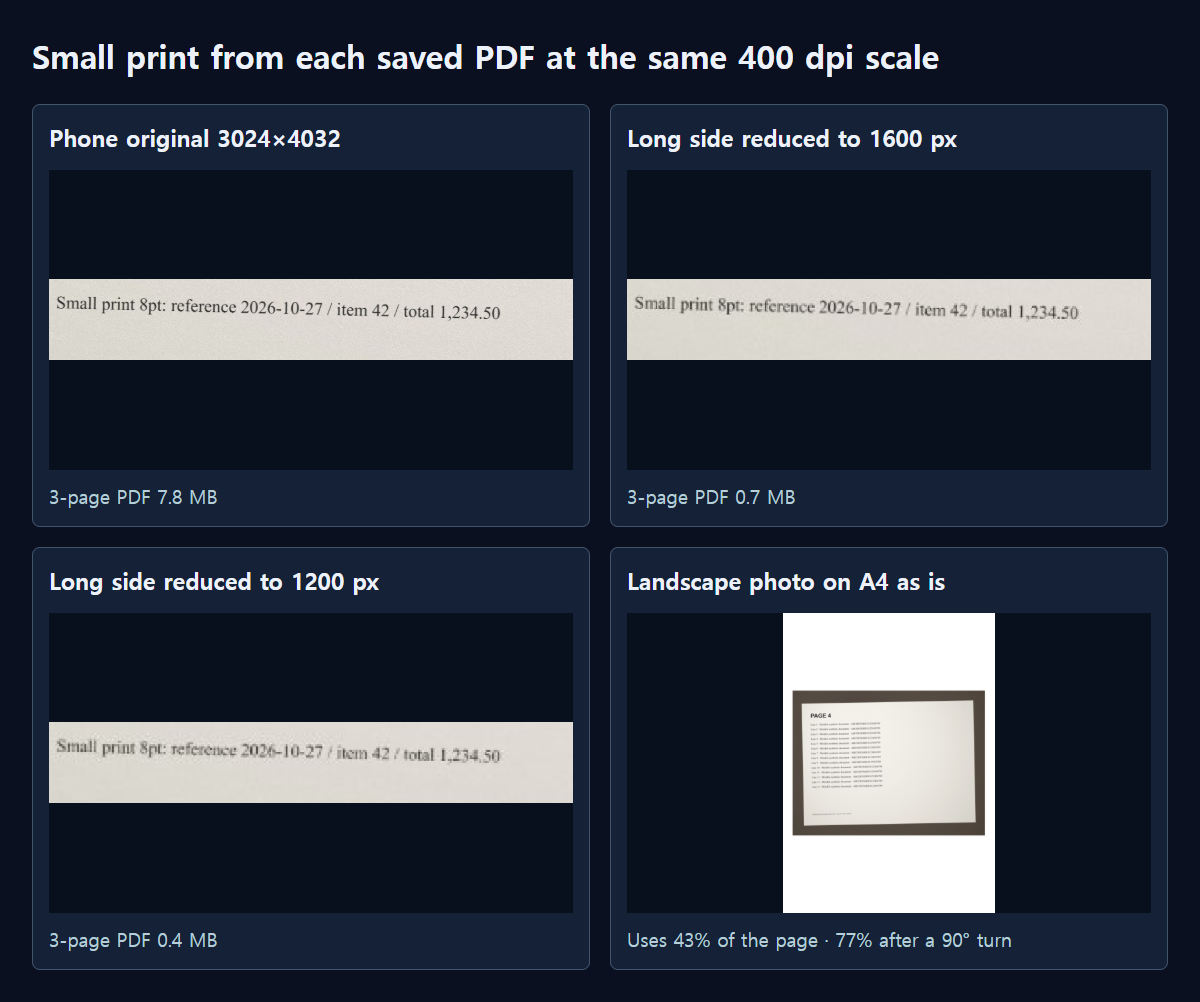
We reduced the same three photos with the same calculation as Resize and combined them again. A long side of 2000 px (1500×2000) gave 1.0 MB, 1600 px (1200×1600) gave 0.7 MB, and 1200 px (900×1200) gave 0.4 MB. Creating the PDF also got faster: 8.2 s, then 1.7 s, 1.1 s and 0.5 s. Times were measured in Edge on this PC; a phone may take longer.
We reopened each saved PDF and zoomed into the line of small print at the bottom at the same scale. Up to 1600 px it read almost exactly like the original; at 1200 px the letter edges were visibly softer, but the numbers were still legible. For documents where small print matters, start around 1600 px on the long side and check the saved PDF yourself. To shave off a little more, switch Photo quality to Small; for very small print, compare with High.
What about photos taken sideways?
A4 pages are portrait. A 4032×3024 landscape photo placed as is keeps its proportions and uses only 43% of the page, leaving empty bands above and below. Press Rotate 90° in the photo list first, and the same photo fills 77% of the page. Check in the thumbnail that the top of the document points to the top of the page.
If you leave Page size at Match each photo, the page is sized from the photo’s pixels. For the same landscape photo, that works out to a page of 106.7×80.0 cm. It looks fine on screen, but for printing or official submission, A4 or Letter is the safer choice.
How can I estimate the size of a longer document?
Merge & PDF accepts up to 20 photos at a time. In our test a 1600 px photo took about 0.25 MB per page, and a phone original about 2.6 MB per page. Multiplying simply, 20 pages at 1600 px come to roughly 5 MB, and 20 originals to roughly 52 MB. Real documents vary with the amount of text and the paper, so treat this as an estimate, and for long documents compare 1200 px as well.
Margins barely affect size. In a separate test with three receipts at 0, 10 and 20 mm margins, the files were 66.1 KB, 66.2 KB and 66.2 KB. Use margins for layout, and control size with the photo dimensions and Photo quality.
Steps for a document PDF
- In Crop photos, cut away the desk around the edges. Keeping only the paper lets it use more of the page.
- In Resize images, bring the long side to around 1600 px. Keep the originals separately.
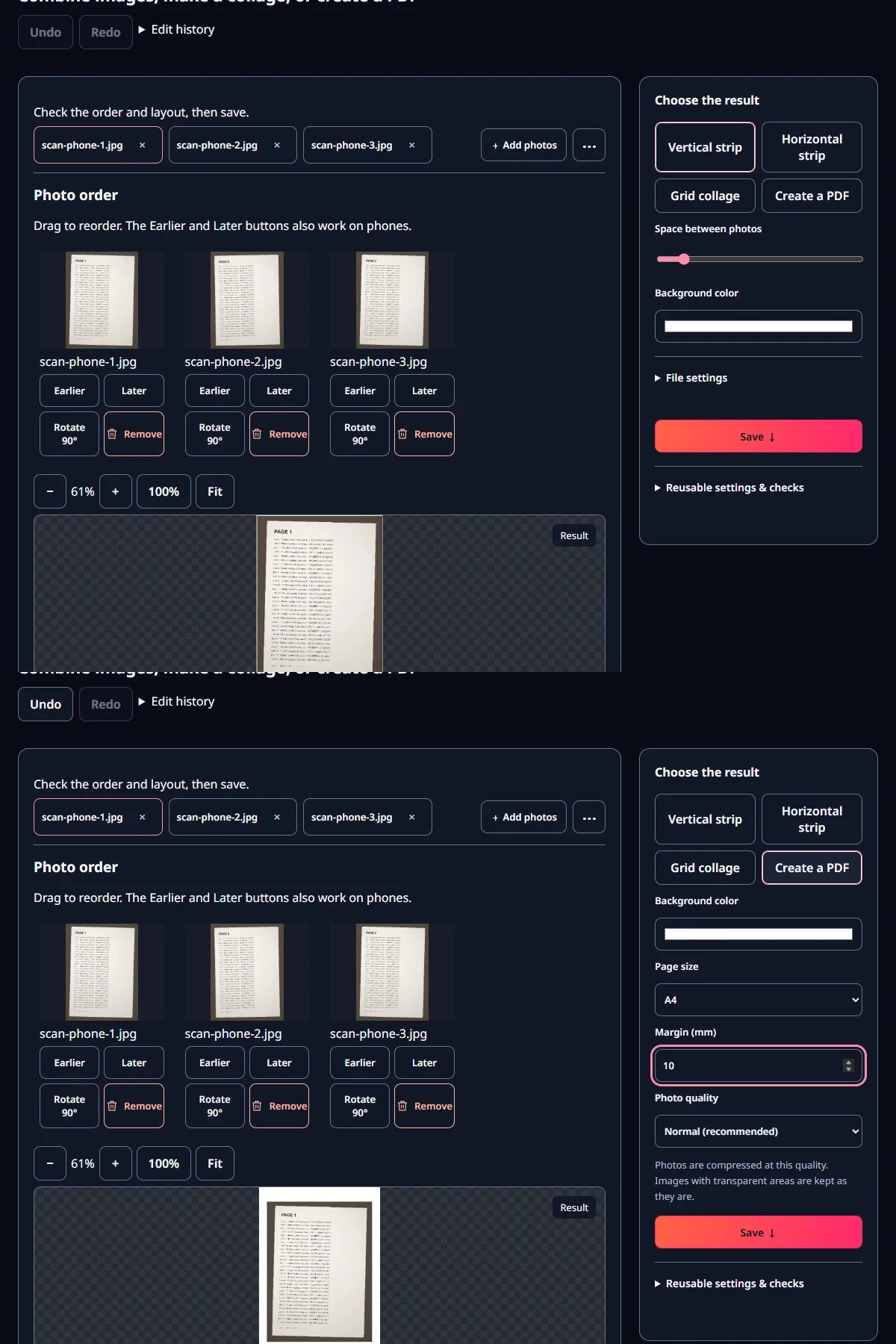
- Add the photos to Merge & PDF and set the order with Earlier and Later. Press Rotate 90° for sideways photos.
- In Choose a result, pick Create a PDF, page size A4, Margin (mm) 10 and Photo quality Normal (recommended), then save.
- Open the saved PDF and check the page count, orientation and smallest text, and compare its size with the attachment limit.
Can MiruKit reopen the file?
MiruKit's PDF reader does not open files over 25 MB. Every PDF in this test, including the 7.8 MB one made from phone originals, fits within that limit, so MiruKit can turn its pages back into images. Dozens of original photos can still go past 25 MB, so use reduced photos for long documents. There is no feature that turns the text in a photo into searchable text.
Open the related toolMeasured with MiruKit
| Input (3 photos) | Pixels | JPG total | Saved PDF | Time |
|---|---|---|---|---|
| Phone originals as taken | 3024×4032 | 9.3 MB | 7.8 MB | 8.2 s |
| Long side 2000 px | 1500×2000 | 1.0 MB | 1.0 MB | 1.7 s |
| Long side 1600 px | 1200×1600 | 0.7 MB | 0.7 MB | 1.1 s |
| Long side 1200 px | 900×1200 | 0.4 MB | 0.4 MB | 0.5 s |
Three 3024×4032 JPGs of drawn documents, styled like phone shots on a desk with uneven light and noise, went through the shipped Create a PDF (A4, 10 mm margin). Reduced copies used the same geometry code as Resize. Every PDF was reopened to confirm three A4 pages. Times are from Edge on one desktop PC.
Good to know
Our test documents are drawings, and the noise and uneven light were added on purpose. Real phone photos vary in size with the phone model and lighting.
Hide or crop out details the recipient does not need, such as ID or account numbers, before combining. Finally, check the recipient’s file-size and page-size requirements.