Fix a photo that uploads sideways: orientation tags and rotation
Written · Updated · Operator (individual)
The photo looks upright on your phone, but when you upload it to a forum or open it in another program, it lies on its side. Often the pixels themselves are stored sideways, and only an orientation tag says "rotate me like this when you show me". Save it once in Convert and MiruKit turns the pixels to match that tag, so the photo stays upright even where the tag is ignored. Here's what we checked with a test photo we made ourselves.
Why does it only turn sideways in some places?
Phone cameras often store the pixels in the same direction every time and record how you held the phone separately, as an orientation tag inside the photo info (EXIF). Apps that read the tag rotate the photo for display. Places that ignore the tag, or that strip photo info without applying the rotation first, show the stored pixels as they are, which means sideways.
That's why the same file can look right in one place and wrong in another. The file isn't broken; the difference is whether the viewer reads the tag.
How did we test it?
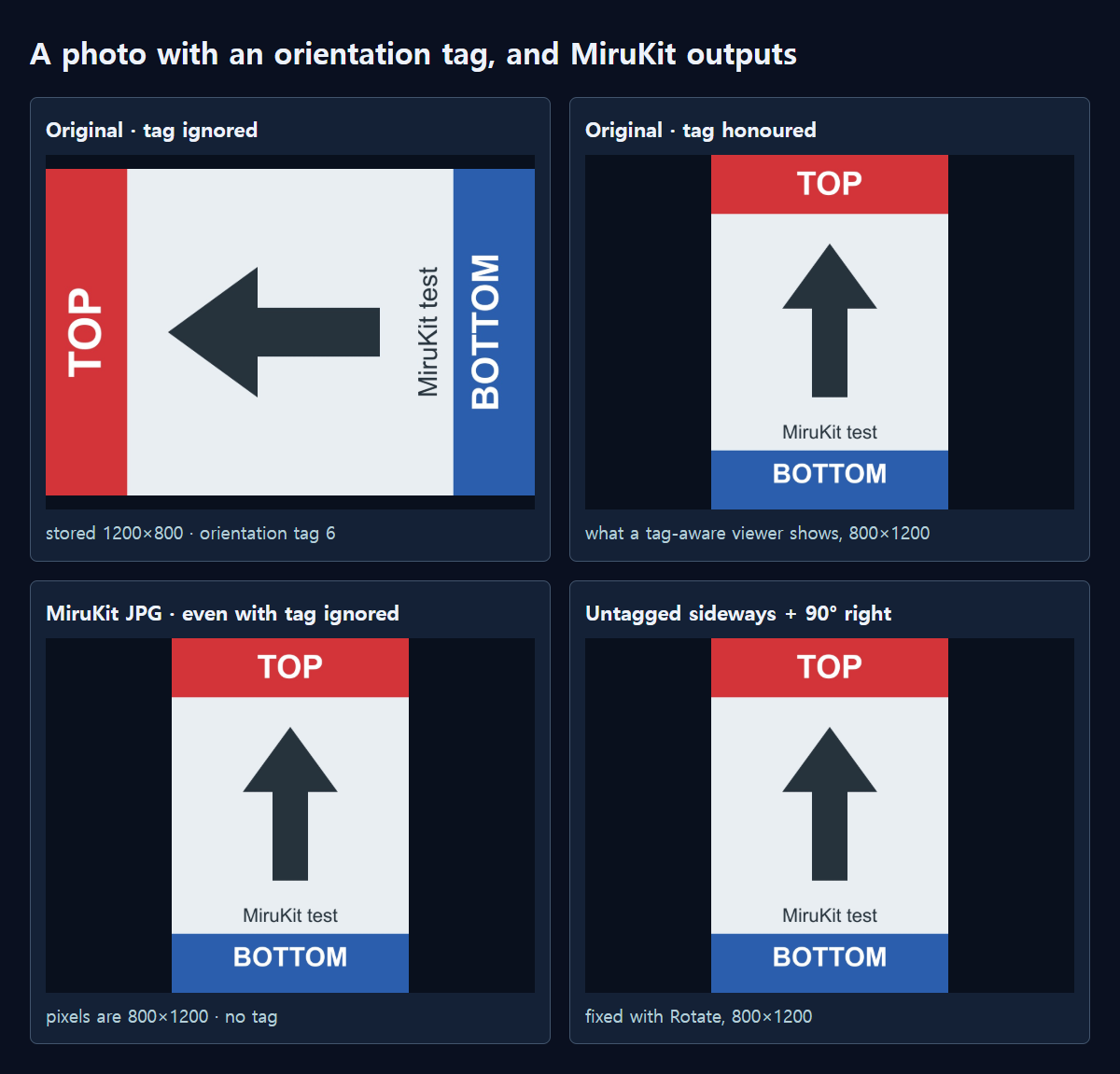
We drew an 800×1200 portrait image with a red TOP band at the top, a blue BOTTOM band at the bottom and an arrow pointing up. We then stored it turned to the left as 1200×800 and used a separate program (libvips) to add orientation tag 6, which means "rotate 90° right for display". Read with the tag ignored, it's a sideways picture with the TOP band on the left; read with the tag honoured, it's an upright 800×1200 photo.
We ran this file through the same processing that MiruKit's Convert tool uses and reopened the results. Saved as JPG with the photo info setting on Remove all (default), the result's pixels were 800×1200 and there was no orientation tag. Even with any tag ignored, the TOP band was at the top.
With Copy from original, some photo info such as the date is kept, but the orientation tag was reset to 1 (no rotation), and the pixels were again upright at 800×1200. Saving as PNG gave the same upright result. MiruKit applies the orientation tag exactly once and doesn't leave an instruction to rotate again, so the photo can't end up rotated twice and upside down.
How do I fix it in MiruKit?
- Open Convert and add the photo that keeps turning sideways.
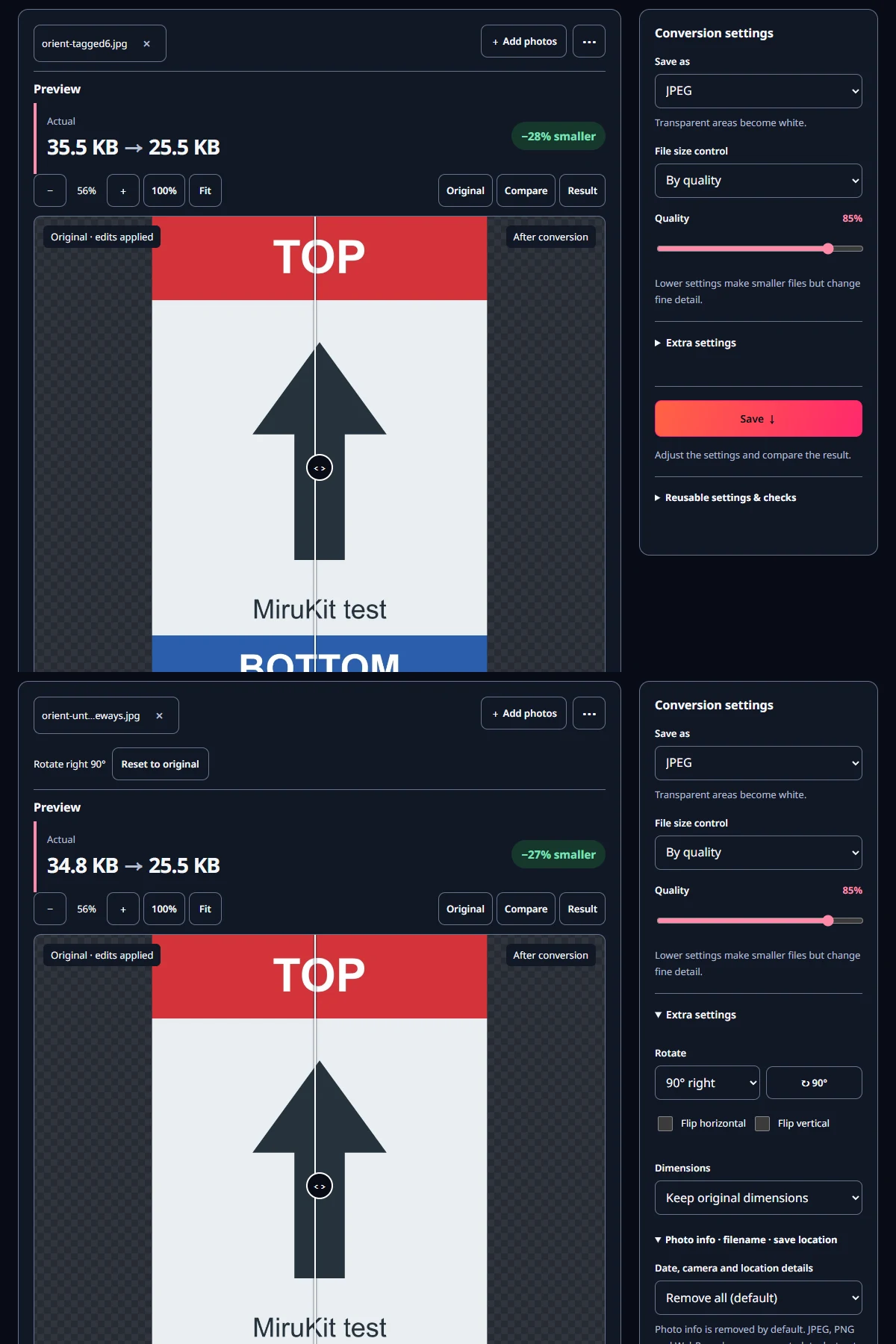
- Check whether the preview is upright. If the photo has an orientation tag, the preview is already upright, and the saved result will be too.
- Choose a format in Save as, such as JPEG, and save. Upload this copy and it will stay upright even where tags are ignored.
- If the preview is also sideways, the photo has no tag. Open Extra settings, choose 90° right or 90° left under Rotate, or press the ↻ 90° button until it's upright, then save.
Can MiruKit fix photos without a tag automatically?
No. Without a tag, nothing in the file says the photo was meant to be portrait, and MiruKit doesn't guess the direction from what's in the picture. In our test, the untagged sideways photo saved with No rotation stayed sideways at 1200×800. Applying 90° right to the same photo made it upright at 800×1200.
The Rotate setting in Convert applies to every photo you added together. If only some photos are sideways, add just those, rotate and save them, then save the rest without rotation. Pick the direction by looking at something in the preview that clearly marks the top, like the sky or a line of text.
What should I check afterwards?
Look at the saved copy once more in the preview of the place you're uploading to. If it's upright there, the pixels themselves have been turned, so it will look the same anywhere else. Keep the original untouched and give the upright copy its own name so it's easy to find next time.
This matters most for places where you can't see the result until it's posted, such as a form that only shows a file name, or a printer kiosk. A copy with upright pixels removes the guesswork, because there's no tag left for the other side to read or ignore.
Open the related toolMeasured with MiruKit
| File · setting | Stored pixels | Orientation tag | With the tag ignored |
|---|---|---|---|
| Original JPG | 1200×800 | 6 | Sideways |
| JPG · Remove all | 800×1200 | None | Upright |
| JPG · Copy from original | 800×1200 | 1 | Upright |
| PNG | 800×1200 | None | Upright |
| Untagged sideways · 90° right | 800×1200 | None | Upright |
| Untagged sideways · No rotation | 1200×800 | None | Sideways |
An upright drawing was stored turned left and tagged orientation 6 by libvips. Shipped processImage outputs were reopened with libvips to read pixel size and tag; the tag-ignored view is the pixels read without auto-rotation.
Good to know
We tested one image of our own with orientation tag 6. The tool is built to handle the other orientation values, including mirrored ones, in the same way, but 6 is the value we tested here.
Removing photo info also removes the date, camera and location. To keep the date, choose Copy from original; to keep the date but drop the location, choose Remove location only. Either way, the orientation tag becomes 1.
Adding rotation to a photo that is already upright turns it again. Only rotate when the preview is sideways.