Upscaling drawings, anime and illustrations: AI Photo or AI Illustration?
Written · Updated · Operator (individual)
When you enlarge your own drawing or a character illustration the way you would a photo, black lines can smear or a white rim can appear around them. Drawings are made of crisp outlines and flat colour, so they break down differently from photos. We drew a test illustration with lines and flat colour and compared MiruKit’s three upscaling methods side by side.
One drawing, deliberately reduced
We drew a 1024×768 image: a character face with black outlines, flat-painted sky and hills, 1–2px hatching, text in a speech balloon, screentone-style dots, and, for contrast, a patch of photo-like texture. It was reduced to 512×384 and 256×192 PNGs, and the 512×384 version was also saved as JPEG, as often happens on social media. Each input was enlarged back to 1024×768 with Standard, AI Photo and AI Illustration and compared with the original drawing.
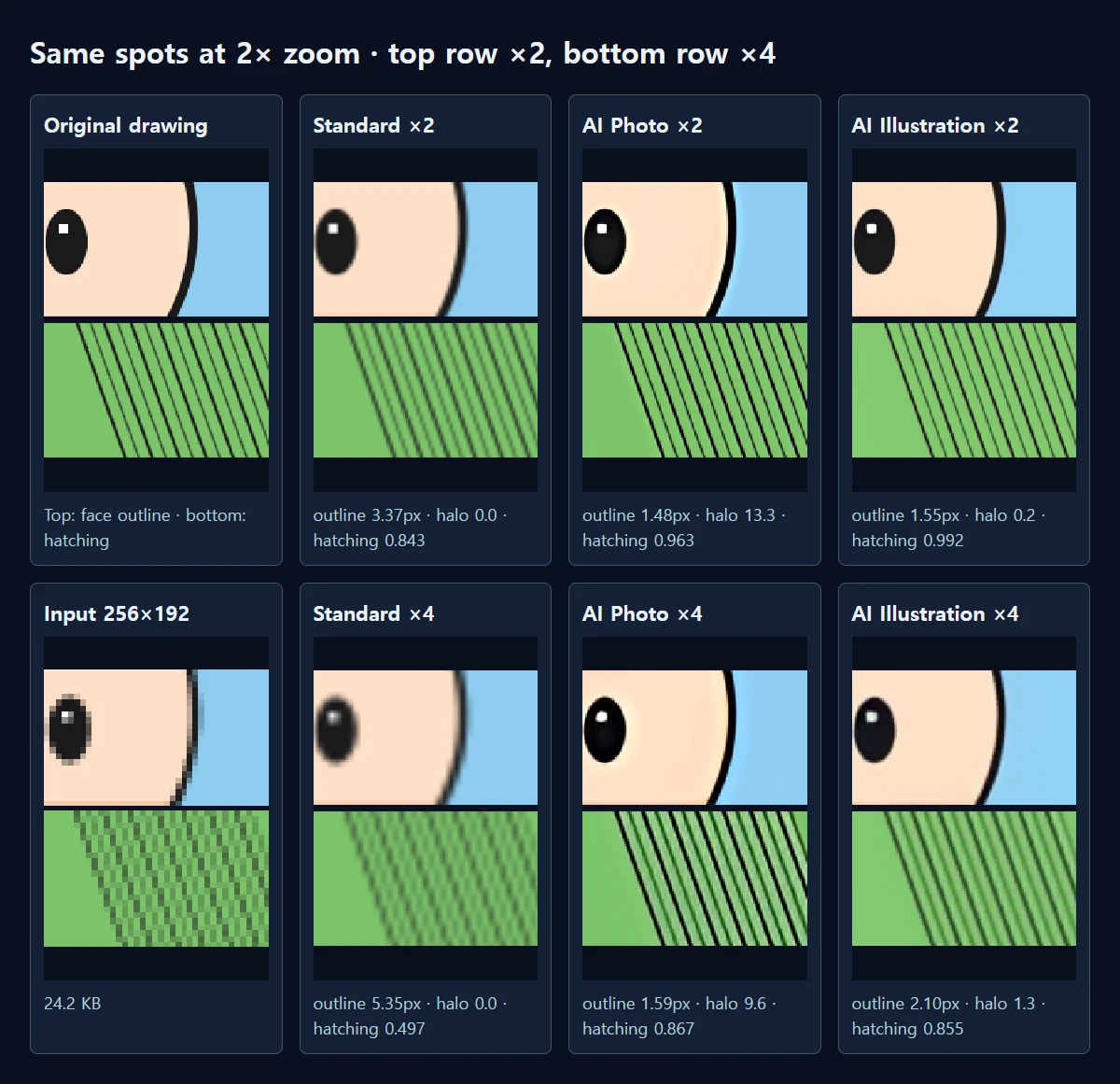
Outline width is how many pixels the black face outline takes to turn into the background colour; the original measured 1.16px. Halo is how far the area just outside the line rose above the background, on a 0–255 scale.
At ×2, AI Illustration kept the lines cleanest
Enlarging the 512×384 PNG by 2, Standard smeared the outline to 3.37px and scored 0.843 SSIM on the hatching. AI Photo rebuilt the outline at 1.48px but lifted the area outside it by 13.3, leaving a thin white rim. AI Illustration gave a 1.55px outline with a halo of only 0.2 and the closest hatching of the three at 0.992. Whole-image SSIM followed the same order: Standard 0.968, AI Photo 0.985, AI Illustration 0.990.
On the screentone dots, AI Photo scored 0.968, slightly above AI Illustration’s 0.954. For manga pages with dense dots, zoom in on both results before choosing, because a small score gap can still look like a different texture.
Photo-like areas were wiped more by AI Illustration
The texture patch inside the same drawing shows the opposite. Measuring how much of the fine pattern’s strength survived, AI Photo kept 80%, AI Illustration 66% and Standard 52%. The illustration model tends to tidy surfaces into smooth flat areas, and it flattens photographic texture too. For illustrations composited over photos, or for real photos, AI Photo is the better fit.
×4 hit the limits of a small start
From 256×192 at ×4, every score dropped. Standard smeared the outline to 5.35px and hatching SSIM fell to 0.497. AI Photo redrew crisp lines at 1.59px with a halo of 9.6; AI Illustration gave 2.10px and 1.3. Screentone stayed between 0.44 and 0.54 for all three, so the dots were mostly gone, and the small balloon text turned into different shapes in the AI results. AI Photo’s texture reached 108%, stronger than the original, meaning it drew pattern that was never there.
The 512×384 JPEG gave the same order. AI Photo’s halo grew to 17.6, larger than with the PNG, while AI Illustration stayed at 0.2. On our test PC the AI runs took 0.94–1.18 seconds and Standard under 0.1 seconds.
Keep the original as PNG
The same 512×384 drawing was 72.7 KB as PNG and 23.4 KB as JPEG. JPEG is smaller, but with Standard only the JPEG input developed a 1.5-level bright smudge outside the line, and AI Photo’s rim grew from 13.3 to 17.6. Compression noise gathers around lines and becomes more visible when enlarged. If you plan to upscale a drawing, keep it as PNG or as the original project file, and shrink the finished result to WebP or another format for wherever you post it.
How to choose in MiruKit
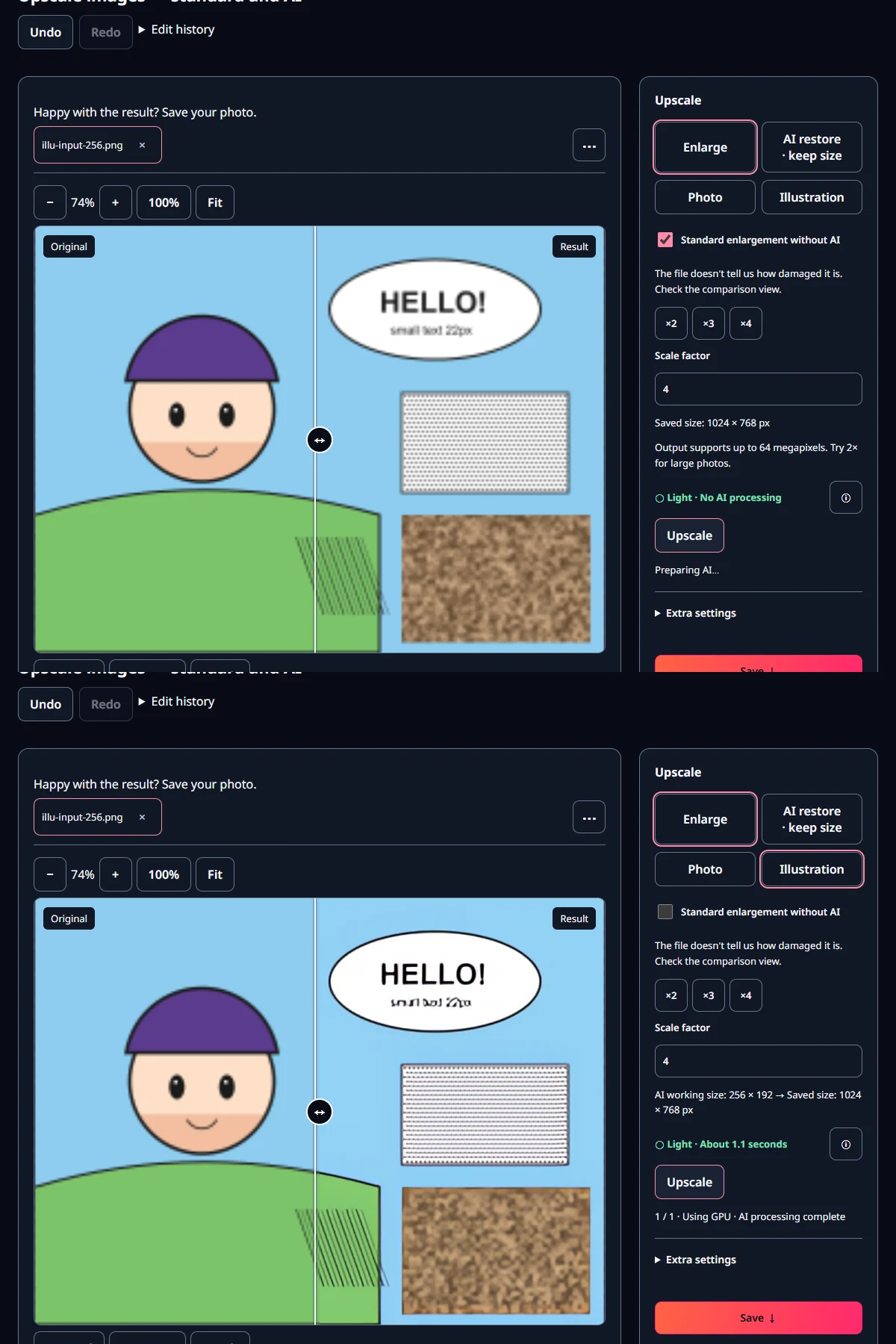
- Open the drawing in Upscale images. If you have it in several sizes, use the largest; if in several formats, use the PNG.
- Choose Enlarge and start with ×2 under Scale factor.
- For mostly lines and flat colour, choose Illustration; if photos are mixed in or it is a real photo, choose Photo. Then press Upscale.
- Compare it with Standard enlargement without AI using the comparison slider, checking for white rims around outlines and small text.
- Save the result you like. If the two AI results look similar, pick the one with cleaner lines.
Measured with MiruKit
| Input → method | Whole SSIM | Outline width · halo | Hatching / screentone SSIM | Photo texture | Time |
|---|---|---|---|---|---|
| 512×384 PNG ×2 → Standard | 0.968 | 3.37px · 0.0 | 0.843 / 0.852 | 52% | under 0.1 s |
| 512×384 PNG ×2 → AI Photo | 0.985 | 1.48px · 13.3 | 0.963 / 0.968 | 80% | 1.18 s |
| 512×384 PNG ×2 → AI Illustration | 0.990 | 1.55px · 0.2 | 0.992 / 0.954 | 66% | 1.07 s |
| 256×192 PNG ×4 → Standard | 0.885 | 5.35px · 0.0 | 0.497 / 0.468 | 32% | under 0.1 s |
| 256×192 PNG ×4 → AI Photo | 0.927 | 1.59px · 9.6 | 0.867 / 0.542 | 108% | 1.01 s |
| 256×192 PNG ×4 → AI Illustration | 0.928 | 2.10px · 1.3 | 0.855 / 0.441 | 57% | 0.94 s |
| 512×384 JPEG ×2 → Standard | 0.961 | 3.35px · 1.5 | 0.833 / 0.845 | 50% | under 0.1 s |
| 512×384 JPEG ×2 → AI Photo | 0.979 | 1.38px · 17.6 | 0.959 / 0.962 | 72% | 1.14 s |
| 512×384 JPEG ×2 → AI Illustration | 0.986 | 1.61px · 0.2 | 0.991 / 0.920 | 64% | 1.01 s |
A synthetic 1024×768 drawing (black outlines, flat colours, 1–2px hatching, balloon text, screentone dots and a photo-like texture patch) was reduced to 512×384 and 256×192 PNG and a 512×384 JPEG (75%). Shipped renderUpscale (Standard, AI Photo, AI Illustration) enlarged each to 1024×768 for comparison with the original. Outline width is the 10–90% rise leaving the face outline (px); halo is how far the area just outside the line rises above the background (0–255); texture is high-frequency energy as a % of the original. Times: PC Edge/WebGPU, model download excluded.
Good to know
These numbers come from one drawing and our test PC. Which method wins can change with drawing style, line weight and number of colours.
AI upscaling guesses at detail that is not there. Always compare text or signatures with the original after enlarging.