Several ID photos on one 4×6 sheet: copies per size and where to cut
Written · Updated · Operator (individual)
You rarely need just one ID photo. Passports, résumés and application forms add up, so printing several at once is handy. MiruKit’s ID photo tool can lay out copies of the same photo on a 4×6-inch or L-size sheet and save it as one file. Using a drawn figure instead of a real face, we checked how many copies fit for each preset and where to cut, from the actual saved files.
How do I make a print sheet?
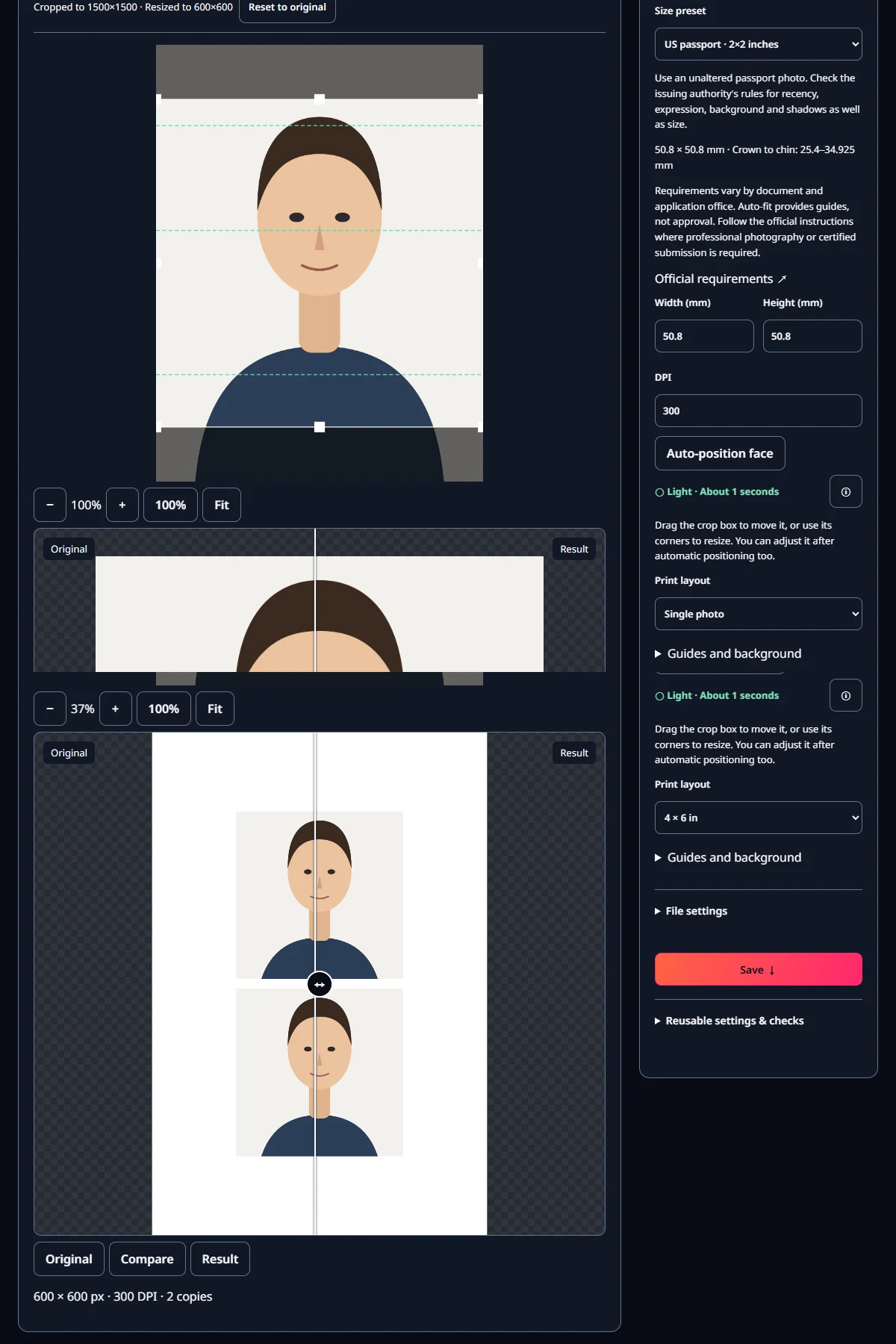
Add your photo, choose a Size preset, then change Print layout from Single photo to 4 × 6 in. L · 89 × 127 mm is also available. Below the result the tool shows the photo size and copy count straight away, for example “413 × 531 px · 300 DPI · 6 copies”. A 4×6-inch sheet is 101.6×152.4 mm, which makes a 1200×1800-pixel file at 300 DPI. Copies keep their real size, sit 3 mm apart, and the whole group is centred on the sheet. Switch back to Single photo and only one photo is saved again.
How many copies fit for each size?
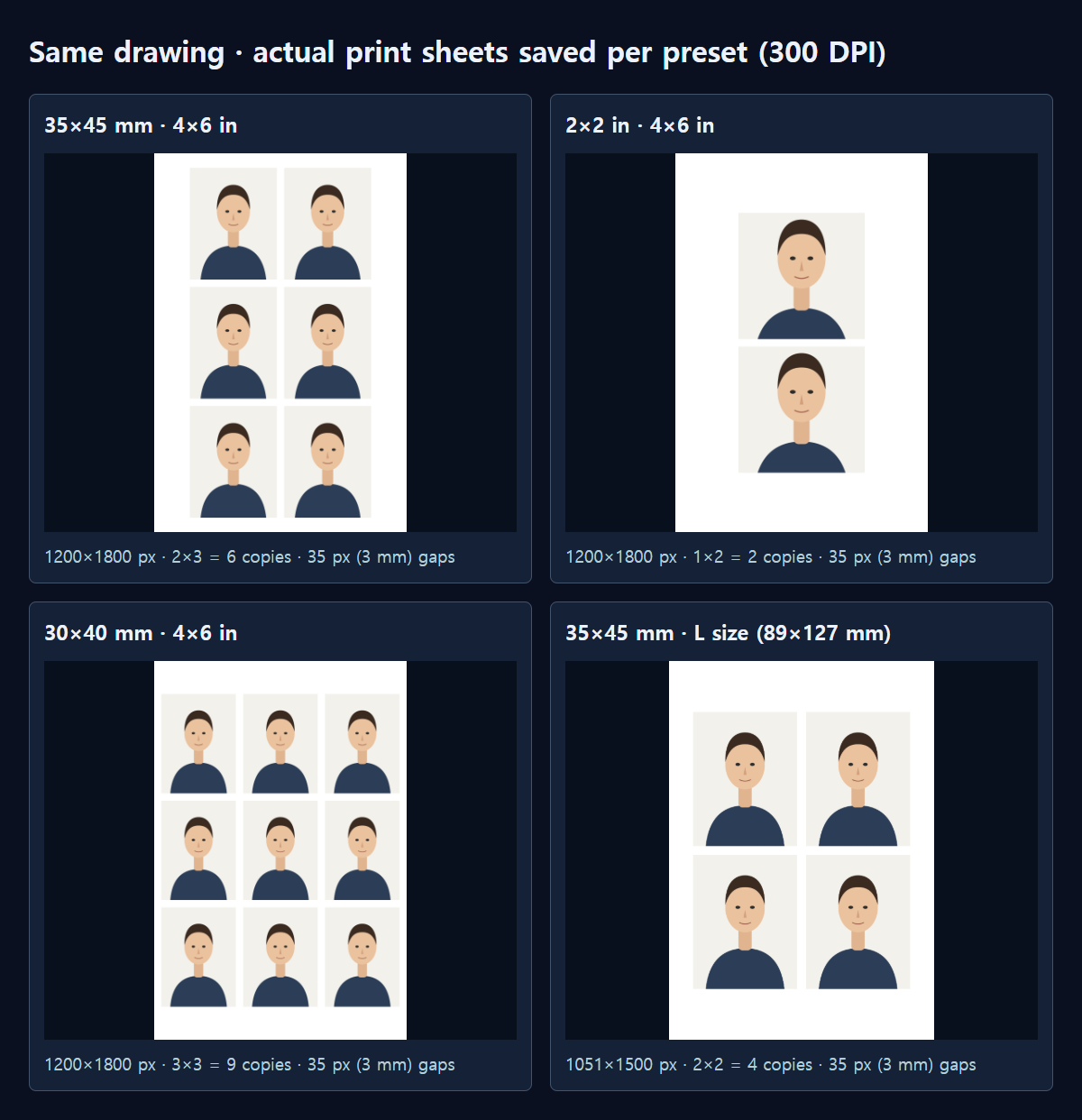
We ran the tool’s own layout code for every preset. A 35×45 mm photo, the size used for Korean and Japanese passports among others, fits 2 across and 3 down on 4×6 inches: 6 copies. The L-size sheet takes 4. 33×48 mm (China passport), 40×50 mm (Hong Kong passport) and 40×60 mm give 4. The 30×40 mm Japanese résumé size fits 3 across and 3 down, 9 copies, covering 69.6% of the sheet. The outer margins at the sides are only 34 pixels (about 2.9 mm), though, so if your printer trims the edges slightly, check that the outer photos were not cut.
The surprise was 2×2 inches. US passport and visa photos are 600×600 pixels, and only 2 of them fit on a 4×6-inch sheet. Two photos side by side would exactly fill the 1200-pixel width, but with a 3 mm margin outside and a 3 mm gap between them the width runs out. As a result, photos cover only 33.3% of the sheet. 50×70 mm (Canada passport) also gives 2, and only 1 fits on an L-size sheet.
Does changing DPI change the count?
DPI is 300 by default. Raising it to 600 doubles both the photo and the sheet, so the count mostly stays the same: 35×45 mm became an 827×1063-pixel photo and still fitted 6 times on a 2400×3600-pixel sheet. One exception: 30×40 mm gave 9 copies at 300 DPI but 6 at 600 DPI. Three photos only just fit across, so depending on how the pixel sizes round, a column fits or drops out. If the count suddenly drops, try 300 DPI again. The saved JPGs recorded the DPI we set.
Which format should I save?
The Save as menu under File settings defaults to PNG, and JPEG is available too; WebP is removed from the list in the ID photo tool. JPEG is usually the safe choice for a photo lab or print service. We saved with JPEG quality 90: the six-copy 35×45 mm sheet was 81.6 KB at 300 DPI and 195.2 KB at 600 DPI. Our drawing has simple colors, so a real photo can be larger. Check the pixel size and DPI before worrying about file size.
Where do I cut?
The saved print file has no cut lines. The top-of-head, chin and eye-level guides are only for checking on screen and did not appear in the file. The white 3 mm gaps between photos are the only boundary.
The catch is that ID photo backgrounds are usually close to white. The light background of our test drawing differed from the paper white by only 17–20 on a 0–255 scale, so the edges may be hard to see once printed. Measuring with a ruler is safer. For the six-copy 35×45 mm layout, the photo edges sit 14.4, 49.4, 52.3 and 87.3 mm from the left edge, and 5.8, 50.8, 53.8, 98.7, 101.7 and 146.6 mm from the top.
What if it prints on 10×15 cm paper?
4×6 inches is not exactly 10×15 cm; it is slightly bigger. If the printer shrinks the file to fit exactly 100×150 mm, everything becomes 98.4% of its size, and a 35×45 mm photo comes out at about 34.4×44.3 mm. In the print dialog choose actual size or 100%, and ask a photo lab not to crop or rescale automatically.
The whole process
- Add a photo in ID photo and choose a Size preset.
- Drag the box to place the head, and check it against the guides.
- Under Print layout, choose 4 × 6 in or L · 89 × 127 mm.
- Check the copy count and pixel size below the result, then save.
- Print at actual size, then measure with a ruler and cut along the photo edges.
Measured with MiruKit
| Photo size | Pixels at 300 DPI | Copies on 4×6 in | Copies on L size | Share of the 4×6 sheet covered |
|---|---|---|---|---|
| 35×45 mm (Korean/Japanese passport, etc.) | 413×531 | 2×3 = 6 | 2×2 = 4 | 60.9% |
| 30×40 mm (Japanese résumé) | 354×472 | 3×3 = 9 | 2×2 = 4 | 69.6% |
| 33×48 mm (China passport) | 390×567 | 2×2 = 4 | 2×2 = 4 | 40.9% |
| 40×50 mm (Hong Kong passport) | 472×591 | 2×2 = 4 | 2×2 = 4 | 51.7% |
| 40×60 mm (Vietnam passport, etc.) | 472×709 | 2×2 = 4 | 2×1 = 2 | 62.0% |
| 2×2 in (US passport/visa, etc.) | 600×600 | 1×2 = 2 | 1×2 = 2 | 33.3% |
| 50×70 mm (Canada passport) | 591×827 | 1×2 = 2 | 1×1 = 1 | 45.3% |
A drawn 1500×2000 figure (background #f3f1ec), not a real face, was placed in ID photo and saved with Print layout set to 4 × 6 in and L · 89 × 127 mm. Copy counts come from the tool’s own layout code (4×6 in = 101.6×152.4 mm, L = 89×127 mm, 3 mm between photos, centred) run for every preset; in the saved JPGs we counted the photo blocks and gaps again and they matched.
Good to know
Copy counts assume every photo keeps the same orientation; the tool never rotates copies. For a size that fits only twice, such as 2×2 inches, printing the same file twice is simpler.
Matching the size is not the same as being accepted. Check expression, background and how recent the photo must be in the official instructions for your document.