Your first flowchart: from a template to PNG, SVG and PDF exports
Written · Updated · Operator (individual)
Want to put a work process or an application procedure on one page without learning a new drawing program? MiruKit’s Diagram maker has a Flowchart template you can edit right away. We built a small order-handling flowchart in all three language versions, exported it, and checked what each format actually contains.
Where do I start?
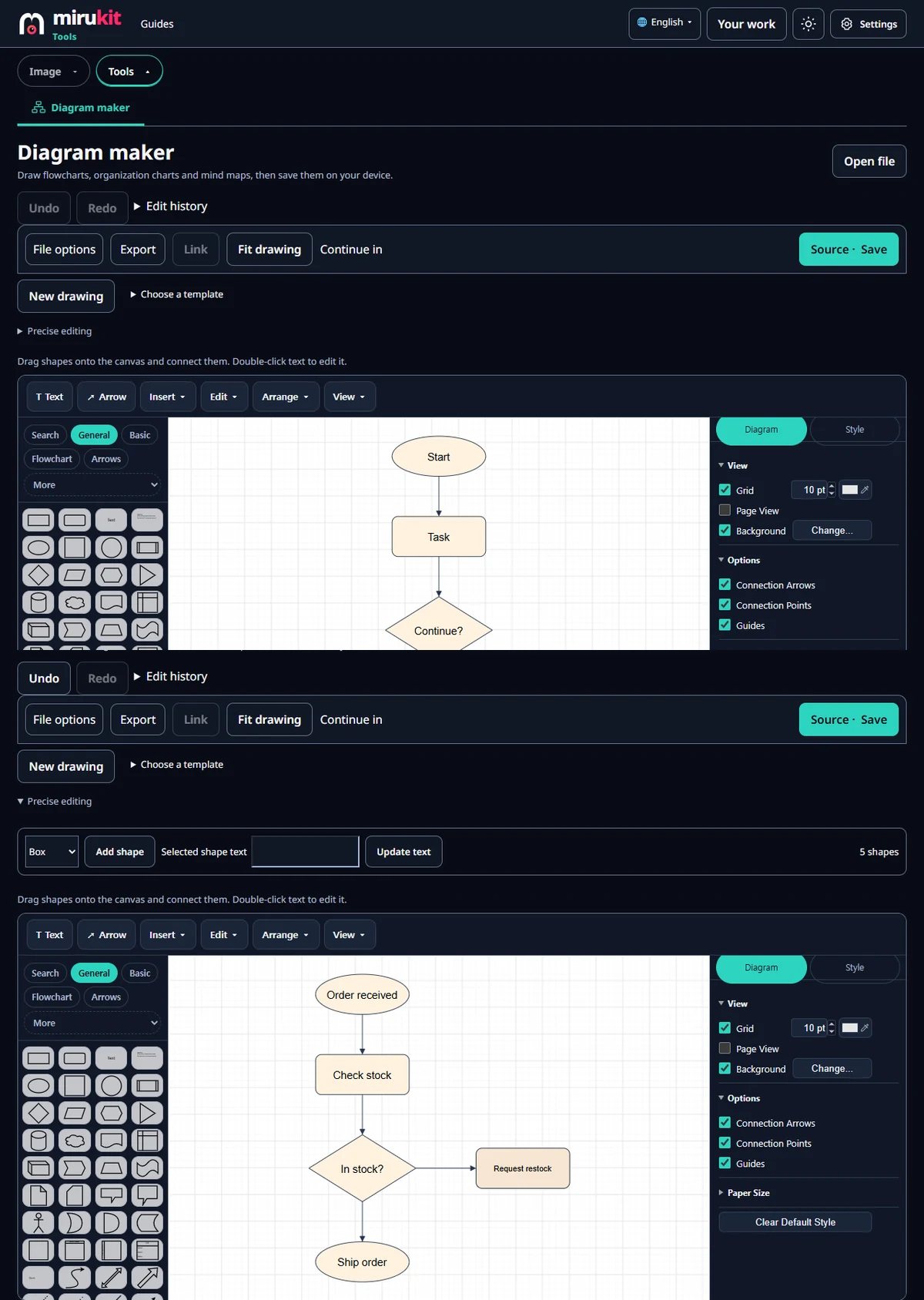
Open Diagram maker and choose Flowchart under Choose a template. Four shapes and three connectors appear at once: Start (oval), Task (rounded box), Continue? (diamond) and Done (oval). You can begin from Blank instead, but editing a template that already has the basic shapes is much faster. If you already have a drawing, New drawing asks before replacing it, and the earlier drawing stays in your work list.
Flowcharts follow a few simple conventions. The start and end are ovals, actions are boxes, a yes-or-no question is a diamond, and arrows show the order. Keeping to these makes the flow easy to follow for someone seeing it for the first time.
How do I change the text?
Double-click a shape to edit its text in place. Alternatively, open Precise editing, type a new name in Selected shape text and press Update text. In our test we used that field to rename the four shapes Order received, Check stock, In stock? and Ship order.
How do I add a branch?
A question diamond has two answers, so draw a destination for the other one. In Precise editing, choose Box and press Add shape; a new box appears and the shape count rises to five. We renamed it Request restock, placed it to the right of the diamond and connected the two. To connect shapes in the editor, hover over a shape and drag one of its connection arrows onto another shape. When you are done, press Fit drawing to fit the whole drawing on screen.
One thing stood out. The box added with Add shape got smaller text than the template’s shapes. To match them, set the same font size in the Style tab on the right. We did not add yes/no labels on the connectors in this test.
Which format should I export?
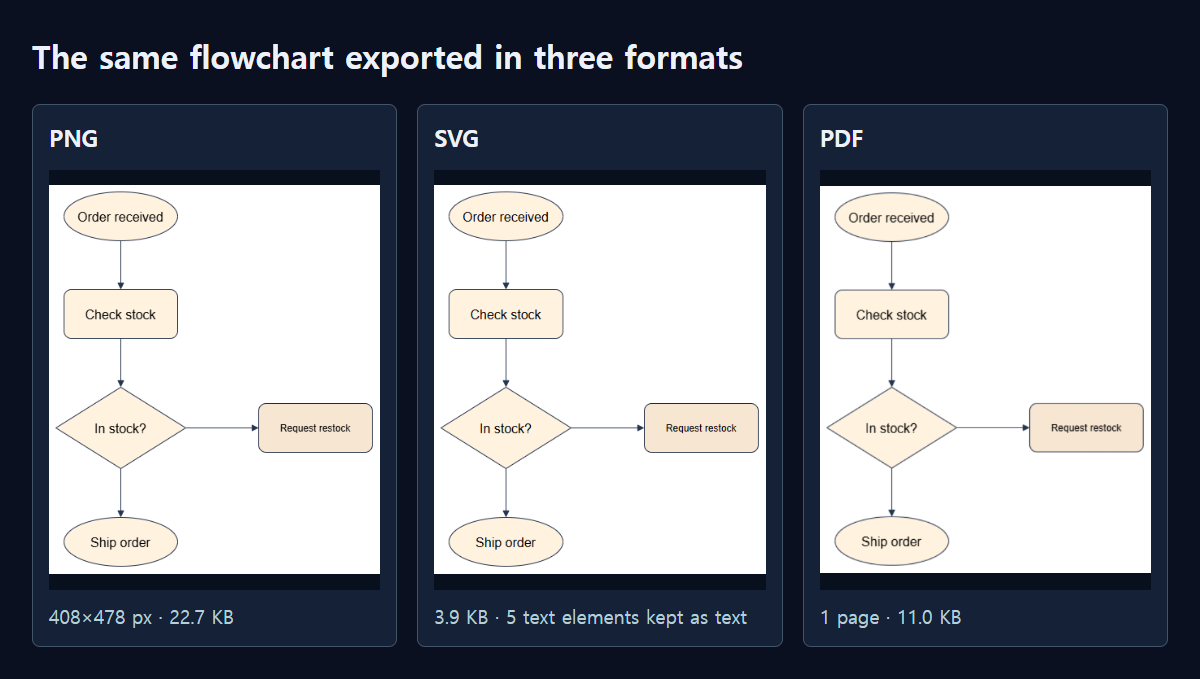
Export offers Editable source, Web page, PNG, WEBP, SVG and PDF. From the English version, the same flowchart came out as a 408×478-pixel PNG of 22.7 KB, a 3.9 KB SVG, an 11.0 KB PDF and a 2.4 KB editable source. The editable source is saved as a file ending in .xml; open it later with Open file to keep editing.
Each format behaves differently. PNG is saved at the drawing’s own size, so it is only 408 px wide. That is fine for a chat or a document, but it blurs when enlarged. SVG kept all five labels as real text elements, so it stays sharp at any size, and it was also the smallest. The PDF is one page (306×359 pt), but it contains a single 408×478-pixel image and no searchable text. The tool’s own note also says PDF saves a one-page image of the drawing. If you plan to change it later, always download the editable source as well.
When are Web page and WEBP useful?
WEBP had the same 408×478 pixels as PNG but was 10.6 KB, roughly half the size. It is a light choice for posting the chart as a picture on a website or blog. If the receiving program cannot open WEBP, use PNG instead.
Web page (.html) put the drawing and the editable source together in one 11.9 KB file, and the file contained no references to outside addresses. It opens directly in a browser, links you added to shapes can be clicked, and opening the same file again with Open file lets you keep editing. That makes it a good format to email to someone who should both view and edit the chart.
Can I pass the chart to another tool?
Open Continue in above the editor to hand the current drawing to Compress, Convert or Combine / PDF. For example, to put the flowchart in one PDF together with photos of other documents, pass it to Combine / PDF. On a phone you can view diagrams and make simple edits, but the tool itself notes that a computer is easier for large drawings.
The whole process
- Open Diagram maker and choose Flowchart under Choose a template.
- Double-click shapes to rename them, or use Selected shape text and Update text.
- For a branch, add a box with Add shape and connect it with a connection arrow.
- Press Fit drawing to check the whole chart.
- Choose a format under Export, and save the editable source too.
Measured with MiruKit
| Export | File size | What we checked |
|---|---|---|
| PNG | 22.7 KB | 408×478 px |
| SVG | 3.9 KB | 5 text elements |
| 11.0 KB | 1 page · one 408×478 px image inside · no searchable text | |
| WEBP | 10.6 KB | 408×478 px |
| Web page (.html) | 11.9 KB | Drawing and editable source in one file |
| Editable source (.xml) | 2.4 KB | 5 shapes · 4 connectors |
In each language’s Diagram editor we opened the Flowchart starter, changed five labels, added one box and one connector, then downloaded PNG, SVG, PDF and the editable source from Export and reopened them. Sizes are from the files saved in that language.
Good to know
Sizes are from the files we downloaded in this test. They differed slightly by language, for example PNG was 20.8 KB in Korean and 24.4 KB in Japanese.
Drawings and editable sources stay in your browser and are not sent to a server. To continue on another device, move the editable source file and open it with Open file.