Erase an unwanted object: when it works and when it shows
Written · Updated · Operator (individual)
Sometimes erasing a small mark on a wall leaves no trace at all, and sometimes it leaves an obvious square patch. The difference mostly comes from what surrounds the spot you erase. We erased objects of different sizes from drawn scenes with different backgrounds, then measured how far each result was from the clean background we started with.
How do I erase something?
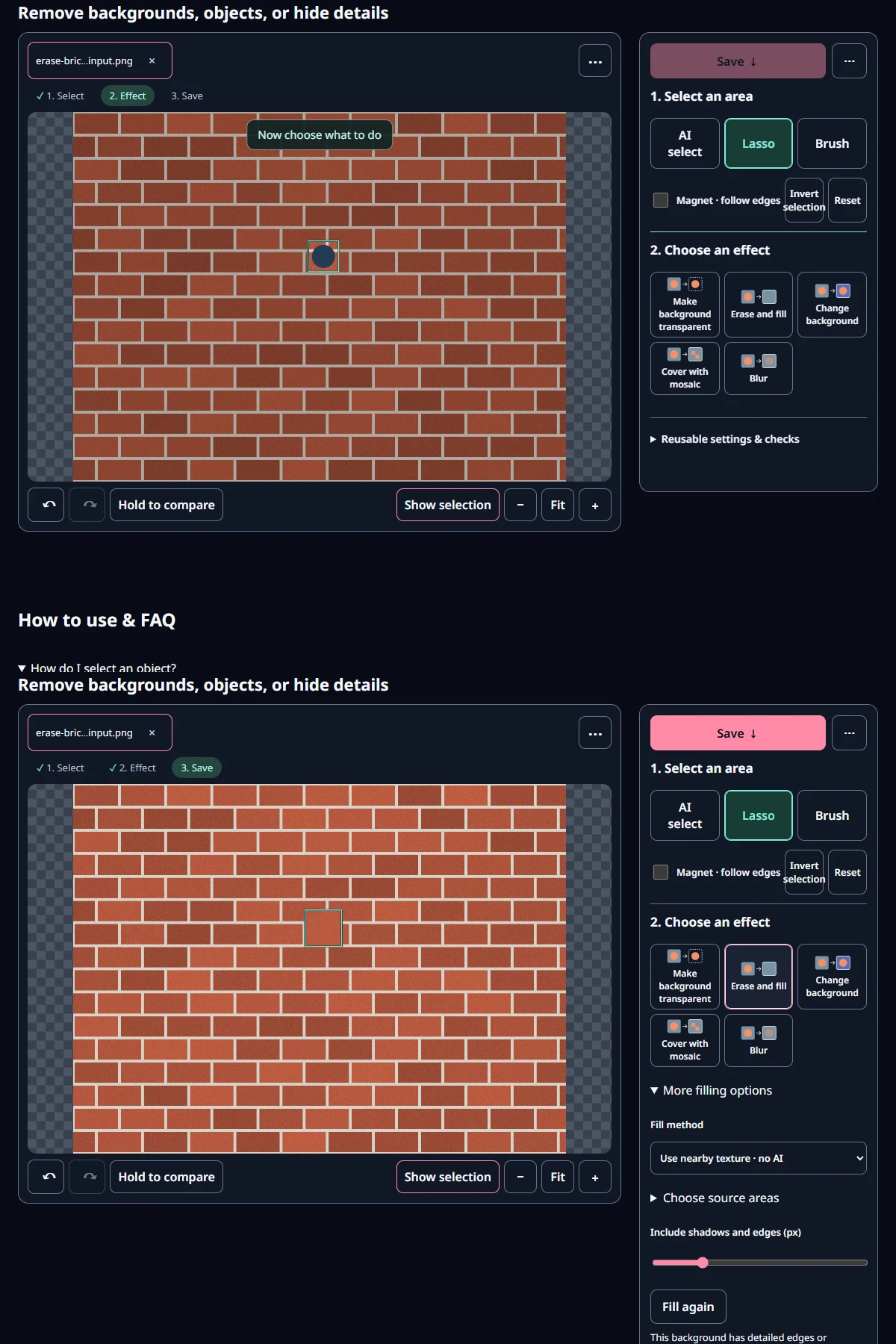
Open the photo in Cutout & erase and select the object with Lasso or Brush. Select a little more than the object itself. Then press Erase and fill under 2. Choose an effect, and filling starts right away. The default Fill method is Use nearby texture · no AI, so no AI file is downloaded. Under More filling options, Include shadows and edges (px) is 6 px by default; it widens your selection by that amount to cover soft shadows and outlines.
If you do not like the result, Fill again gives you a different attempt. In Choose source areas you can paint orange (Exclude source) or teal (Include source) to control where the replacement texture is copied from.
What did we test?
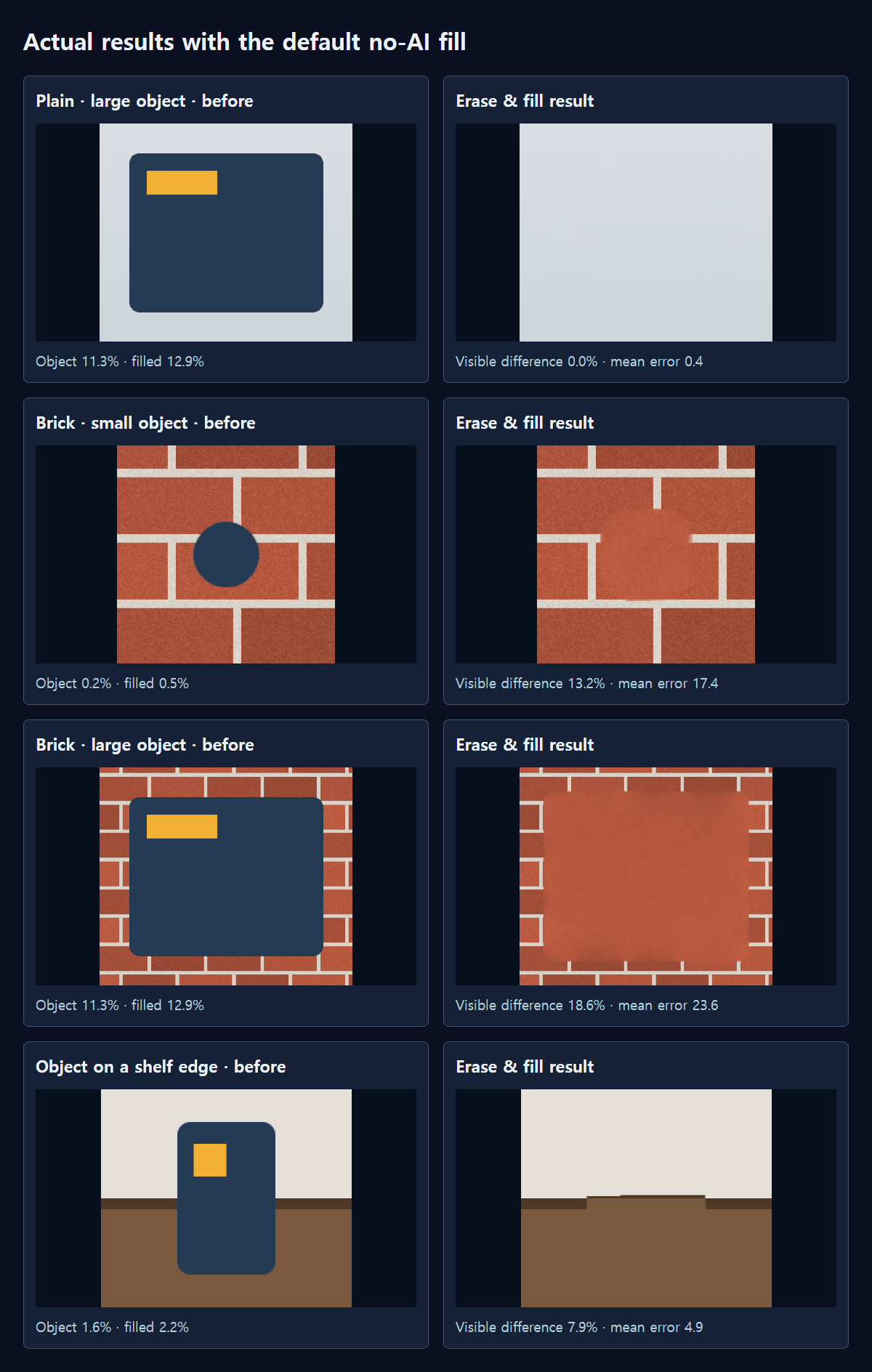
We made three 1024×768 scenes: a plain wall with a gentle top-to-bottom gradient, a brick wall with mortar lines, and a corner where a wall meets a brown shelf. We saved each clean background first, then drew either a small circle (0.2% of the image) or a large box (11.3%) on top. Each selection was 4 px larger than the object and filled by the shipped default eraser. We compared only the filled area with the clean background, and counted a pixel as a “visible difference” when any channel was more than 32 off on the 0–255 scale.
The filled area was larger than the object. Our 4 px of extra room plus the default 6 px widening meant that the small circle, 0.2% of the image, became a 0.5% fill, and the large box went from 11.3% to 12.9%. That margin is there to cover shadows; for an object without one, you can lower Include shadows and edges (px).
How did it do on a plain background?
On the plain wall, both the small circle and the large box had 0.0% visible difference. The mean error in the filled area was 0.3 and 0.4, so the replacement almost matched the original wall. The large box needed 12.9% of the image filled, and the gradient still continued smoothly. Skies, white walls and plain desks are good candidates for the default eraser, even for larger objects.
What about patterns and lines?
The brick wall was different. The small circle had 13.2% visible difference and the large box 18.6%, with mean errors of 17.4 and 23.6. Looking at the output, the brick color was filled well but the mortar lines did not continue, so the erased spot looks like one smooth block of brick. Fill again on the large box gave 18.8%, practically the same. Repeating lines and grids are the hardest case for this method. In the real tool, the screen also suggested comparing with AI fill after filling the brick photo.
The object on the shelf edge scored 7.9%. Wall and shelf colors were filled well, but the dark line between them broke slightly and shifted height in the erased spot. In every case, not a single pixel outside the selection changed, which confirms that erasing only edits what you selected.
How long does it take?
Measuring only the fill calculation in Edge on our desktop PC, the small circle took about 0.17 s, the large box on the plain wall 0.38 s, and the large box on brick 0.71 s. Bigger areas and busier patterns take longer. Phones and older computers will be slower, but the default method downloads no AI file, so even the first use adds almost no waiting.
When should I use Choose source areas?
The default eraser fills the spot by copying texture from around it. If something else sits nearby, such as the tip of another object or a piece of lettering, that can be copied too. Open Choose source areas and paint it with Exclude source · orange, and it will not be copied. Paint with Include source · teal instead, and texture is taken only from inside the teal area. For a regular pattern such as brick, painting bricks from the same row in teal is worth a try.
A routine for better results
- Draw around the object with a little extra room so that its shadow is included.
- Press Erase and fill and zoom into the result. Use Hold to compare to switch between before and after.
- If a line runs through the spot, such as mortar, a window frame or a horizon, try painting a strip at the same height in teal under Choose source areas.
- For a large object, the tool itself recommends splitting it into smaller areas when there is too little texture nearby, so each fill has more surrounding context.
- If it still looks wrong, choose Fill with AI under Fill method and compare. It needs an AI file the first time, and we did not measure it in this test.
Measured with MiruKit
| Scene | Object size | Mean error in fill | Visible difference | Changes outside |
|---|---|---|---|---|
| Plain · small object | 0.2% | 0.3 | 0.0% | 0 |
| Plain · large object | 11.3% | 0.4 | 0.0% | 0 |
| Brick · small object | 0.2% | 17.4 | 13.2% | 0 |
| Brick · large object | 11.3% | 23.6 | 18.6% | 0 |
| Brick · large · Refill once | 11.3% | 23.7 | 18.8% | 0 |
| Object on a shelf edge | 1.6% | 4.9 | 7.9% | 0 |
Objects were drawn on 1024×768 synthetic scenes whose clean background is known. Each selection was 4 px larger than the object and filled by the shipped default eraser (no AI, 6 px padding). Errors are 0–255 values compared with the clean background inside the filled area only; “visible” means any channel off by more than 32.
Good to know
Our scenes are simple drawings. Real photos have more complex light and texture, so they will not produce the same numbers.
To replace the whole background, Change background or Make background transparent fits better than erasing. Do not use this tool to remove someone else’s watermark or copyright notice.