Fit photos under email and messenger limits: real results by target size
Written · Updated · Operator (individual)
You attached a few photos and the email turned them into a link, or the message simply wouldn't send. Divide the total limit by the number of photos to get a per-photo target, then enter that target in Compress. We shrank one 4000×3000 photo to several targets to see what actually changes.
Is the limit per photo or for everything together?
It depends on the service, so read its own help page first. Gmail Help says the limit for personal accounts is 25 MB, and that if your total attachment size is greater than the limit, Gmail removes the attachment and adds it as a Google Drive link instead. In other words, with several photos it's the total that counts. Work and school accounts follow the limits set by their administrator.
Messengers and forums sometimes have a per-file limit and a separate total. Once you know the numbers, divide the total by the number of photos and leave a little headroom, because services don't always count sizes the same way. To send ten photos within 25 MB, for example, a 2 MB target per photo keeps the math simple.
What happened when we compressed the same photo to each target?
We made a 4000×3000 test image ourselves, with a grassy texture and a small sign with text. Saved as a high-quality JPG, it was 4.19 MB. We ran it through the same processing as the Compress tool, as JPEG, and changed only the target.
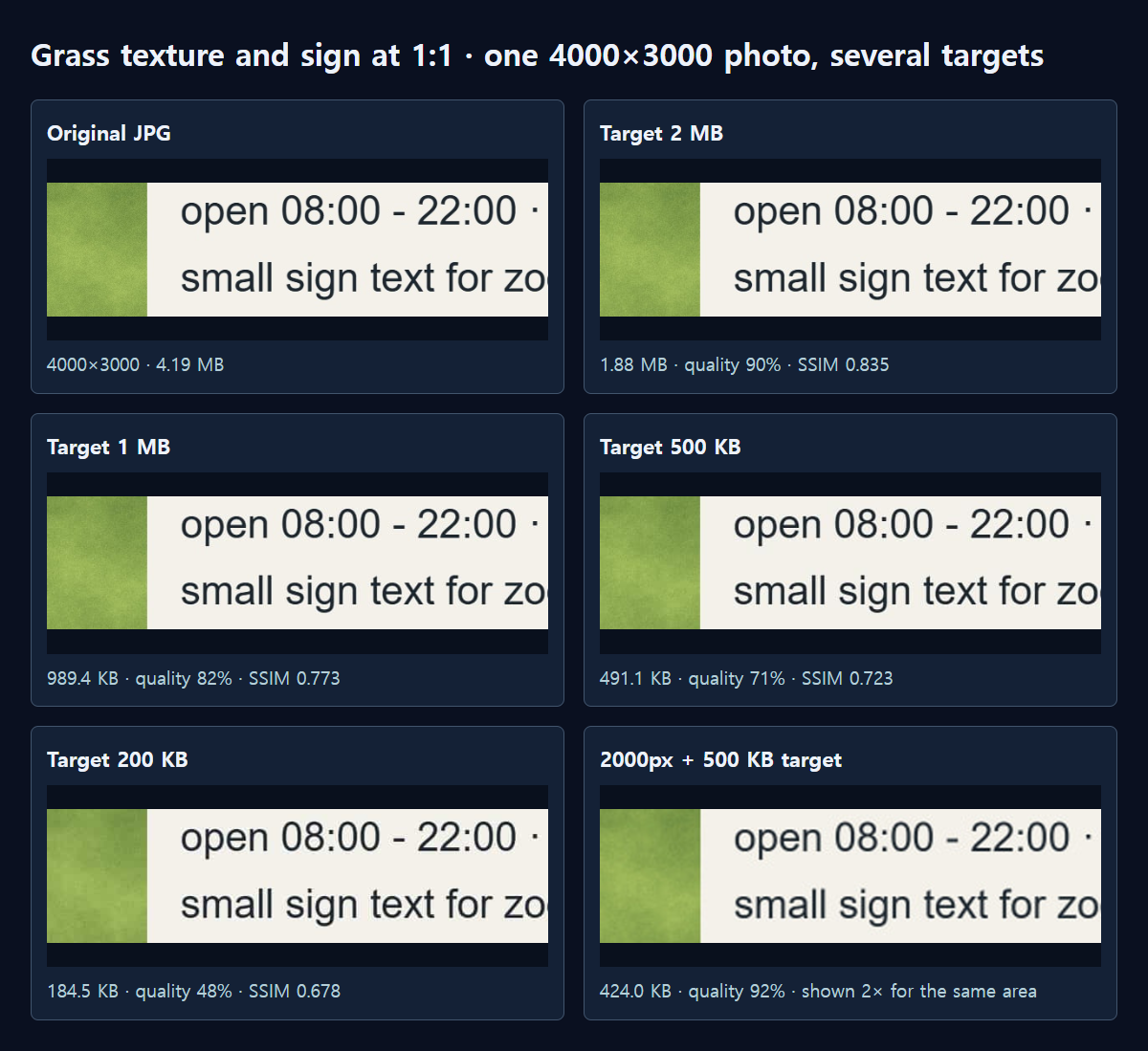
A 2 MB target gave 1.88 MB at quality 90%. A 1 MB target gave 989.4 KB at 82%, 500 KB gave 491.1 KB at 71%, and 200 KB gave 184.5 KB at 48%. Every result came in under its target and kept the full 4000×3000 dimensions. Each photo took about 3 to 8 seconds on our test PC.
The 5 MB target was interesting. The original was already smaller than the target, so MiruKit didn't lower the quality at all; it tidied the file to 3.89 MB and labelled it "Reduced without quality loss". A photo that already fits doesn't need to be squeezed.
What changes as the target gets smaller?
The SSIM column in our table shows how similar each result is to the original, on a scale from 0 to 1. It fell from 0.835 at 2 MB to 0.773 at 1 MB, 0.723 at 500 KB and 0.678 at 200 KB. Our test image has deliberately fine, rough texture, so its scores run lower than many everyday photos.
In the 1:1 crops below, the sign text stayed readable even at 200 KB. The differences show up first in fine, irregular areas like the grass. For photos full of detail, such as flower beds, hair or gravel, avoid pushing the target too low.
Should I make the photo smaller instead?
We also tried the same 500 KB target after resizing the width to 2000px. MiruKit could use a higher quality of 92%, but compared with the full-size original, its SSIM was 0.693, lower than the 0.723 we got by keeping 4000px. For this photo, keeping the dimensions stayed closer to the original.
That said, if the recipient will only look at it on a phone, 2000px may be plenty. Keep the dimensions for photos that will be printed or zoomed into, and for photos that will only be viewed on screen, compare a resized version too.
How do I fit a photo in MiruKit?
- Open Compress and add the photos you want to send.
- Check that "For forms · JPG" is selected at the top, so Save as is JPEG. Almost any recipient can open a JPEG.
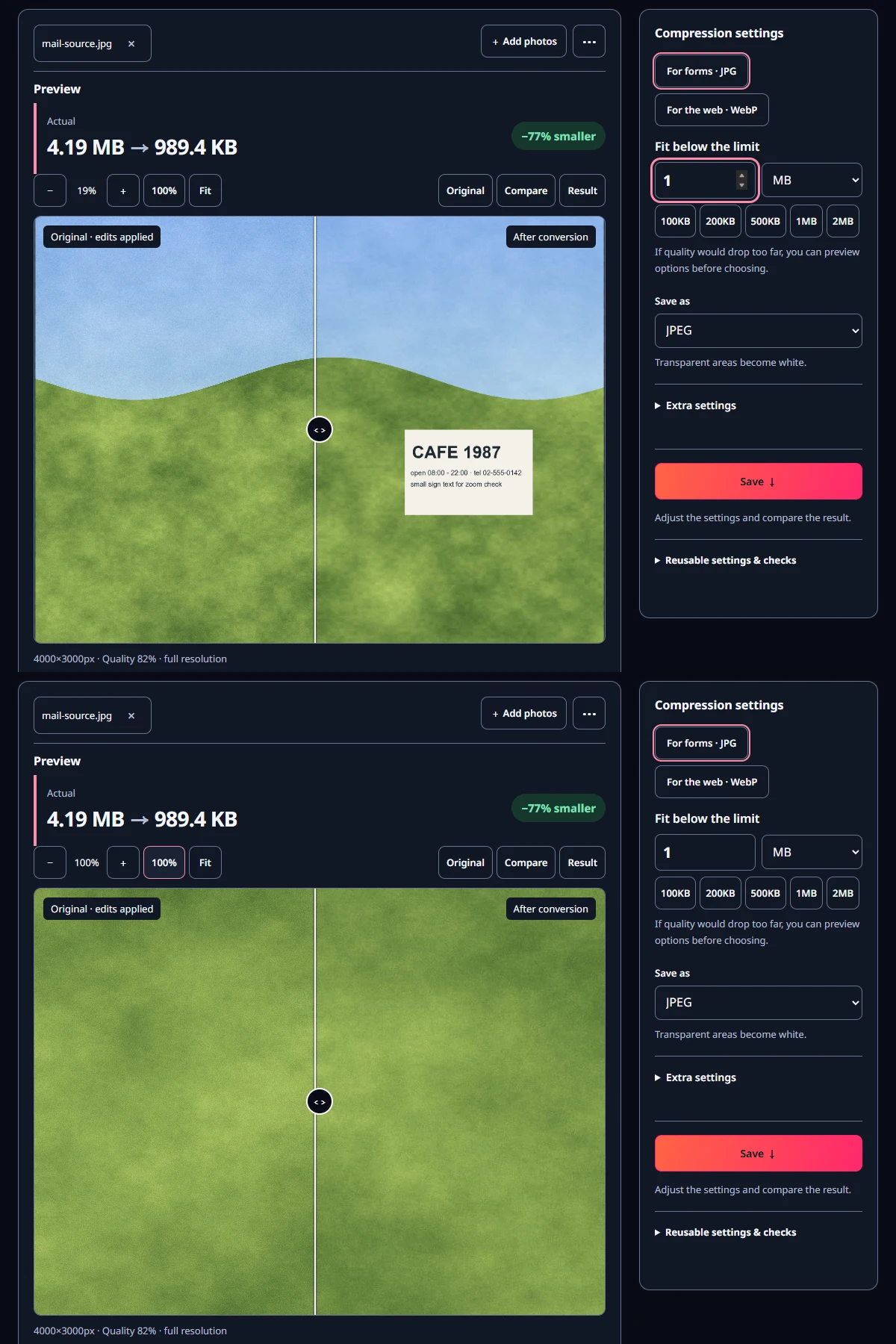
- Enter your per-photo target in Fit below the limit, choosing KB or MB as the unit.
- Check the result size and quality, click 100% to inspect the important parts, then Save.
If the target is so small that quality would drop a lot, MiruKit may offer other results, such as Resize to fit. A change of dimensions is only applied when you choose it yourself.
Can I fit several photos at once?
Compress accepts up to 20 photos at a time, 25 MB each and 100 MB in total. The target applies to each photo separately. Add ten photos with a 2 MB target and each one is fitted under 2 MB, while the total depends on the photos. If each came out at 1.88 MB like our example, ten would add up to about 18.8 MB.
After saving, check the total of the result files. Photos that come in well under the target leave you headroom, and photos that were already small are tidied without lowering quality. If the total is still close to the limit, lower the target a little or split the photos across two emails.
Open the related toolMeasured with MiruKit
| Target | Result size | Chosen quality | SSIM |
|---|---|---|---|
| 5 MB | 3.89 MB | Original kept (lossless) | 1.000 |
| 2 MB | 1.88 MB | 90% | 0.835 |
| 1 MB | 989.4 KB | 82% | 0.773 |
| 500 KB | 491.1 KB | 71% | 0.723 |
| 200 KB | 184.5 KB | 48% | 0.678 |
| 2000px + 500 KB | 424.0 KB | 92% | 0.693 |
| No target · quality 85% | 1.19 MB | 85% | 0.795 |
A synthetic 4000×3000 high-detail image (4.19 MB JPG) went through the same processImage that Compress uses, as JPEG with a target size. SSIM is MiruKit’s nine-tile similarity against the source JPG. Results vary by photo.
Good to know
These numbers come from a single test image we made ourselves. Real photos can end up at different quality settings for the same target, depending on what's in them.
Email and messenger limits can change. Check the current help page of the service you use before sending.
Keep the original and send the reduced copy. Compressing an already compressed file again can add more damage.
Official sources
Sources checked 2026-10-27