Cropping for social media: what 1:1, 4:5, 16:9 and 9:16 cut away
Written · Updated · Operator (individual)
A phone photo rarely fits every place you want to post it. A profile picture, a feed post, a video thumbnail and a story all want a different shape. Apps will crop for you, but that is exactly when the top of someone’s head or a caption near the edge quietly disappears. Choosing the ratio yourself before uploading lets you decide what stays.
How much is left at each ratio?
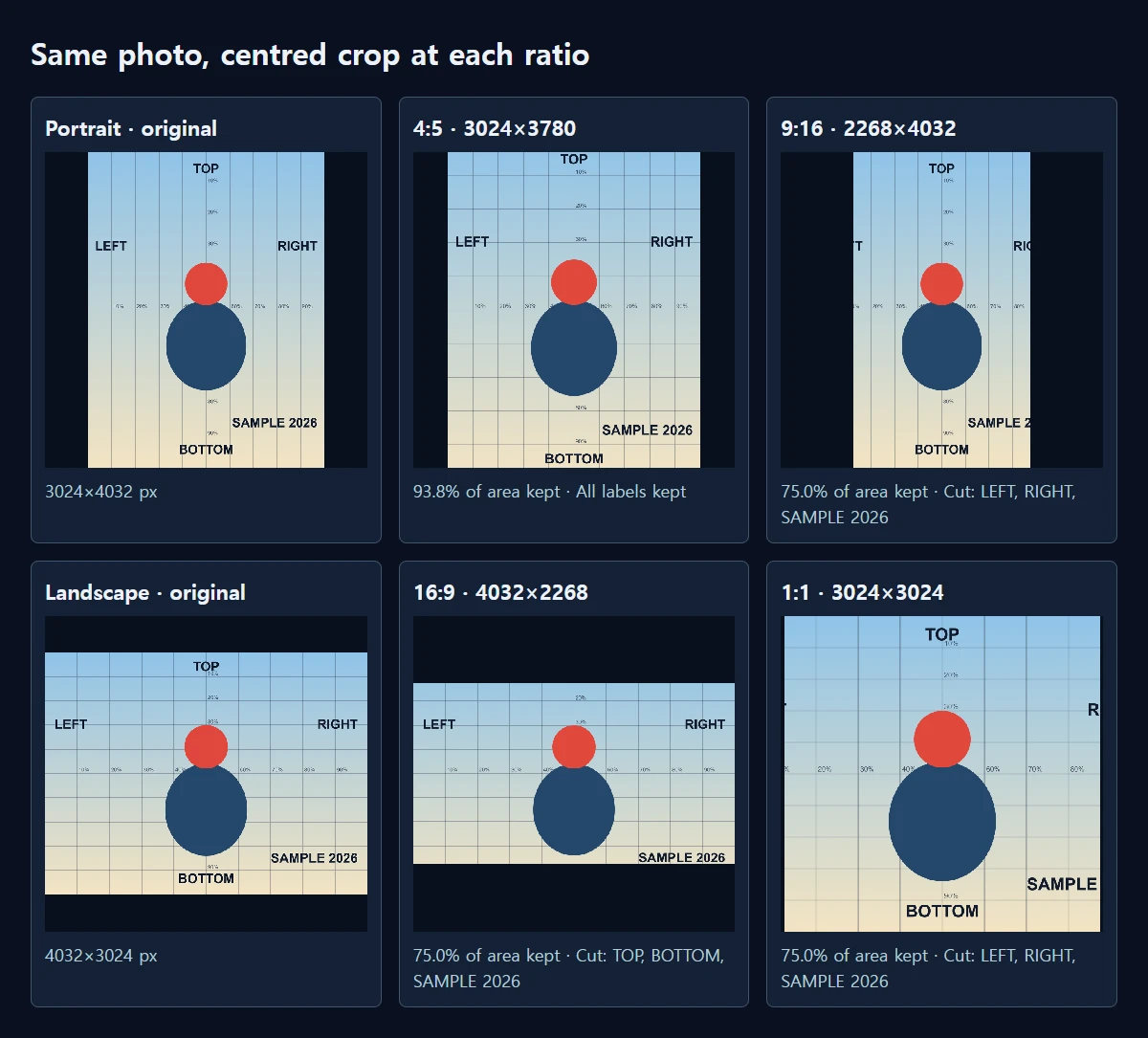
We drew a 4032×3024 test picture and a portrait version at 3024×4032. That 4:3 shape is common for phone cameras. Labels reading TOP, BOTTOM, LEFT, RIGHT and SAMPLE 2026 sit near the edges, and each picture was cropped from the centre using the same calculation as the ratio menu in MiruKit’s Crop photos tool, then saved as WebP.
For the portrait picture, 4:5 kept the most. The result was 3024×3780, which keeps 93.8% of the area; only 126 pixels went from the top and the bottom, and all five labels survived. A 1:1 crop removed 504 pixels from the top and the bottom, kept 75.0%, and lost both TOP and BOTTOM. A 9:16 crop removed 378 pixels from each side and cut LEFT and RIGHT in half.
The landscape picture behaves the other way round. A 16:9 crop produced 4032×2268 and kept 75.0%, but 378 pixels went from the top and the bottom, taking TOP and BOTTOM with them. Turning the same landscape photo into 4:5 kept only 60.0%, and 9:16 kept 42.2%, removing LEFT and RIGHT completely. The further the target shape is from the way the photo was taken, the more you throw away.
Where do the platform sizes come from?
YouTube’s Help Center asks for a 16:9 thumbnail for videos and 9:16 for Shorts. It lists 3840×2160 as the resolution to aim for (2160×3840 for Shorts) with a minimum width of 640 pixels. Instagram’s help page says photos are uploaded at the best quality available, up to a width of 1080 pixels. We could not find the 4:5 ratio itself stated on the Instagram page we checked, so treat MiruKit’s “4:5 · Instagram portrait” label as a common shape, and confirm the app’s own crop frame before posting.
It helps to keep ratio and pixel count apart. The ratio sets the shape; the pixels come from your original. Our 16:9 result of 4032×2268 is larger than YouTube’s suggested size, so if the file feels heavy you can bring it down to 3840×2160 in Resize images.
Cropping also reduces the number of pixels. Cropping the portrait picture to 16:9 left 3024×1701. That is comfortably above YouTube’s 640-pixel minimum, but below the recommended 3840×2160. If you know you need a wide thumbnail, shooting in landscape gives a much larger result, as the 4032×2268 crop shows. For stories, a portrait photo keeps its full 4032-pixel height at 9:16.
How to crop in MiruKit
- Open the original in Crop photos. The file straight from the camera has more room to work with than a copy an app has already cropped.
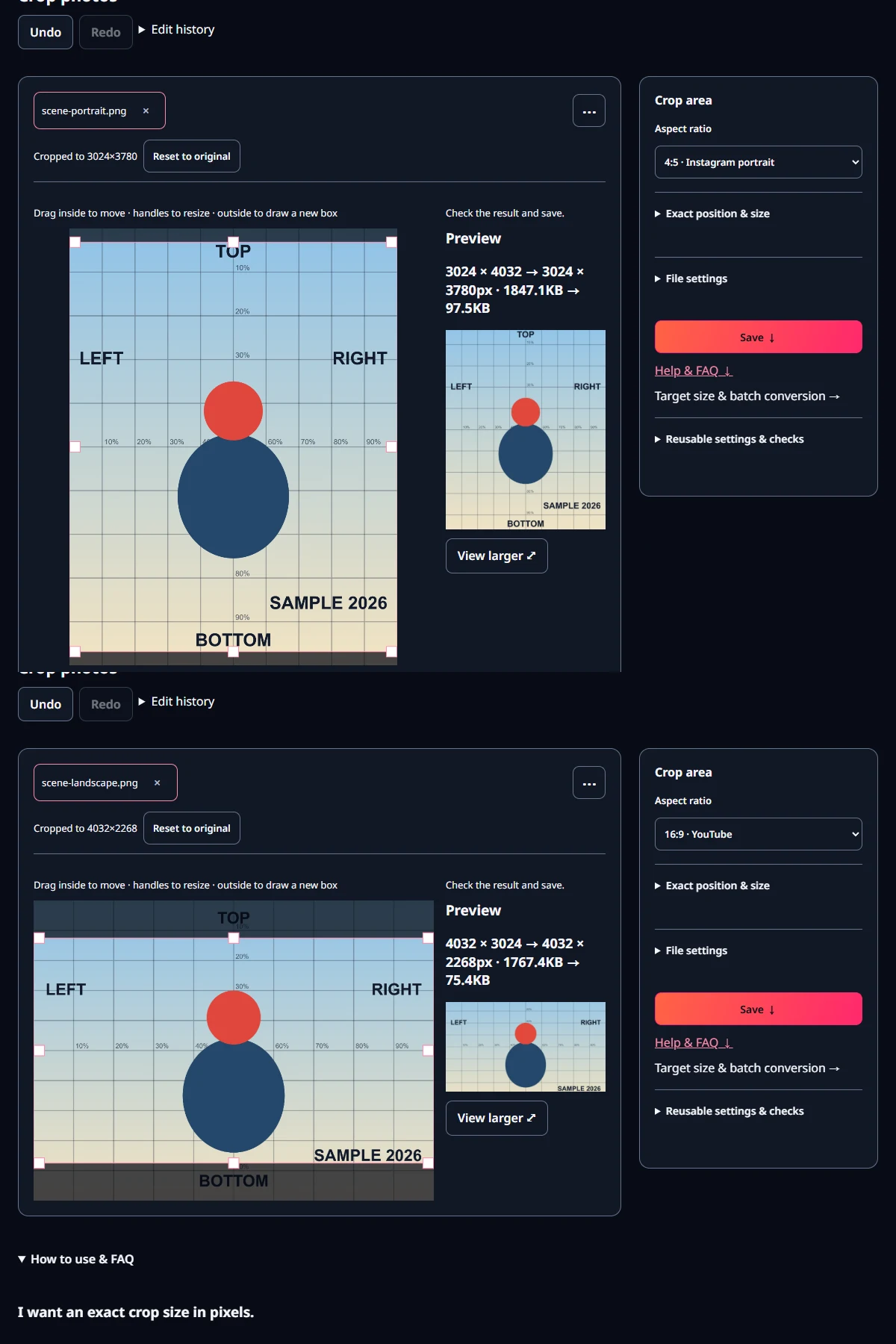
- Under Aspect ratio, choose 1:1 · profile / Instagram, 4:5 · Instagram portrait, 16:9 · YouTube or 9:16 · Shorts / Stories. The box starts in the centre.
- Drag inside the box to move it towards the person or text you want to keep. Moving the box does not change its shape.
- Check the output dimensions shown in the preview, then save. If you need exact pixels, open Exact position & size and type the numbers.
A centred crop is only a starting point. When the subject is in the middle, as in our test picture, it works well. When someone stands to one side or a date is printed at the bottom, move the box. This matters most when turning a landscape photo into a tall shape, because the strip that remains is narrow.
What if I need several ratios?
If the same photo is going into a feed post and a story, crop each version from the original. Re-cropping a 4:5 copy into 9:16 cannot bring back the top and bottom you already removed, so you end up with a tighter frame than cropping the original directly.
If you would rather not crop at all, Export several sizes at once in Resize images adds white padding and keeps the whole photo. The trade-off is that the photo appears smaller inside the frame, which is noticeable in small places such as thumbnails.
Open the related toolMeasured with MiruKit
| Source · ratio | Output · size | Area kept · removed |
|---|---|---|
| Portrait · 1:1 | 3024×3024 · 75.7 KB | 75.0% · about 504px from top and bottom |
| Portrait · 4:5 | 3024×3780 · 97.5 KB | 93.8% · about 126px from top and bottom |
| Portrait · 16:9 | 3024×1701 · 43.0 KB | 42.2% · about 1165px from top and bottom |
| Portrait · 9:16 | 2268×4032 · 80.1 KB | 75.0% · about 378px from left and right |
| Landscape · 1:1 | 3024×3024 · 78.6 KB | 75.0% · about 504px from left and right |
| Landscape · 4:5 | 2419×3024 · 66.1 KB | 60.0% · about 806px from left and right |
| Landscape · 16:9 | 4032×2268 · 75.4 KB | 75.0% · about 378px from top and bottom |
| Landscape · 9:16 | 1701×3024 · 52.6 KB | 42.2% · about 1165px from left and right |
Synthetic 4032×3024 (landscape) and 3024×4032 (portrait) scenes were cropped by the shipped processImage using the same centred rectangle the Crop ratio menu computes, saved as WebP quality 85. Edge label boxes were checked against each crop rectangle.
Good to know
These numbers come from centred crops of two synthetic 4:3 pictures. Moving the box changes which side is cut and which labels survive.
Platform sizes and crop screens can change. Check the service’s current guidance and its own preview just before posting.
Official sources
Sources checked 2026-10-27