Change a product or profile background to a plain color without a halo
Written · Updated · Operator (individual)
You switched a mug photo to a white background, and now the old wall still shows inside the handle, or a gray ring follows the outline. Changing the background is one button, but the result depends almost entirely on what you selected. We counted the leftover pixels on a drawn example and turned the numbers into a short routine.
What are the basic steps?
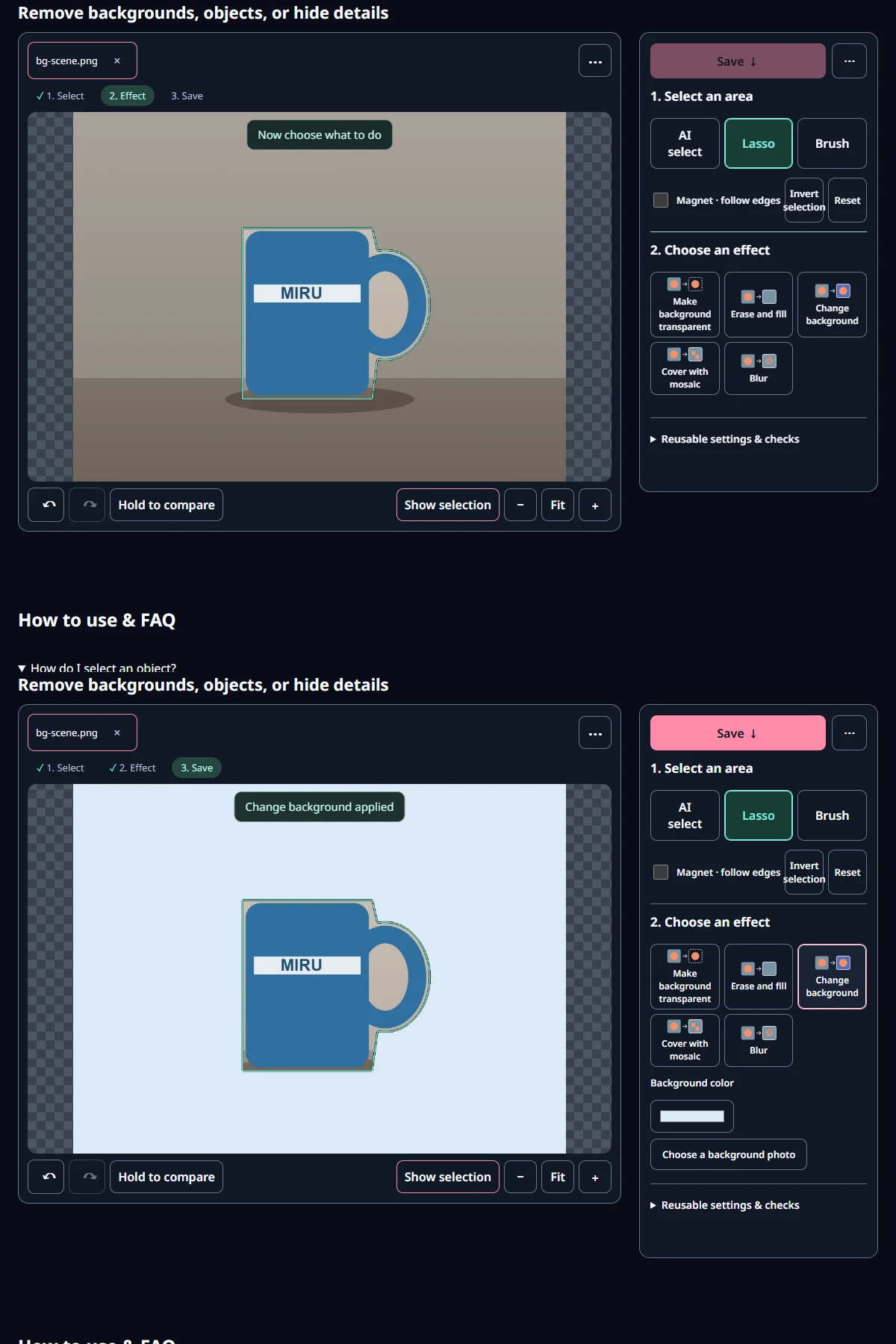
Open the photo in Cutout & erase and pick the object under 1. Select an area. To select by hand, choose Lasso and draw around the outside of the object. Select with AI can choose it automatically after the AI file is downloaded. Then, under 2. Choose an effect, press Change background and pick white or any other shade under Background color. Choose a background photo places another picture behind the object instead.
Change background keeps the selected object and paints everything else with the new color. That makes the selection the main factor in the result. A floor shadow disappears too unless you include it, so select it as well if you want to keep it.
How did we test it?
We drew a 1200×900 mug scene with a wall, a floor and a soft shadow. Because we know the exact shape of the mug, we can count two things in the result: pixels outside the mug that are not the new color (old background left) and pixels inside the mug whose color changed. Selection masks were made at the editor's 1024×768 working size and passed to the shipped Change background calculation, with white as the new color.
Even an exact outline left some old background: 1,115 pixels with Soften edges at 0, and 1,770 at the default of 1. These are half-mixed pixels along the boundary and are hard to see at normal size. Raising Soften edges to 4 increased the leftover to 5,997 pixels and blurred 10,596 pixels of the mug. On a plain new color, heavy softening creates a ring rather than hiding one.
What happens with a loose outline?
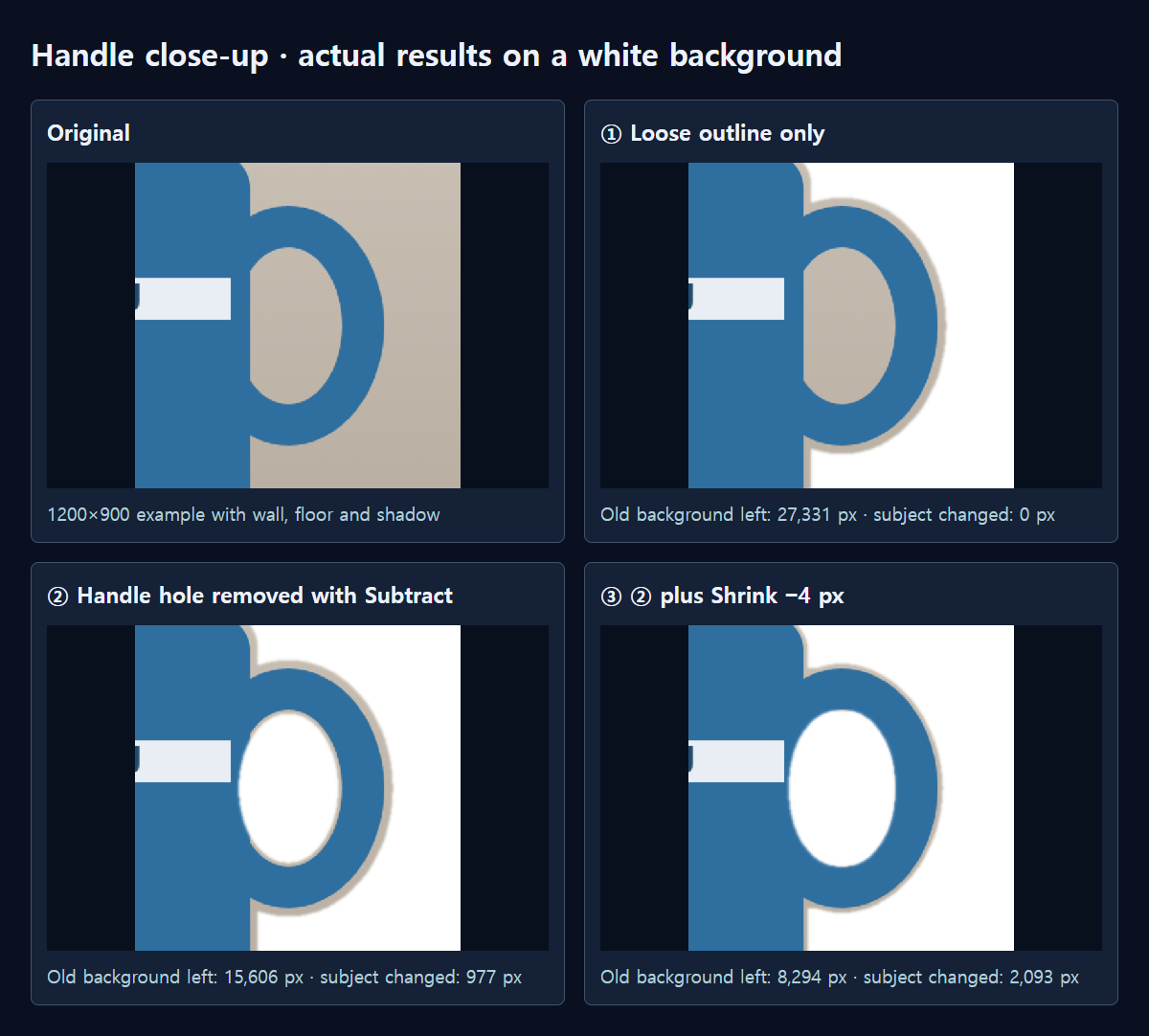
Hand-drawn outlines usually run a little outside the object. We drew one about 8 px wider than the mug and got 27,331 pixels of old background, 13,168 of them inside the handle hole. Lasso selects everything it encloses, so an open space such as a handle counts as part of the object.
Painting the hole out with Brush and − Subtract cut the leftover to 15,606 pixels, mostly a thin strip of wall around the rim. Moving Expand / shrink (px) to −4 reduced it to 8,294, and −8 to 641. The cost appears on the other side: changed mug pixels rose from 977 to 2,093 and then 8,230. Shrink by about as much as your outline was too wide; going further starts trimming the object.
Does a large photo behave differently?
The Cutout editor stores your selection at a working size of 1024 px on the long side and scales it up to the original when it builds the result. Our 1200×900 drawing is close to that size, so the effect was small. On a photo 4000 px wide, though, one step of the selection covers about 4 px of the original. If you trace the same distance outside the object on screen, a larger photo ends up with a wider ring in original pixels. Expand / shrink (px) is measured in original pixels, so a large photo may need a bigger shrink as well. Judge by the zoomed result rather than by the number.
A routine that avoids the ring
- Select the object with Lasso or Select with AI. Look for open spaces such as handles, straps or gaps between arms.
- Choose Brush, switch to − Subtract and paint those spaces out. Zoom in for accuracy.
- Press Change background and choose a color. Bright colors such as white reveal leftovers most clearly, so zoom in.
- If old background remains along the edge, move Expand / shrink (px) left a little at a time. Step back once when the object's edge starts to be cut.
- Start Soften edges at 0 or 1. Raise it slightly only for soft edges such as hair, and compare.
- Use Hold to compare to switch between the original and the result, then save.
Are product shots and profile photos different?
Product photos usually have clear outlines, so the routine above fits them well. Objects with holes, such as mug handles, bag straps and chair backs, are where step 2 is easiest to forget. Profile photos are harder at the hairline. Our drawn test has crisp edges, so it says nothing about hair quality. If old background shows through strands of hair, try a little more softening, or choose a new color close in brightness to the old one so any mix is less obvious.
Marketplaces may have their own rules about background color and shadows. Check the current guidance of the site where you will upload.
What if I need transparency instead of a color?
If the object will sit on top of another design, choose Make background transparent instead of Change background. Only the selected object remains, and the rest becomes empty. Save it as PNG or WebP, because JPG cannot store transparency and fills empty areas with a color. Removing holes and shrinking the edge, as described above, help just as much with a transparent background.
Open the related toolMeasured with MiruKit
| Selection | Feather | Expand / shrink | Old background left | Subject pixels changed |
|---|---|---|---|---|
| Exact outline | 0 | 0 | 1,115 px | 668 px |
| Exact outline | 1 | 0 | 1,770 px | 2,613 px |
| Exact outline | 4 | 0 | 5,997 px | 10,596 px |
| Loose · hole included | 1 | 0 | 27,331 px | 0 px |
| Loose · hole removed | 1 | 0 | 15,606 px | 977 px |
| Loose · hole removed | 1 | -4 px | 8,294 px | 2,093 px |
| Loose · hole removed | 1 | -8 px | 641 px | 8,230 px |
A drawn 1200×900 mug scene was processed by the shipped Change background (white) with selection masks at the editor’s 1024×768 resolution. “Old background left” counts pixels outside the subject that differ from the new color by more than 24 on any channel; “subject changed” counts subject pixels that differ from the original by more than 24.
Good to know
Our test image is a simple drawn scene. Real photos with soft edges or mixed shadows will give different numbers.
Many passport and visa authorities do not accept digitally replaced backgrounds. For official photos, do not use this feature; take a compliant photo from the start.