Black-and-white and sepia photos: fixing colours that merge into one grey
Written · Updated · Operator (individual)
Have you turned a colour photo into black and white and found it flat? A red flower that stood out against green leaves often becomes the same grey and disappears. MiruKit’s Photo adjustments and filters offers several ways to make black-and-white and sepia images. We measured what each one actually does, and what to move when colours merge.
Black and white keeps only brightness
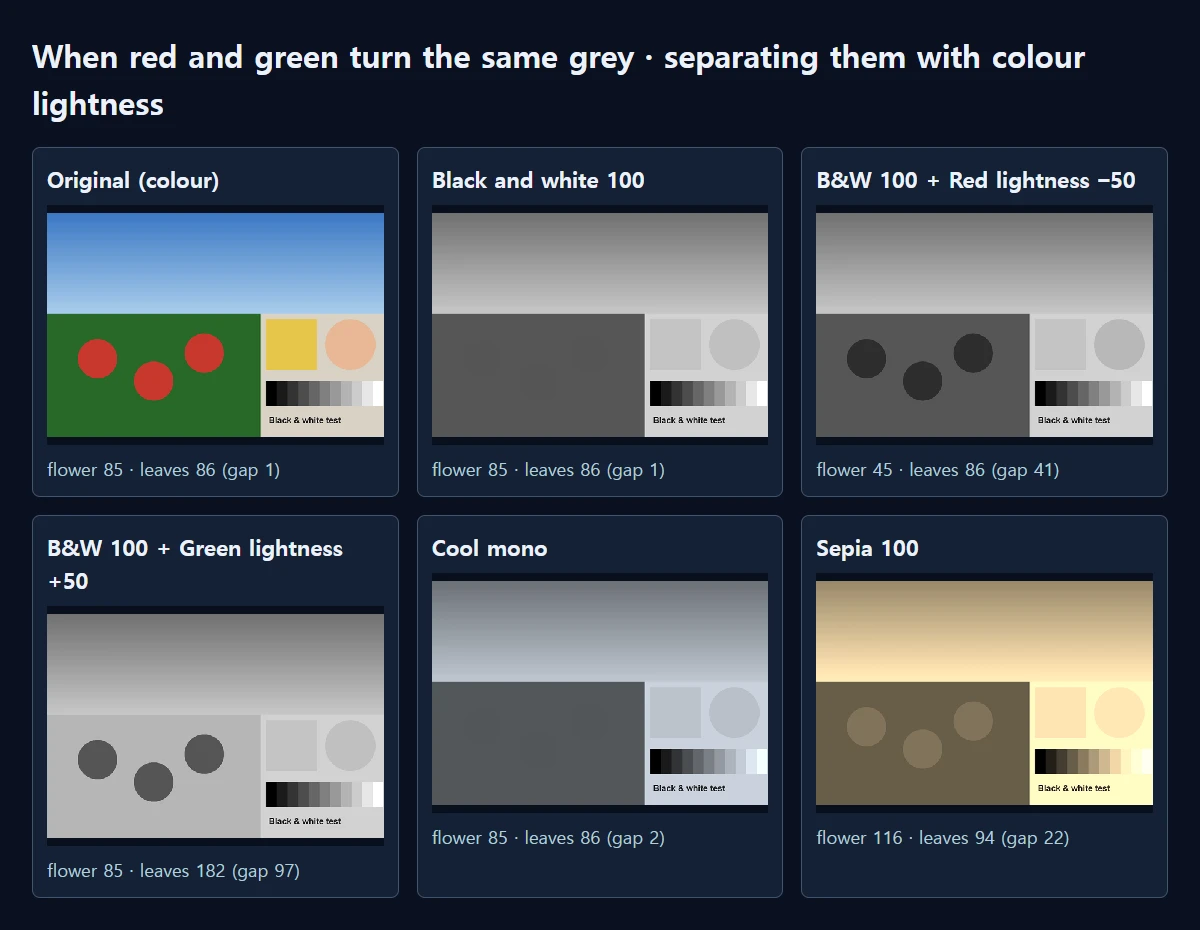
Raising Black and white to 100 under Effects keeps each pixel’s brightness and removes its colour. Our test image has a red flower among green leaves, with the two colours chosen to be almost equally bright: on a 0–255 scale the flower is 85 and the leaves 86. Saved at Black and white 100, they stayed at 85 and 86, and in the comparison image the flower almost vanishes into the leaves. An 11-step grey wedge from 0 to 255 did not change by a single level. The effect removes colour and leaves brightness exactly as it was.
At 50, half the colour remains: the amount of colour went from 82.3 in the original to 41.3. That is useful for a muted, faded look.
Pull merged colours apart with the Color mixer
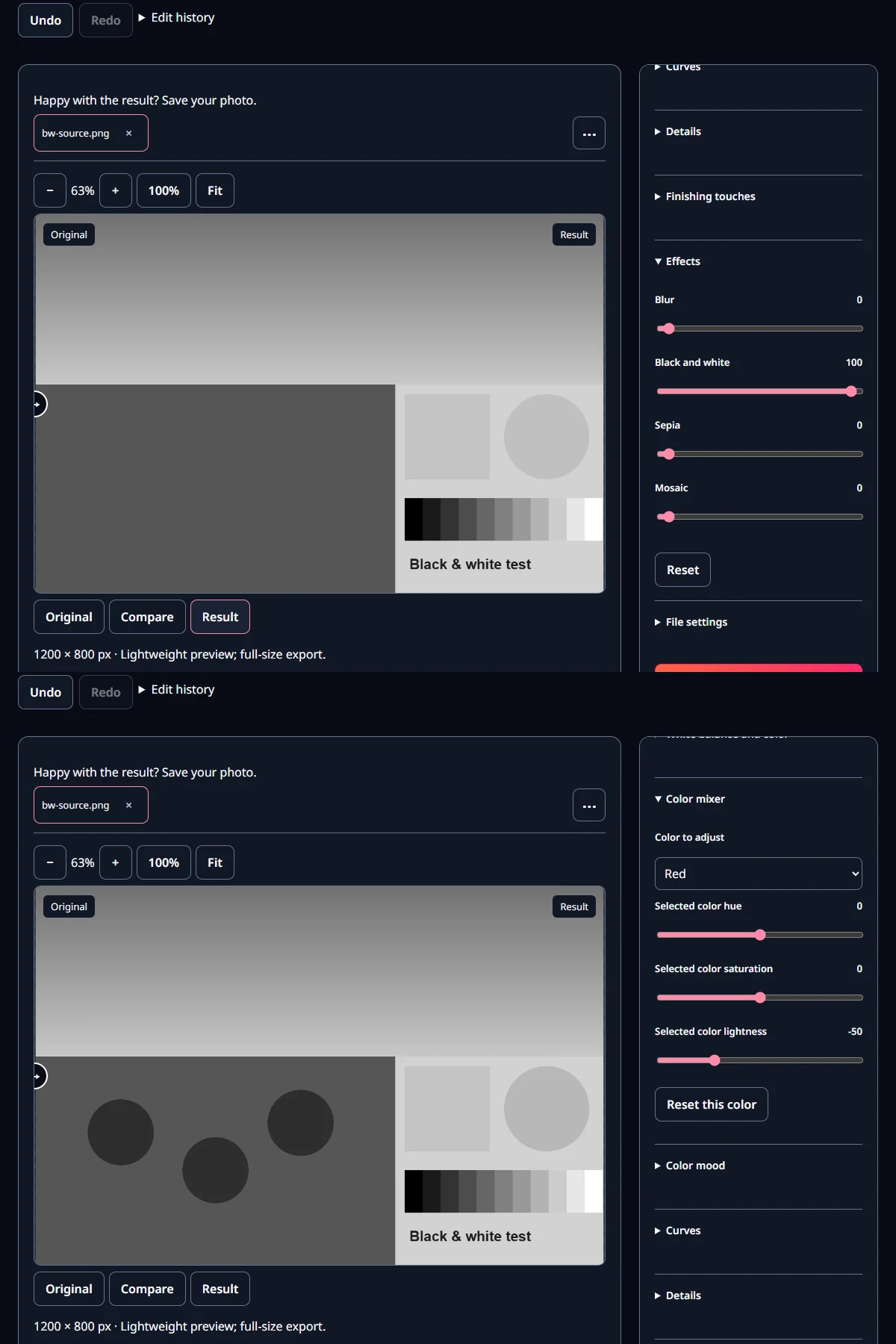
To separate two areas in black and white, change the lightness of one colour before the colour is removed. In the Color mixer, choosing Red under Color to adjust and setting Selected color lightness to −50 gave a flower of 45 against leaves of 86, a gap of 41. Raising Red to +50 lifted the flower to 164 instead, and raising Green to +50 brightened the leaves to 182 so the darker flower stood out. It works much like the coloured filters film photographers used to darken skies or lighten foliage.
Similar colours move together, though. Red −50 also darkened the skin tone from 192 to 184, so with portraits, watch the skin and move in small steps. Nearly colourless areas, on the other hand, do not follow the Color mixer. In our test the grey wedge did not change at all with Red −50 or +50, and Green +50 only lifted the steps at 26 and 51 by 1 level each. White walls or a grey sky stay as they are, and only the coloured areas change.
Moving a large area changes the whole picture as well. Green +50 brought out the flower, but because the leaves fill half the frame, the overall brightness spread fell from 48.6 to 36.2 and the image looked a little washed out. Red −50 darkened only the small flowers, and the spread rose to 51.0. When the subject is small, move the subject’s colour; when the background is small, move the background’s.
Raising Contrast under Light to +30 spread the grey wedge from 26 to 23 at the dark end and from 230 to 233 at the bright end, and the overall spread rose from 48.6 to 50.9. The flower and leaves, however, were still 84 and 84. Contrast stretches light and dark; it cannot split two colours of the same brightness.
Cool mono and sepia
Cool mono under Choose a look is not perfectly neutral. Blue stays 12.4 higher than red on average, giving a cold tint. The flower and leaves were 85 and 86, the same as Black and white.
Sepia at 100 adds a warm brown and brightens everything. The wedge step at 230 rose to 252 and 255 became 254, so the two brightest steps nearly merged, and pictures with a lot of bright sky can look blown out. Interestingly, sepia alone separated the flower and leaves to 116 and 94, but Black and white 100 followed by Sepia 60 merged them again at 96 and 98. Vintage keeps the colours, with 70.4 against the original’s 82.3, so skip it when you want black and white.
Which one to choose?
For a neutral black and white, Black and white at 100 is the most faithful, because it does not change brightness at all. For a cold mood, use Cool mono; for warm, old-print tones, adding a little Sepia after Black and white 100 blows out the highlights less than Sepia alone. Whichever you pick, if subject and background merge into one grey, the Color mixer is the fix.
How to make it in MiruKit
- Open the photo in Photo adjustments and filters.
- Open Effects and raise Black and white to 100.
- If areas merge, pick that colour under Color to adjust in the Color mixer and move Selected color lightness.
- If needed, raise Contrast under Light a little, and add Sepia for warmth.
- Use Compare to view it beside the original, choose a format under File settings and save.
Measured with MiruKit
| Setting | Flower / leaf brightness | Colour left · R−B | Largest grey-step shift |
|---|---|---|---|
| Original (colour) | 85 / 86 | 82.3 · -29.0 | 0 |
| Black and white 100 | 85 / 86 | 0.0 · +0.0 | 0 |
| Black and white 50 | 85 / 87 | 41.3 · -14.5 | 0 |
| B&W 100 + Contrast +30 | 84 / 84 | 0.0 · +0.0 | 4 |
| B&W 100 + Red lightness −50 | 45 / 86 | 0.0 · +0.0 | 0 |
| B&W 100 + Red lightness +50 | 164 / 86 | 0.0 · +0.0 | 0 |
| B&W 100 + Green lightness +50 | 85 / 182 | 0.0 · +0.0 | 1 |
| Cool mono | 85 / 86 | 12.4 · -12.4 | 2 |
| Sepia 100 | 116 / 94 | 52.1 · +52.1 | 39 |
| B&W 100 + Sepia 60 | 96 / 98 | 34.2 · +34.2 | 26 |
| Vintage | 89 / 92 | 70.4 · -4.4 | 15 |
A synthetic 1200×800 scene (a red flower and green leaves of almost equal brightness, sky, yellow, a skin tone and an 11-step grey wedge from 0 to 255) was processed through the same processImage path the Filters save uses. Brightness uses Rec.709 weights (0–255); remaining colour is the mean of RGB max−min; R−B is the mean of red minus blue.
Good to know
These numbers come from one drawn image. Real photos mix colours, so the Color mixer’s effect may look softer.
A file saved in black and white cannot get its colour back. Keep the colour original.