Add a logo to several photos with consistent size and placement
Written · Updated · Operator (individual)
You want the same logo on five photos of your work. Placing it separately on each image leaves one too large and another too close to the edge. Using positions and sizes relative to each photo gives a mixed portrait-and-landscape batch a consistent starting point.
Decide where the marked copies will be used
A project blog, portfolio or instruction image can benefit from a clear source mark. Keep unmarked originals and give the shared copies distinct filenames. This makes it easier to reuse a photograph later without trying to remove a mark already baked into its pixels.
Marketplace main images can have different rules from portfolio images. For example, the Coupang supplier catalogue guidance checked for this article prohibits logos, watermarks and text overlays on its representative images. Etsy also recommends clear product photos and provides specific listing-image guidance. Check the destination before preparing a marked batch, rather than assuming a promotional copy belongs in every image slot.
Should I use a transparent logo or typed text?
A transparent PNG is convenient when you already have a logo. A JPG with a white rectangle includes that rectangle when placed on a photograph. If an unwanted box appears around the mark, check the source logo’s transparency first. For a simple name or short address, the text option is another easy starting point.
Avoid stretching a tiny logo much larger than its source. Use a sufficiently detailed logo file and inspect the saved edge at actual size. A small preview can hide rough lettering or soft borders that become obvious in the finished image.
What did consistent placement mean in our test?
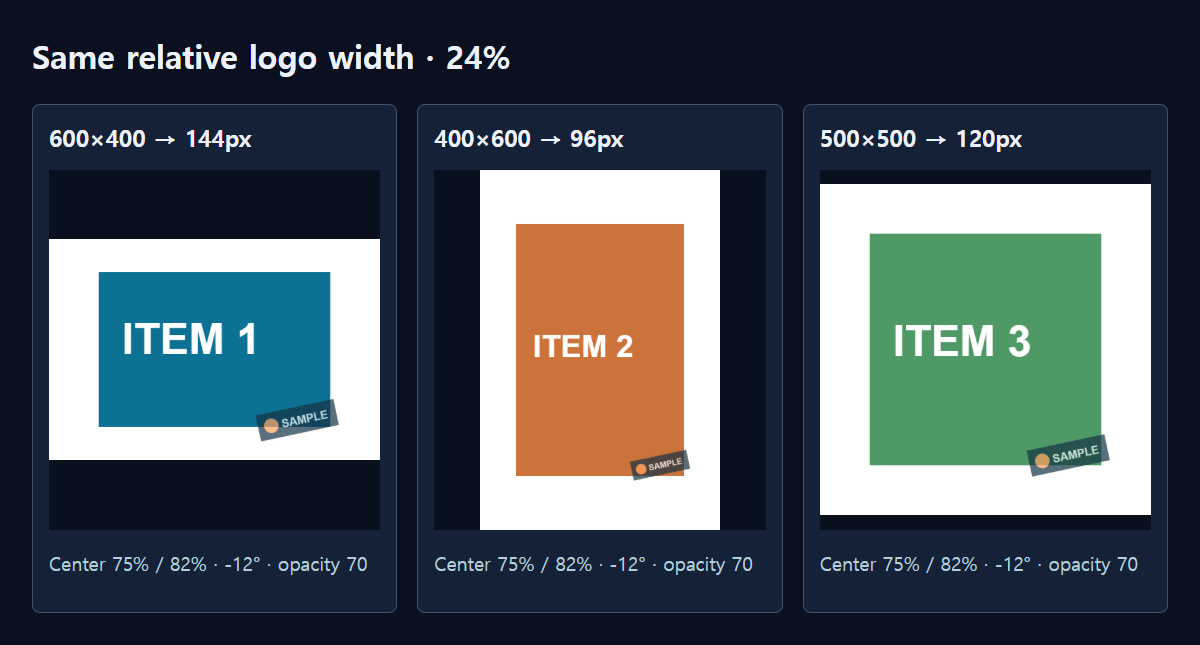
We drew a SAMPLE logo and placed it on three synthetic images measuring 600×400, 400×600 and 500×500. These are not real company logos or marketplace photographs. We set the logo width to 24% of the photo width, its center to 75% across and 82% down, its rotation to -12 degrees and opacity to 70.
The resulting mark widths were 144px, 96px and 120px. Each is exactly 24% of its photo’s width, even though the pixel sizes differ. The normalized center remained 0.75 and 0.82 in all three images, and the photo dimensions stayed unchanged. That confirms the shared placement rule rather than relying on how similar the thumbnails look.
The same rule does not automatically avoid important subjects. A mark in the same relative position may overlap an object in a portrait shot. After applying common settings, inspect the busiest photograph and the lightest background first. They often reveal overlap or visibility problems faster than a comfortable middle example.
How do I apply a logo in MiruKit?
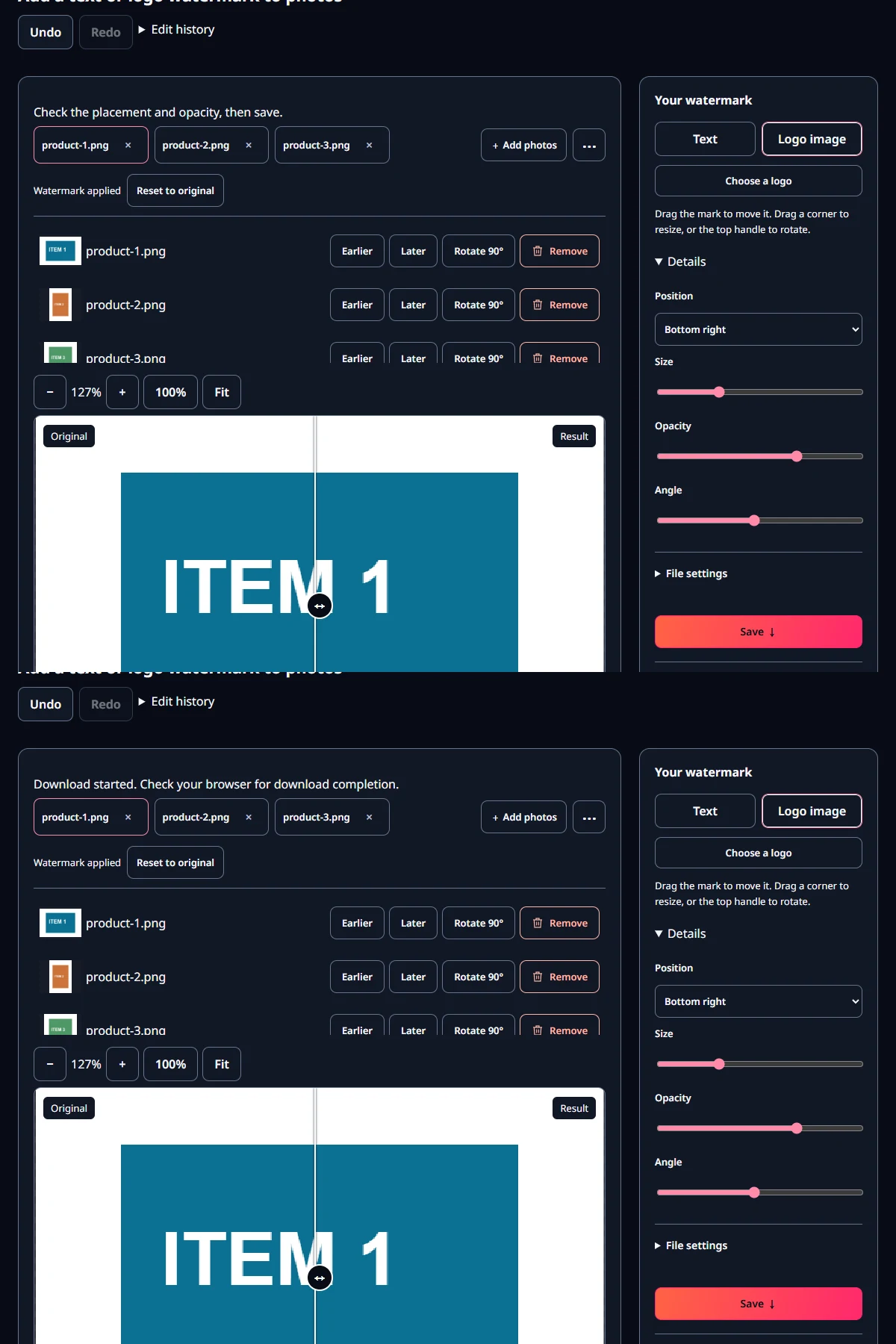
- Add the photos in Watermark and check their order and orientation.
- Choose Logo and open your image file, or use Text for a short name.
- Drag the mark on the photograph, resize it with a corner handle and use the rotation handle to set its angle.
- Adjust opacity in the detailed controls and compare light and dark photos. If using text, check its color too.
- Save and extract the ZIP. Check the photo count and make sure the mark does not cover a face, an important feature or essential writing.
How strong should the watermark be?
Let the photograph’s subject remain the main focus. Start with a mark that is small but readable when you only need attribution. Repeated or strong marks attract attention, but can distract from the work itself. A white logo can disappear on a pale background, while a dark one can vanish into shadows. Inspect more than one photograph before committing to the batch.
Choose JPG, PNG or WebP according to where the results will be opened. The logo’s transparent background and the final photo’s background are separate things. Placing a transparent PNG over an opaque photograph does not make the photograph itself transparent; it simply leaves the areas around the logo visible.
Can I reuse this setup next time?
Save a named tool preset to reuse size, position and rotation values. Those settings belong to the current browser, so keep the original logo and original photographs separately as well. When the next batch has different framing or aspect ratios, recheck overlap before saving all the files.
Open the related toolMeasured with MiruKit
| Photo dimensions | Logo width | Relative width |
|---|---|---|
| 600×400 | 144 px | 24% |
| 400×600 | 96 px | 24% |
| 500×500 | 120 px | 24% |
An owned SAMPLE logo rendered by the shipped renderWatermark: width 24%, center x0.75/y0.82, rotation -12°, opacity 70 across three inputs. Saved UI ZIP checks are recorded separately.
Good to know
A watermark communicates attribution. It does not prevent someone from cropping or editing the image.
Use photographs and logos you have permission to use, retain unmarked originals and check the destination’s rules for representative or main product images.
Official sources
Sources checked 2026-10-15