A WebP you downloaded won't open: what changes when you convert it to JPG or PNG
Written · Updated · Operator (individual)
You saved an image from the web, it ends in .webp, and now your app won't open it or an upload form refuses it. In most cases, saving photos as JPG and images with a transparent background as PNG in MiruKit's Convert tool solves it. We converted two WebP files we made ourselves to see exactly what happens to file size and quality.
Why is it only the WebP that gets refused?
WebP is widely used to make web pages lighter, so images you save from a browser often arrive as WebP. Some older photo editors, print-ordering sites and form uploads, however, only accept JPG or PNG. The file isn't broken; the format just isn't on the receiver's list.
Don't simply rename the file to .jpg. Only the name changes and the contents are still WebP, so a site that checks the contents will refuse it again or show a broken image. You need to save it in the new format.
What happened when we converted a photo WebP?
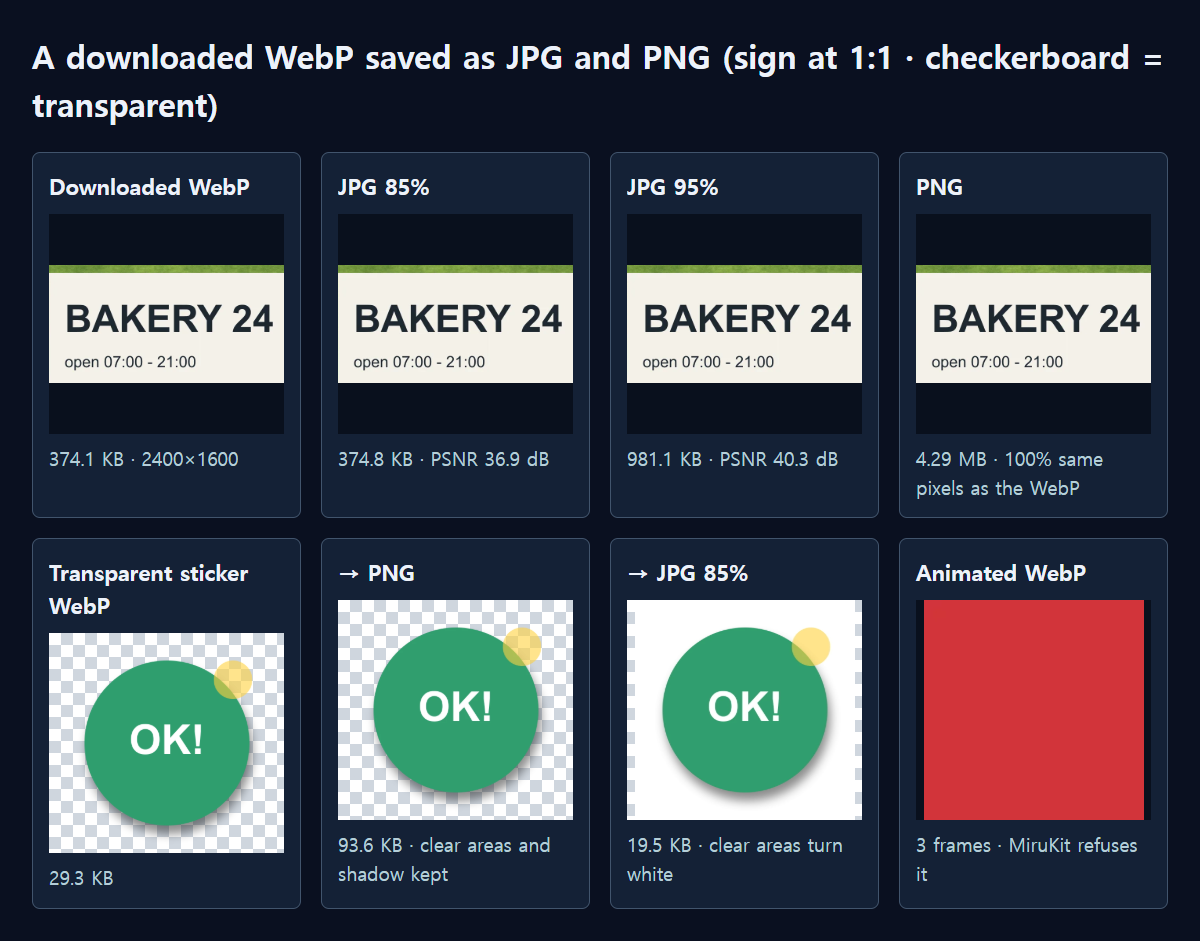
We saved a 2400×1600 photo with grass and a small sign as a quality-80 WebP using a different program (libvips). It came to 374.1 KB. We ran it through the same processing as MiruKit's Convert tool and changed only the output format.
JPG at 85% came out at 374.8 KB, almost the same size as the WebP, with a PSNR of 36.9 dB against the downloaded WebP. JPG at 92% was 703.0 KB at 38.7 dB, and JPG at 95% was 981.1 KB at 40.3 dB. PNG matched the WebP's pixels 100%, but at 4.29 MB it was about 12 times larger.
Keep one thing in mind: detail lost when the image was first saved as WebP doesn't come back in any format. PNG simply freezes what you see now, and JPG adds a little compression on top. In the comparison below, the sign text was easy to read in all four results.
Convert transparent stickers to PNG
We also converted an 800×800 sticker WebP (29.3 KB) with a soft shadow. It has 266,263 fully clear pixels and 92,113 partly clear shadow pixels.
Saved as PNG, it became 93.6 KB, and the number of clear pixels and every color matched the original WebP exactly. JPG at 85% was smaller at 19.5 KB, but it had zero clear pixels. JPG has no way to store transparency, so MiruKit fills those areas with white. That's fine on a white page, but for a logo or sticker that will sit on a colored background, choose PNG.
How do I convert it in MiruKit?
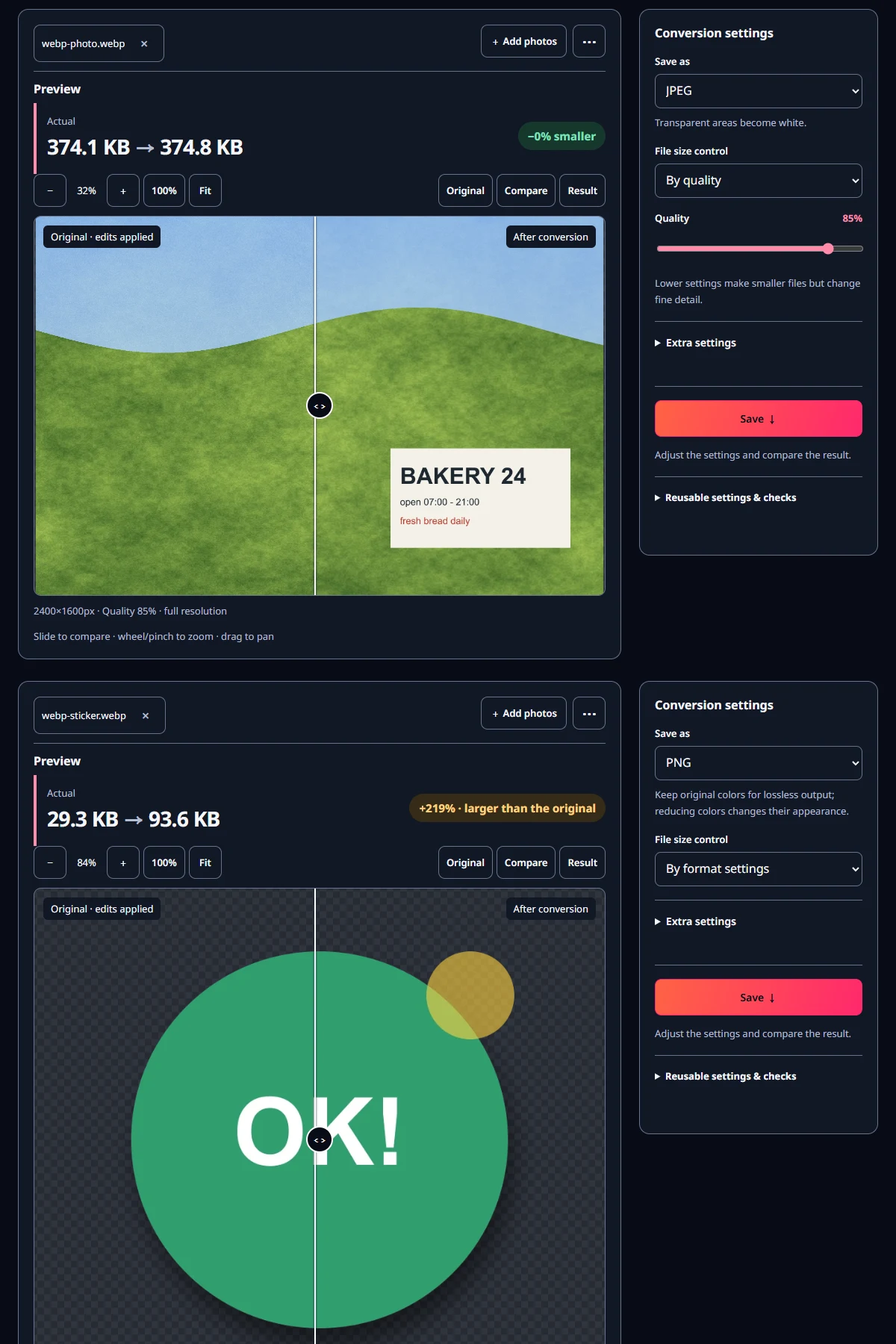
- Open Convert and add the WebP file. You can add several at once.
- Under Save as, choose JPG for photos and PNG for images with a transparent background.
- Leave File size control on By quality to save at quality 85%. In our test, that gave almost the same size as the original WebP.
- Click Compare in the preview to check the original against the result, then click Save ↓.
If the destination has a size limit, switch File size control to By file size and enter that number in Fit below the limit. MiruKit then finds the highest quality that fits.
What quality number should I use?
For this photo, 85% produced the same size as the original WebP. Because the downloaded WebP was already compressed, raising the number to 95% only made the file 2.6 times bigger; it couldn't add detail the WebP never had. Unless you plan to edit the image further, such as for printing, 85% was enough.
If you'll edit and resave the image several times, convert it to PNG first and work on that. Every JPG save adds a little more compression, so save as JPG only once, at the end.
Is the converted file really a JPG?
We reopened the saved results in another program (libvips) to check what's inside. Every file saved as JPG read as JPEG and every PNG read as PNG, all still 2400×1600. Unlike a renamed file, these are real JPG and PNG files that pass a content check.
If the destination accepts WebP, you don't need to convert at all. As with this photo, a JPG of the same size often loses a little more quality, so convert only when the WebP is refused.
What about animated WebP?
We also tried a three-frame animated WebP. MiruKit didn't open it and showed "Animated WebP isn't supported yet." The supported formats table also lists animated WebP as excluded. This stops MiruKit from quietly converting only the first frame and losing the animation.
Open the related toolMeasured with MiruKit
| File · saved as | File size | Difference from the WebP | Transparency |
|---|---|---|---|
| Photo WebP (downloaded) | 374.1 KB | — | — |
| → JPG 85% | 374.8 KB | PSNR 36.9 dB | — |
| → JPG 92% | 703.0 KB | PSNR 38.7 dB | — |
| → JPG 95% | 981.1 KB | PSNR 40.3 dB | — |
| → PNG | 4.29 MB | 100% same pixels | — |
| Sticker WebP (downloaded) | 29.3 KB | — | 266,263 px fully clear · 92,113 px partly clear |
| → PNG | 93.6 KB | 100% same pixels | Kept exactly |
| → JPG 85% | 19.5 KB | — | 0 px (filled white) |
A 2400×1600 photo WebP (quality 80) and an 800×800 sticker WebP with a soft shadow, both written by libvips, were converted to JPG and PNG through the shipped processImage. PSNR is RGB against the decoded WebP. A three-frame animated WebP was also tried.
Good to know
These numbers come from two test images we made ourselves. Converted file sizes vary with the quality and content of the WebP you have.
Changing the format doesn't restore detail lost when the WebP was saved. If you have the original file, making the JPG directly from it gives a cleaner result.
By default, MiruKit removes details such as date, camera and location when saving. To keep them, choose Copy from original under Extra settings.