Enlarging a tiny old photo: when to stop at ×2 or ×4
Written · Updated · Operator (individual)
Some old photos survive only as a few hundred pixels: an early phone shot, a messenger preview, a small scan. It is tempting to blow them up, but when the starting point is that small, no method can bring back writing that is already gone. This guide looks at how far a very small source can go and when it is better to stop. The general difference between standard and AI enlargement is covered in “Enlarge a small photo: regular resizing or AI upscaling?”.
We shrank one picture to two small sizes
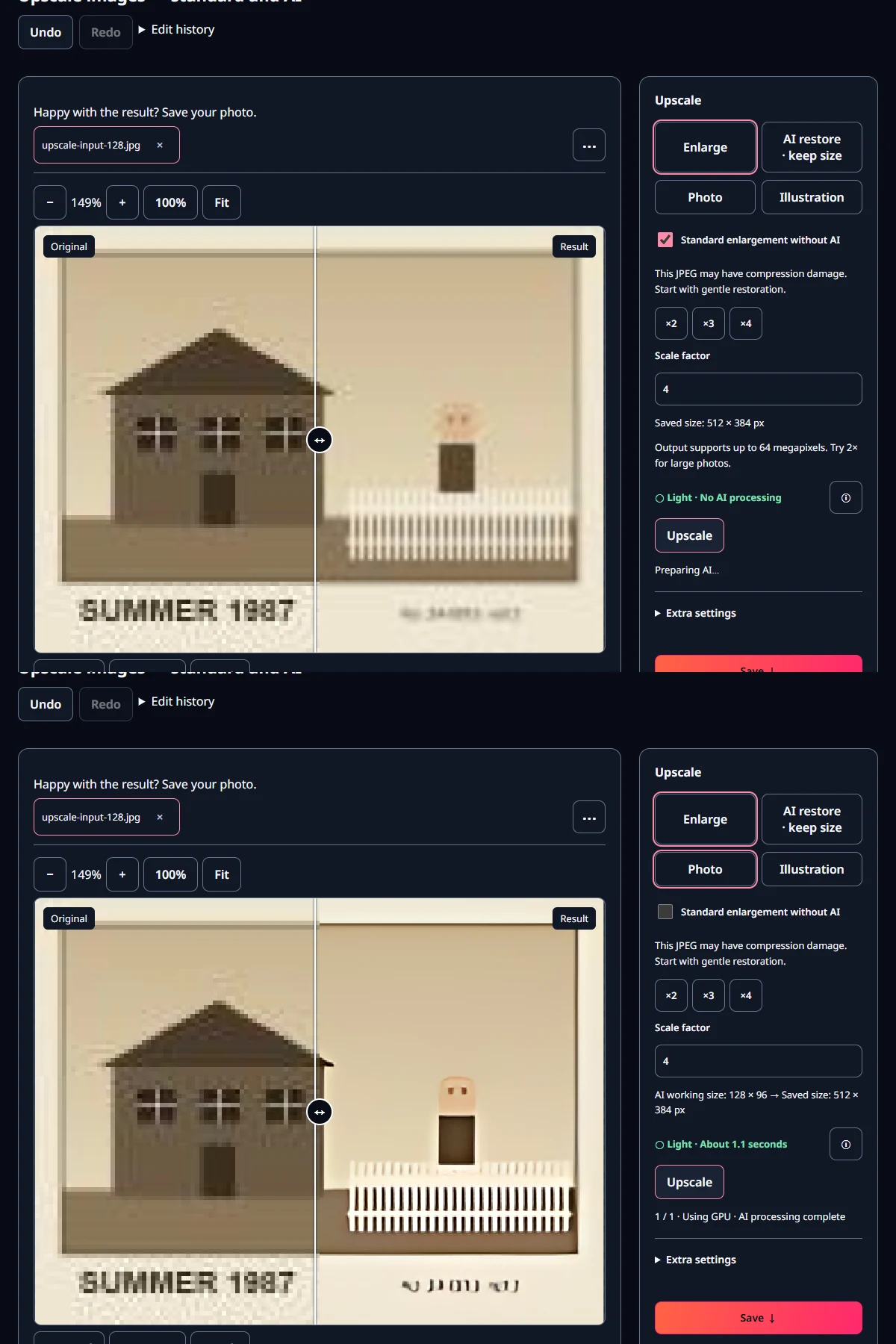
We drew a 512×384 picture styled like an old print: a house, a white picket fence, the caption “SUMMER 1987” and a small serial number. We reduced it to 256×192 and to 128×96 and saved both as JPEG to act as small scans. The 128×96 file was 2.9 KB. Each was then enlarged back to 512×384 with MiruKit’s Upscale images tool and compared with the original drawing.
We used two scores. PSNR measures how close the colours are. SSIM measures how similar the structure of shapes and patterns is, where 1 means identical. The small serial number was also scored on its own.
From 256×192, ×2 was usable
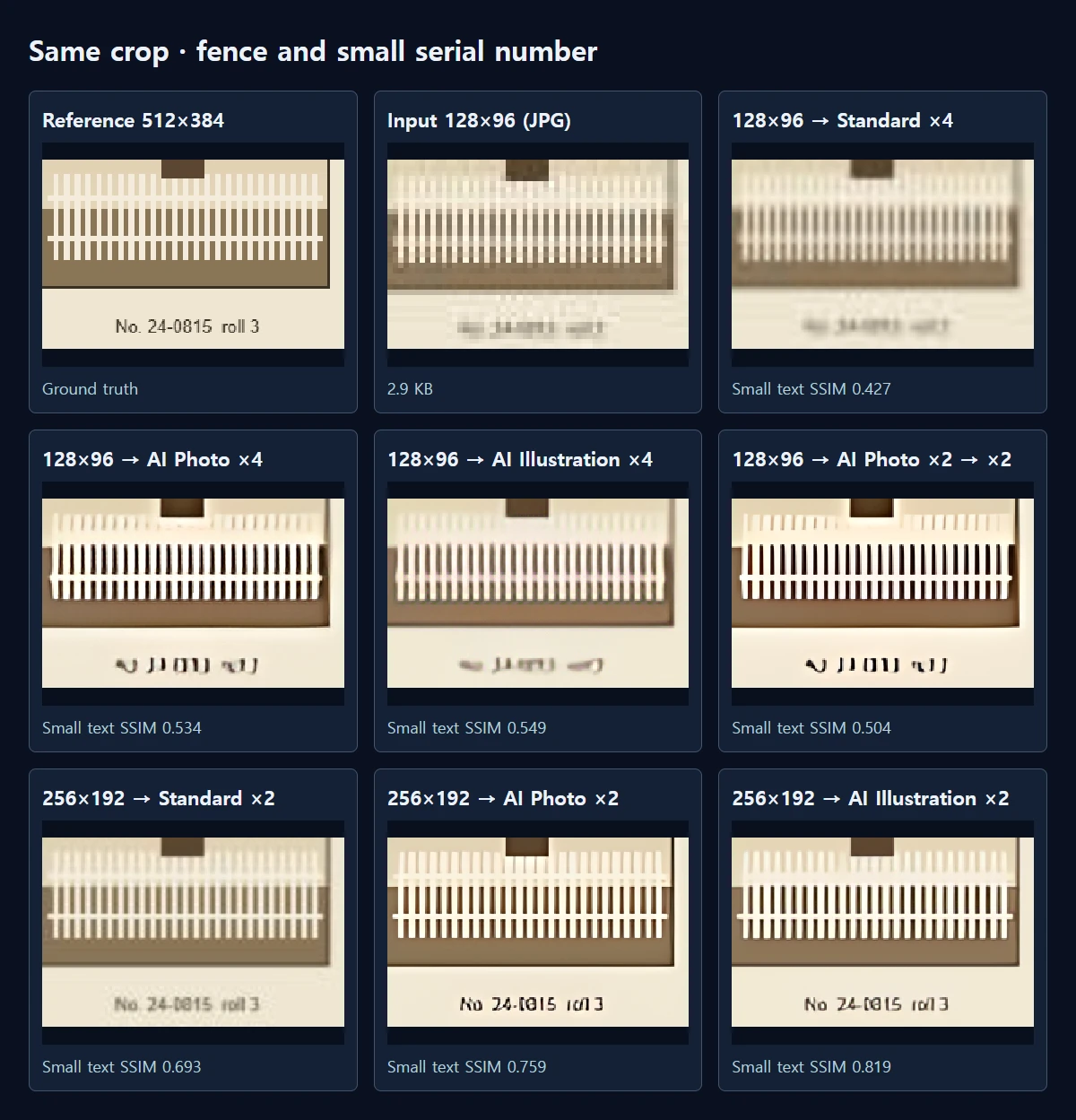
Enlarging 256×192 by two, standard enlargement scored 24.8 dB and SSIM 0.912 for the whole picture. AI Photo scored 27.9 dB and 0.958, and AI Illustration 27.0 dB and 0.962, so both AI results were closer to the original. On the serial number, SSIM was 0.693 for standard, 0.759 for AI Photo and 0.819 for AI Illustration, and in the comparison image the number is nearly readable in the AI results. Some strokes changed, though: in the AI Photo result the zero turned into something closer to a vertical bar.
Small files also carry compression marks. The inputs were 6.4 KB at 256×192 and 2.9 KB at 128×96. Standard enlargement scaled up the JPEG blocks as they were, while AI removed them and redrew the shapes. The fence looks cleaner in the AI versions, yet some pickets are thicker or spaced differently from the original. Looking clean and being close to the original are not the same thing.
From 128×96, ×4 hit a clear limit
Enlarging 128×96 by four lowered every score: standard 21.5 dB and 0.798, AI Photo 22.4 dB and 0.896, AI Illustration 23.4 dB and 0.895. AI redrew the fence as crisp white bars, but SSIM on the serial number stayed between 0.427 and 0.549, and on screen it no longer read as text. Characters that had already collapsed into a few pixels in the input did not come back with any method.
What about AI Photo ×2 and then ×2 again? It also reached 512×384, but scored 21.2 dB and 0.887, with 0.504 on the serial number. That is lower than a single ×4, and it took 2.00 seconds, roughly twice as long. Choose the factor you need once, from the original, rather than enlarging an enlargement.
On the test PC, using Edge with the graphics card, AI took between 0.89 and 1.00 seconds and standard enlargement under 0.01 seconds. Model download time is excluded, and these inputs are tiny, so larger photos will take longer.
Where should you stop?
- Open the largest original you have in Upscale images. If you have several copies, choose the one with the most pixels.
- Under Enlarge, start with ×2. In our test, 256×192 enlarged ×2 came closest to the original.
- Compare Photo and Illustration at the same factor, together with Standard enlargement without AI. For scans with lots of lettering, Illustration was sometimes closer.
- View at 100% and check faces, numbers and fine lines. If text that was unreadable suddenly looks readable, check whether the strokes have changed.
- If you need ×4 and the original is only around 128 pixels wide, look for a larger original or a new scan instead of enlarging further.
Check at the size you will use
For a photo viewed small on a phone, the softer ×2 result may be enough. For a print or a large screen, odd details in an enlargement are easier to spot. Pick the version that looks natural at the size it will actually be used. If the paper print still exists, rescanning it at a higher resolution gives a more honest result than any enlargement.
Open the related toolMeasured with MiruKit
| Input → method | Whole PSNR / SSIM | Small text SSIM | Time |
|---|---|---|---|
| 256×192 → Standard ×2 | 24.8 dB / 0.912 | 0.693 | under 0.01 s |
| 256×192 → AI Photo ×2 | 27.9 dB / 0.958 | 0.759 | 1.00 s |
| 256×192 → AI Illustration ×2 | 27.0 dB / 0.962 | 0.819 | 0.91 s |
| 128×96 → Standard ×4 | 21.5 dB / 0.798 | 0.427 | under 0.01 s |
| 128×96 → AI Photo ×4 | 22.4 dB / 0.896 | 0.534 | 0.93 s |
| 128×96 → AI Illustration ×4 | 23.4 dB / 0.895 | 0.549 | 0.89 s |
| 128×96 → AI Photo ×2 → ×2 | 21.2 dB / 0.887 | 0.504 | 2.00 s |
A synthetic 512×384 old-print scene was reduced to 256×192 and 128×96 and saved as JPEG 75% to act as the small scan. Shipped renderUpscale (standard, AI Photo, AI Illustration) enlarged each back to 512×384; RGB PSNR and SSIM were computed against the original drawing. Times: PC Edge/WebGPU, model download excluded.
Good to know
These results come from one synthetic picture on one PC. Real old photos also have stains, scratches and faded colour, so results will differ.
AI enlargement estimates detail that is not there. For photos used as records or evidence, keep the original alongside the enlarged copy.