Blurry text in screenshots? PNG, WebP and JPG compared
Written · Updated · Operator (individual)
You captured an order page or an error message, saved it as a JPG, and now the small text looks dirty around the edges. For screenshots that are mostly text, PNG or lossless WebP keeps every pixel exactly as captured. We saved the same screenshot four ways and compared file size against how the text held up.
Why does screenshot text smear so easily?
Photos change color gradually, but a screenshot is full of hard edges: dark letters on a white background switch color from one pixel to the next. JPG is built for smooth photos and can't hold those sharp edges exactly, so you get faint blotches and ripples around each letter. Small colored text, such as a red error line or a blue link, can also look like its color is bleeding.
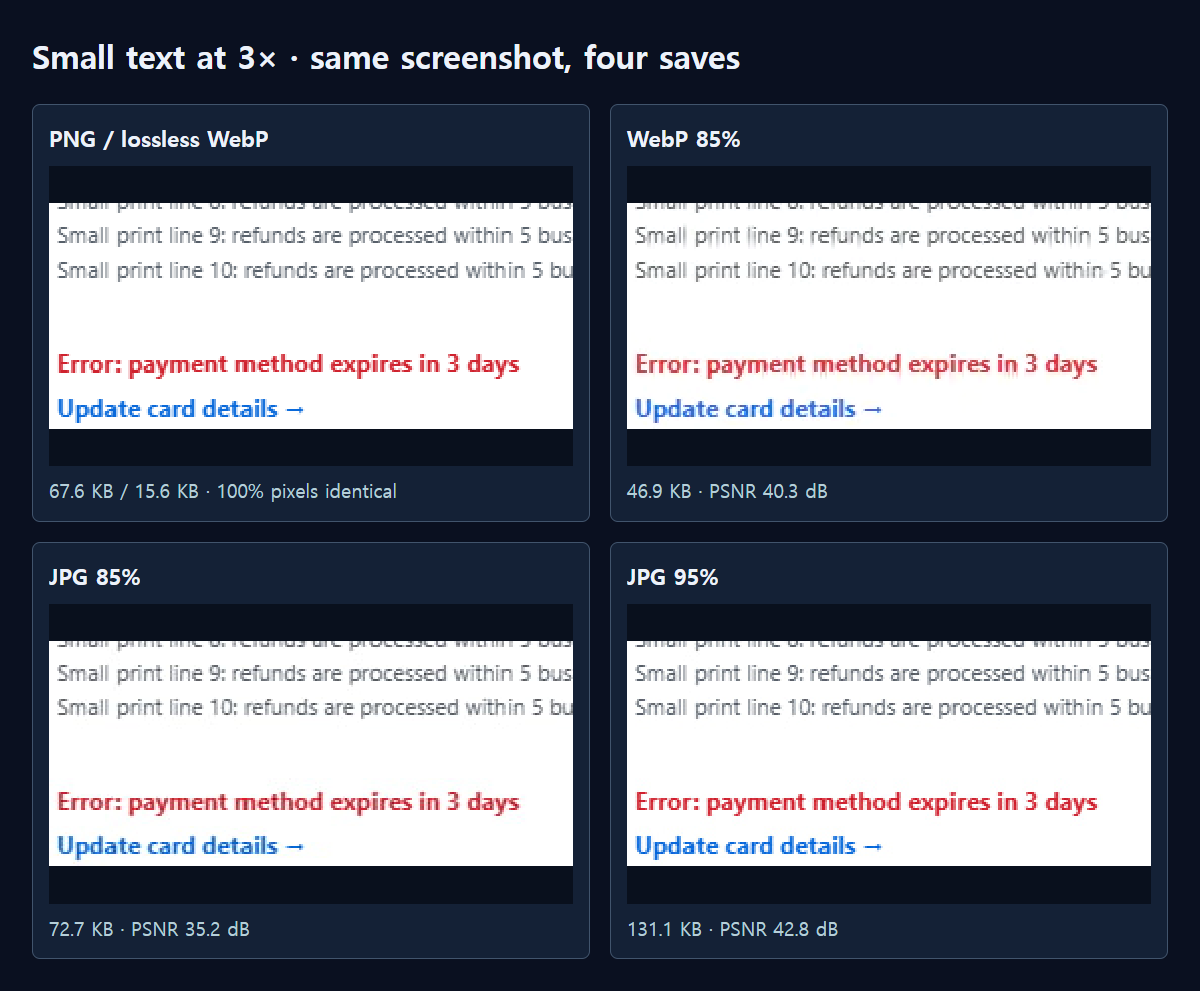
That's why screenshots deserve different settings from photos. A quality of 85% that is hard to notice in a holiday photo left marks on 11px text that were obvious as soon as we zoomed in.
What did the same screenshot produce?
We drew a 1200×800 screenshot-style test image ourselves. It has a table, a block of 11px small print, a red error line, a blue link and a tiny log. The browser's first PNG of it was 111.2 KB. We then ran it through the same processing that MiruKit's Convert tool uses and saved each format.
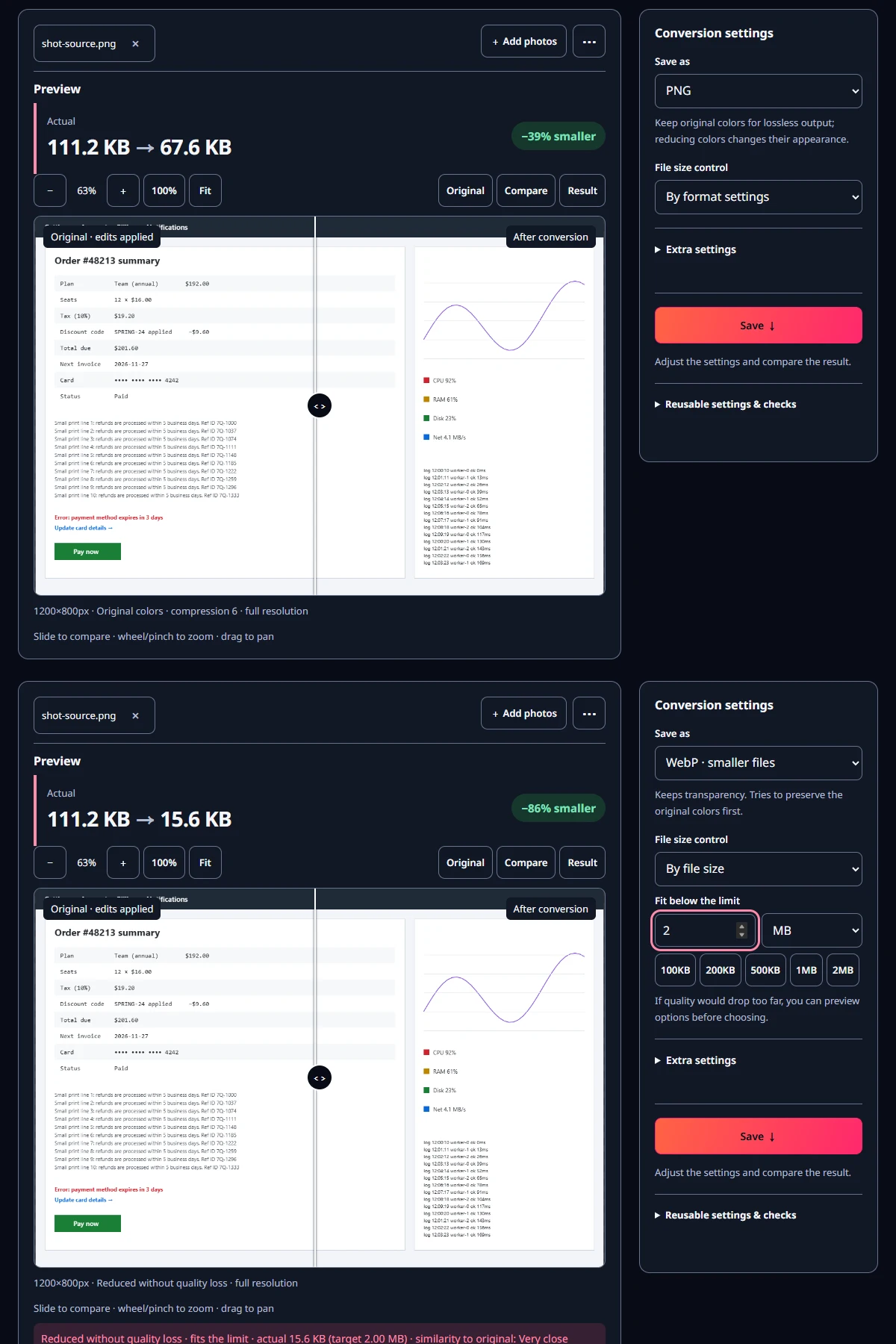
PNG came out at 67.6 KB with 100% of pixels identical to the original. Lossless WebP was 15.6 KB, less than a quarter of the PNG, and also 100% identical. WebP at quality 85% was 46.9 KB, with a PSNR of 40.3 dB in the small-print area.
JPG is the surprise. At quality 85% it was 72.7 KB, bigger than the PNG, and the small text scored the lowest PSNR at 35.2 dB. Raising quality to 95% improved the text to 42.8 dB, but the file grew to 131.1 KB, nearly twice the PNG. For this screenshot, JPG won on neither size nor sharpness.
How do I save it in MiruKit?
- Open Convert and add your screenshot.
- Choose PNG in Save as. That is lossless as is, and it's the simplest choice if the destination accepts PNG.
- For a smaller file, choose WebP in Save as, switch File size control to By file size, and enter a generous limit such as 2 MB.
- If the result says "Reduced without quality loss", it was saved as lossless WebP. Click 100% in the preview, check the small text against the original, then Save.
One detail matters here. With File size control set to By quality, WebP is always saved with lossy compression, even at 100%. Lossless WebP is tried first only in By file size mode, and it's used when it fits under your limit. If you enter a limit that is too small, MiruKit moves on to lossy WebP, so read the result label before saving.
What if the form only accepts JPG?
Then raise the quality. In our test, going from 85% to 95% improved the small-text PSNR by more than 7 dB. The file grows accordingly, so crop away empty margins first; a smaller area lets you keep the text sharp without making the file much larger.
Converting a screenshot that was already saved as JPG back to PNG won't remove the smears. They are now part of the pixels. Whenever you can, start again from the original capture, which is usually a PNG.
Which format should I pick?
For captures that are mostly text and lines, lossless WebP was the smallest, and PNG was the lossless option that opens almost anywhere. If a large photo takes up much of your screenshot, the numbers can change. In that case, put WebP 85% and PNG side by side with the comparison slider and decide by eye.
It also helps to think about where the image is going. A bug report or a support ticket benefits from exact pixels, because the reader may need to zoom in on a number or an error code. A quick chat preview matters less, but even there a lossless WebP was smaller than the JPG we tested, so you lose nothing by keeping it exact.
If you need it smaller still, crop first. Keeping only the error window instead of the whole screen shrinks the file without touching a single letter. Be careful with resizing, though: 11px text quickly becomes unreadable when scaled down, so view any reduced copy at 100% before you send it.
Open the related toolMeasured with MiruKit
| Format · setting | File size | Small-text PSNR | Pixels identical |
|---|---|---|---|
| PNG | 67.6 KB | No loss | 100% |
| Lossless WebP | 15.6 KB | No loss | 100% |
| WebP 85% | 46.9 KB | 40.3 dB | 71.8% |
| JPG 85% | 72.7 KB | 35.2 dB | 61.5% |
| JPG 95% | 131.1 KB | 42.8 dB | 63.6% |
A 1200×800 synthetic screenshot (11–15px text) saved through the shipped processImage. Lossless WebP is what By file size mode produced with a 25 MB target. PSNR is RGB, measured on the 11px small-print block.
Good to know
These numbers come from one screenshot we made ourselves. Text size, colors and the share of photos will change the file sizes.
PSNR measures how close the result is to the original; higher means closer. Make the final call by looking at the image at the size people will actually see it.
If the service you send it to compresses images again, the result can change. For an important screenshot, check how it looks on the recipient's side.