Making an org chart: rename, add people and export from a template
Written · Updated · Operator (individual)
Sometimes a team introduction or a list of responsibilities needs a simple organization chart. Using the Organization chart template in MiruKit’s Diagram maker, we built a chart with a director, four teams and one person under Design in all three language versions. We checked how to add boxes, what each of the six Layout items does to the chart, and what each exported file contains.
What is in the Organization chart template?
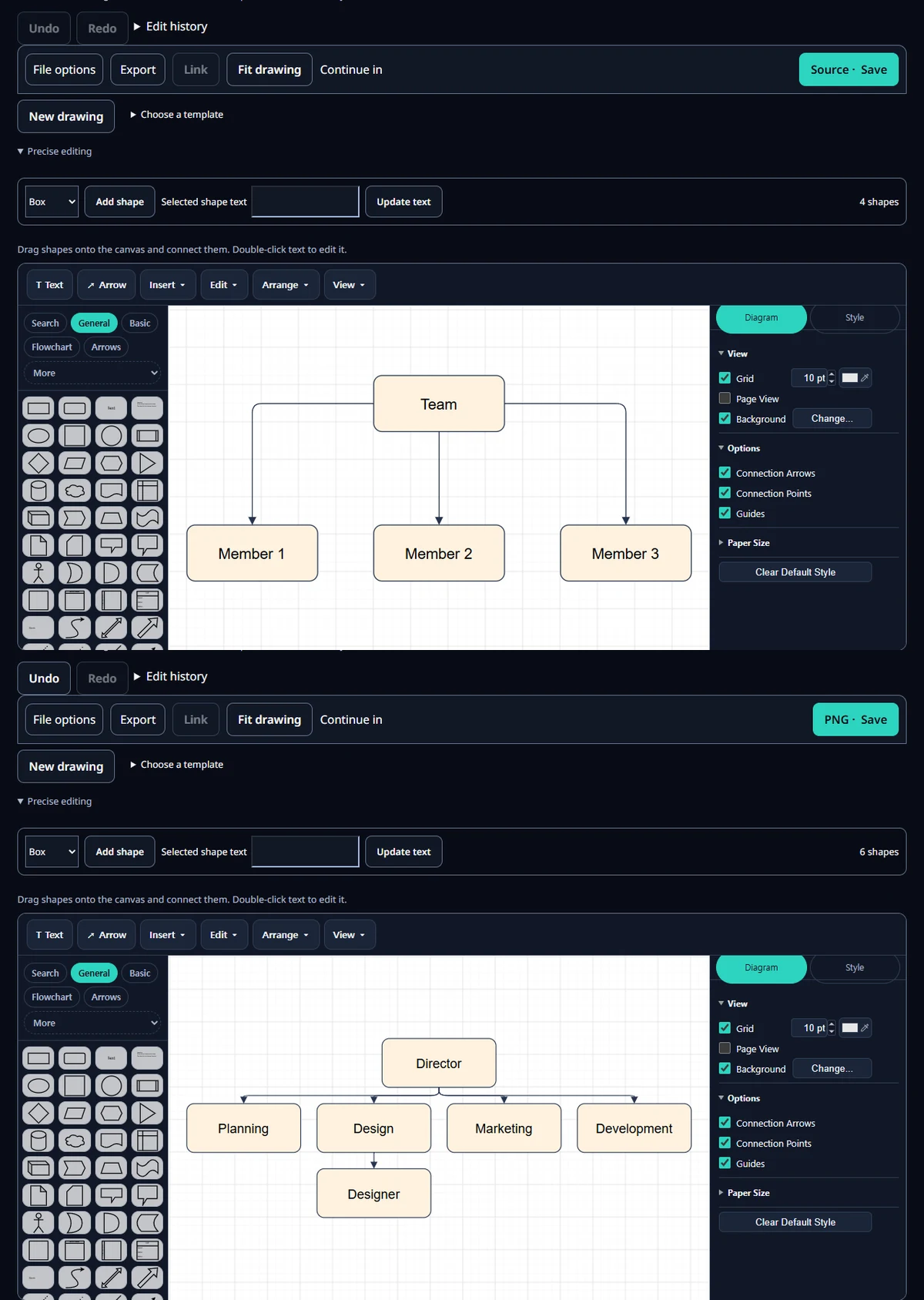
Open Diagram maker and choose Organization chart under Choose a template. A Team box appears at the top with Member 1, Member 2 and Member 3 below it, joined by three arrows. The shape count reads 4 shapes. The top-down structure is already there, so renaming the boxes is enough for a small chart.
How do I rename the boxes?
Double-click a box to edit its text in place. Alternatively, open Precise editing, type a new name in Selected shape text and press Update text. We renamed Team to Director and the three members to Planning, Design and Development. Using roles or team names instead of people’s names means fewer edits when someone changes jobs.
How do I add a person or a team?
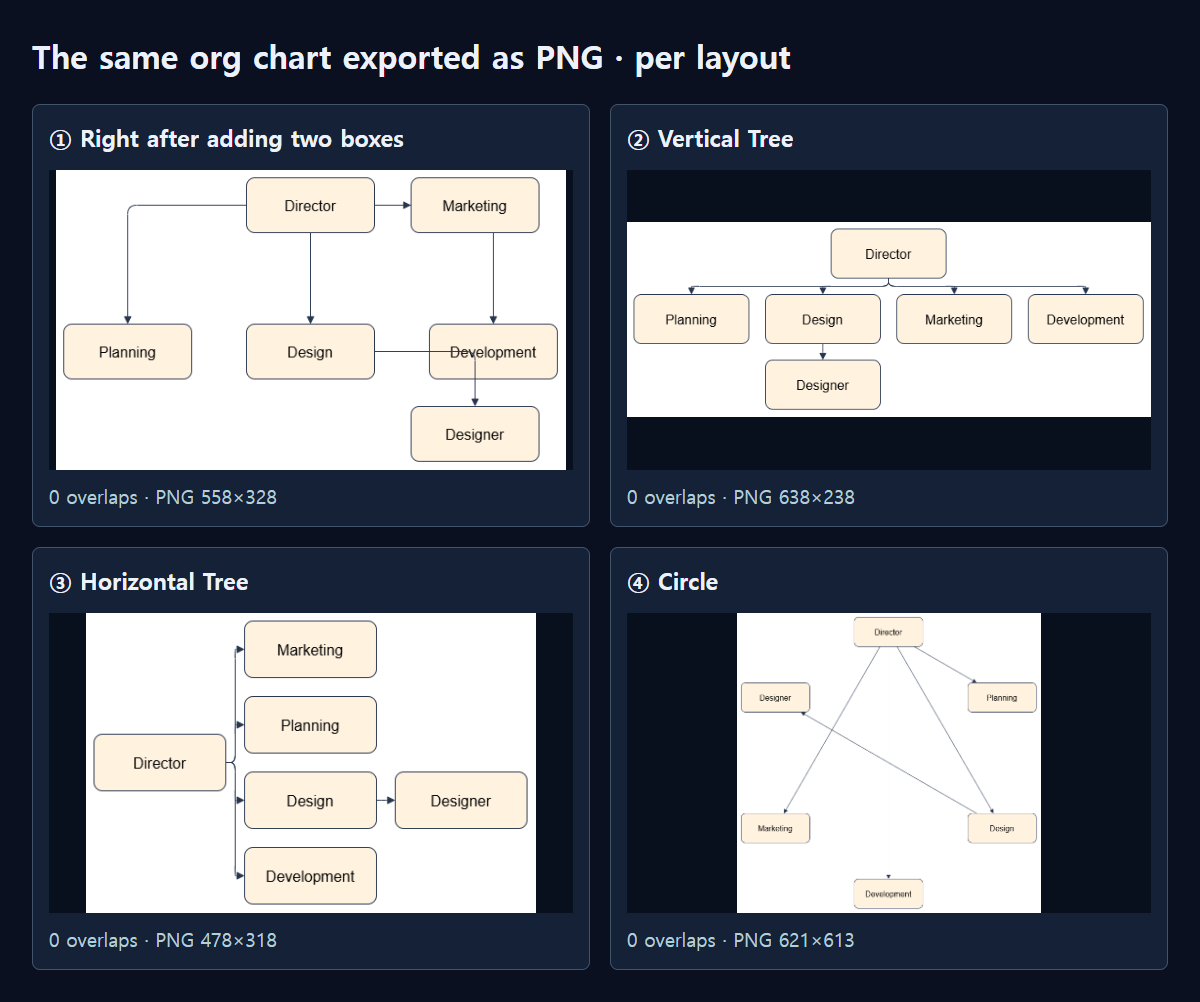
First select the box the new one belongs under, then choose Box in the same panel and press Add shape. The new box copied the selected box’s size, colors and font: 140×60 with font size 16. With Director selected, it appeared in the free space right next to Director. With Design selected, Development already filled the spot on its right, so the new box moved down into the free space just below that spot. Neither box overlapped anything, and a PNG exported at that point was 558×328 pixels.
A new box starts with the text “Title”, so rename it. We renamed ours Marketing and Designer, then connected Marketing to Director and Designer to Design. To connect shapes in the editor, hover over a shape and drag one of its connection arrows onto another shape.
What does the Layout menu do?
Arrange ▾ → Layout above the canvas offers six items: Vertical Flow, Horizontal Flow, Vertical Tree, Horizontal Tree, Circle and Organic. Trying each one from the same state, all six moved the shapes, and none of them left any boxes overlapping. Pressing Undo put everything back each time.
Vertical Tree suited the org chart best. All five boxes ended up below the box they belong to, the four teams stood in one row with Director centred above them, and Designer lined up directly below Design. At 620×220 it was also the flattest result. Horizontal Tree put Director on the left with the teams spreading to the right (460×300), which helps when box names are long. Circle laid everything on a 603×595 ring, which made the reporting lines hard to read, and Organic scattered the boxes within 507×316.
The two Flow layouts also tidied the chart without overlaps, but read a little differently. Vertical Flow put all five boxes below their parent too, at a taller 650×380, while Horizontal Flow laid the boxes out step by step from left to right at 620×330. Flows suit pictures of a process; trees suit showing who reports to whom. Because new boxes already had the same font size, nothing needed fixing in the Style tab afterwards.
Which format should I export?
From the English version, the chart arranged with Vertical Tree exported as a 638×238-pixel PNG of 13.0 KB, a 4.8 KB SVG, a 6.4 KB PDF and a 3.5 KB Editable source (.xml). The SVG kept all six names as real text, so it stays sharp when enlarged. The PDF is one page, but it holds a single 638×238-pixel image and no searchable text. WEBP was the same size as the PNG at 7.7 KB. Web page (.html) put the drawing and the editable source together in one 15.7 KB file. PNG suits documents and slides, WEBP suits the web, and SVG is best for anything printed large. If the chart will change whenever people move, always save the editable source too.
The whole process
- Open Organization chart under Choose a template.
- Double-click boxes to rename them.
- Select the box above, press Add shape to add a new one, and rename it.
- Connect it to the box above with a connection arrow.
- Choose Arrange ▾ → Layout → Vertical Tree, then check with Fit drawing.
- Choose a format under Export and save the editable source as well.
Measured with MiruKit
| Export · Layout menu | Result | What we checked |
|---|---|---|
| PNG | 13.0 KB | 638×238 px |
| SVG | 4.8 KB | 6 text elements |
| 6.4 KB | 1 page · 1 image of 638×238 px inside · no searchable text | |
| WEBP | 7.7 KB | 638×238 px |
| Web page (.html) | 15.7 KB | Drawing and editable source in one file |
| Editable source (.xml) | 3.5 KB | 6 shapes · 5 connectors |
| Vertical Flow | 650×380 · overlaps 0 | Of 5 children: 5 below the parent, 2 to its right |
| Horizontal Flow | 620×330 · overlaps 0 | Of 5 children: 3 below the parent, 5 to its right |
| Vertical Tree | 620×220 · overlaps 0 | Of 5 children: 5 below the parent, 1 to its right |
| Horizontal Tree | 460×300 · overlaps 0 | Of 5 children: 1 below the parent, 5 to its right |
| Circle | 603×595 · overlaps 0 | Of 5 children: 4 below the parent, 2 to its right |
| Organic | 507×316 · overlaps 0 | Of 5 children: 2 below the parent, 0 to its right |
In each language’s Diagram maker we opened the Organization chart template and renamed its four shapes. With the parent box selected, we pressed Add shape to add two boxes (one team under the director, one person under Design) and connected them; the connectors were inserted in the editor with the template’s own connector style. From that state we clicked each of the six Arrange ▾ → Layout items in the real menu, measured positions and where each child box ended up, exported a PNG and pressed Undo. Finally we applied Vertical Tree and downloaded and reopened all six Export formats. Sizes are from the files saved in that language.
Good to know
A Layout item recalculates every position, including boxes you moved by hand. If you don’t like the result, press Undo.
File sizes differed slightly by language. The Korean PNG was 10.7 KB, and the Japanese one, with longer names, was 668×238 pixels and 13.3 KB. Drawings and editable sources stay in your browser and are not sent to a server.