Reducing noise in night photos: how much goes, and what you lose
Written · Updated · Operator (individual)
Brighten a photo taken in a dim room and the wall fills with grain. Raising Reduce noise smooths it, but fabric patterns and small text can soften with it. To see how much noise goes and what disappears along with it, we added noise to a picture ourselves and measured.
We measured with noise we added
We drew a 1200×800 dark room. The wall is very dark, about 40 on a 0–255 scale, with a lamp glow, fabric with 3-pixel stripes, text such as “ROOM 204 23:41” and a bookshelf. We then added noise with a standard deviation of 10 to each colour channel using a fixed random seed. Because the clean version exists, we can measure how close each result gets to it.
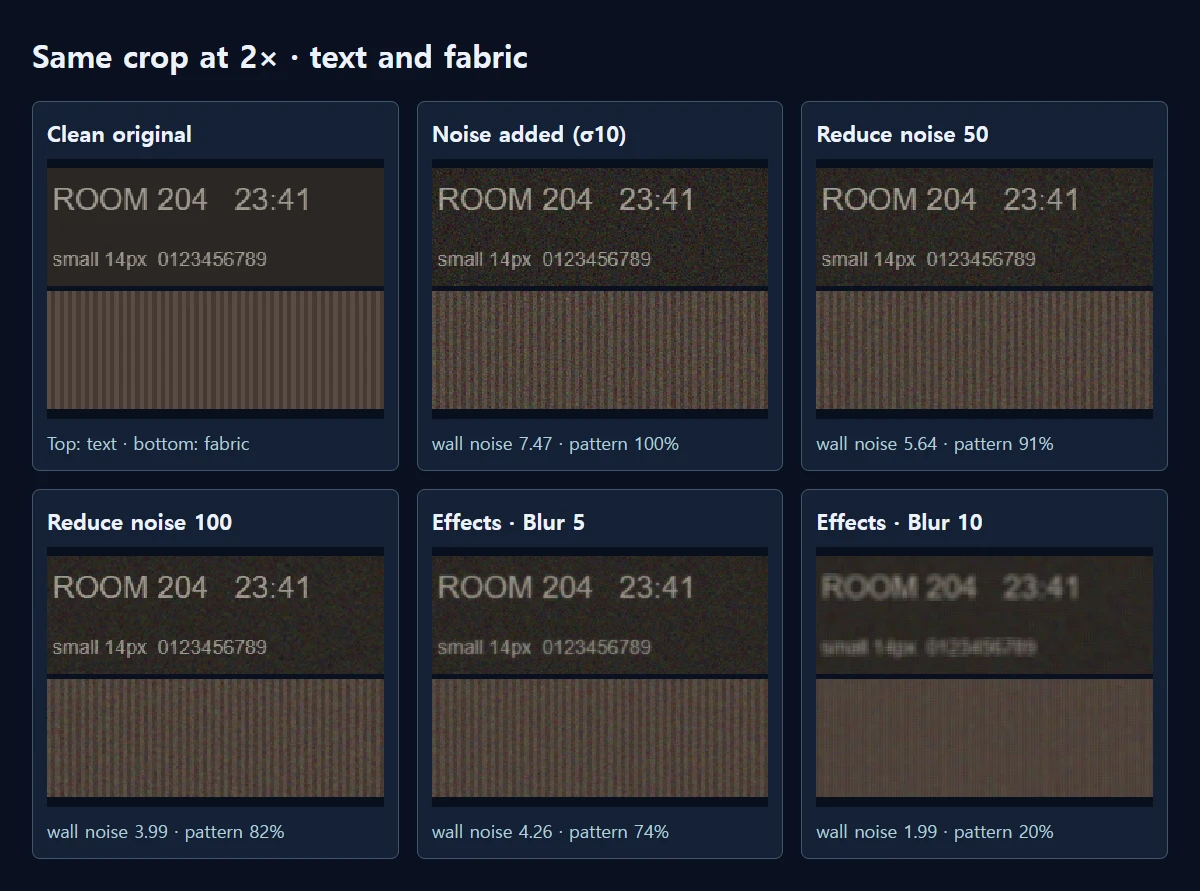
We looked at three things: how much the brightness of a flat wall area fluctuates (standard deviation, lower is smoother), how much of the fabric stripe pattern remains, and how similar the text area is to the clean original (SSIM, closer to 1 is more similar). Smoothness and pattern tend to move in opposite directions, so watching only one of them is misleading.
Reduce noise at 50 and 100
After adding noise, the wall fluctuation was 7.47. Reduce noise 50 brought it to 5.64 and 100 brought it to 3.99, a reduction of about 47%. PSNR against the clean picture rose from 28.1 dB to 34.5 dB, and SSIM on the text went from 0.719 to 0.880. The cost was in the fabric: 91% of the stripe pattern remained at 50 and 82% at 100.
Applying the same 100 to the clean picture reduced the stripes to 85%. So some softening of fine pattern is the price of this setting, noise or no noise. In our picture the text gained enough to make 100 worthwhile, but for a photo where fabric or hair is the point, stopping around 50 may be better.
Can’t I just use Blur?
Blur under Effects also removes noise. Blur 10 lowered the wall fluctuation to 1.99, the smoothest result, but kept only 20% of the fabric pattern, and text SSIM was 0.781, lower than with Reduce noise 100. Blur 5 left the wall at 4.26 and the pattern at 74%: more noise and less pattern than Reduce noise 100.
Blur mixes pixels without regard to edges, so text and patterns go soft along with the grain. Reduce noise is built to mix less across large brightness differences, which keeps letter outlines better. Use Reduce noise for noise, and keep Blur for when you want a deliberately soft look.
What about the noise that remains?
Even at 100, Reduce noise only halved the wall fluctuation. MiruKit’s control looks at a small neighbourhood of nearby pixels and is deliberately light, so it cannot wipe out very heavy grain. If it still bothers you at 100, look at the photo at the size you will use it rather than hunting for another slider. A photo seen small on a phone can look different from the 100% view.
Noise grows when you brighten. Raising Shadows a lot on a dark photo reveals more of the grain that was hiding there, which is why it helps to settle brightness first and judge noise afterwards. Next time, steadying the phone against something or switching on another light gives you a cleaner photo to start with.
Is the saved result the same as the preview?
The preview is calculated at a smaller size so it stays responsive, but saving recalculates at the photo’s original size. The area Reduce noise looks at grows with the photo’s size, so a large photo does not suddenly get a weaker effect. Our 1200×800 picture took about 0.8 seconds through the save path on the test PC. Still, the final check is opening the saved file and looking at the same spot.
How to adjust it in MiruKit
- Open the photo in Photo adjustments and filters and press 100% to see actual pixels.
- Set brightness first under Light. Noise shows more after brightening, so decide the brightness before judging it.
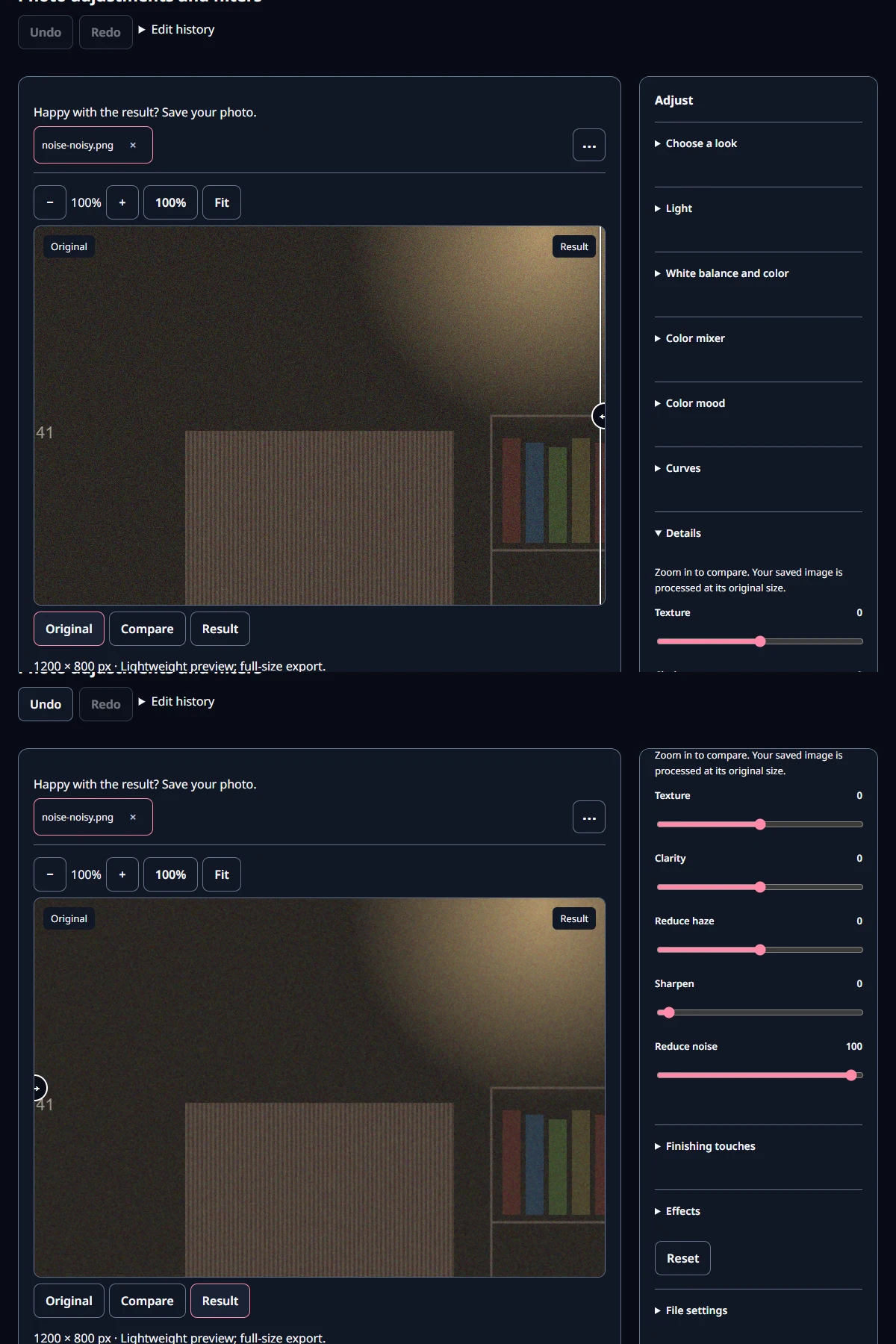
- Raise Reduce noise under Details, starting at 50. Alternate between flat areas such as a wall or sky and textured areas such as fabric or hair.
- If pattern or small text gets too soft, lower the value a little. Switching between Original and Result makes the difference easy to see.
- Save, reopen the file and check the same spot. Your saved image is processed at its original size.
Measured with MiruKit
| Setting | Wall noise | Fabric pattern | Text SSIM | Whole PSNR |
|---|---|---|---|---|
| Noise added (σ10) | 7.47 | 100% | 0.719 | 28.1 dB |
| Reduce noise 50 | 5.64 | 91% | 0.803 | 31.0 dB |
| Reduce noise 100 | 3.99 | 82% | 0.880 | 34.5 dB |
| Effects · Blur 5 | 4.26 | 74% | 0.853 | 32.8 dB |
| Effects · Blur 10 | 1.99 | 20% | 0.781 | 34.6 dB |
| Clean + Reduce noise 100 | 0 | 85% | 0.997 | 51.6 dB |
A synthetic 1200×800 dark-room scene (wall brightness about 40) received seeded noise with standard deviation 10 per channel, processed through the same processImage path the Filters save uses. Wall noise is the brightness standard deviation over a flat wall area; pattern is how much of a 3px fabric stripe survives relative to the clean original.
Good to know
These results come from one synthetic picture with a fixed amount of added noise. Real camera noise differs in colour and grain size, so the reduction can differ.
Save the noise-reduced photo under a different name from the original. Starting again from the original gives a cleaner result if you adjust it later.