What do JPG quality 60, 75, 85 and 95 change? We saved each one
Written · Updated · Operator (individual)
Not sure what number to pick when saving a JPG? It isn't "a percentage of the original"; it sets how hard the image is compressed. We saved one picture with text, a sky gradient and fine texture at 60, 75, 85 and 95. The result: 85 for screens, 95 when text matters, and 75 when you're short on space.
What does the number change?
JPG splits the picture into 8×8-pixel blocks and saves it by dropping the subtle variations your eye notices least. The lower the number, the more it drops, so the file gets smaller, and the gaps show up as blocky smudges or ripples around text.
Something else changes too: MiruKit's JPG saving also sets the resolution of the color information from the number. We read the header of each saved file: at 60 and 75, color was stored at half width and half height; at 85, at half width only; at 95 and 100, at full resolution. Brightness always stays at full resolution.
What happened when we saved the same picture at each number?
We made a 1600×1200 test picture. The top left has 11–40px text, including red and blue text; the top right has a sky-like gradient; the bottom half has grass-like fine texture. As a PNG it was 1.60 MB. We saved it as JPG through MiruKit's actual processing.
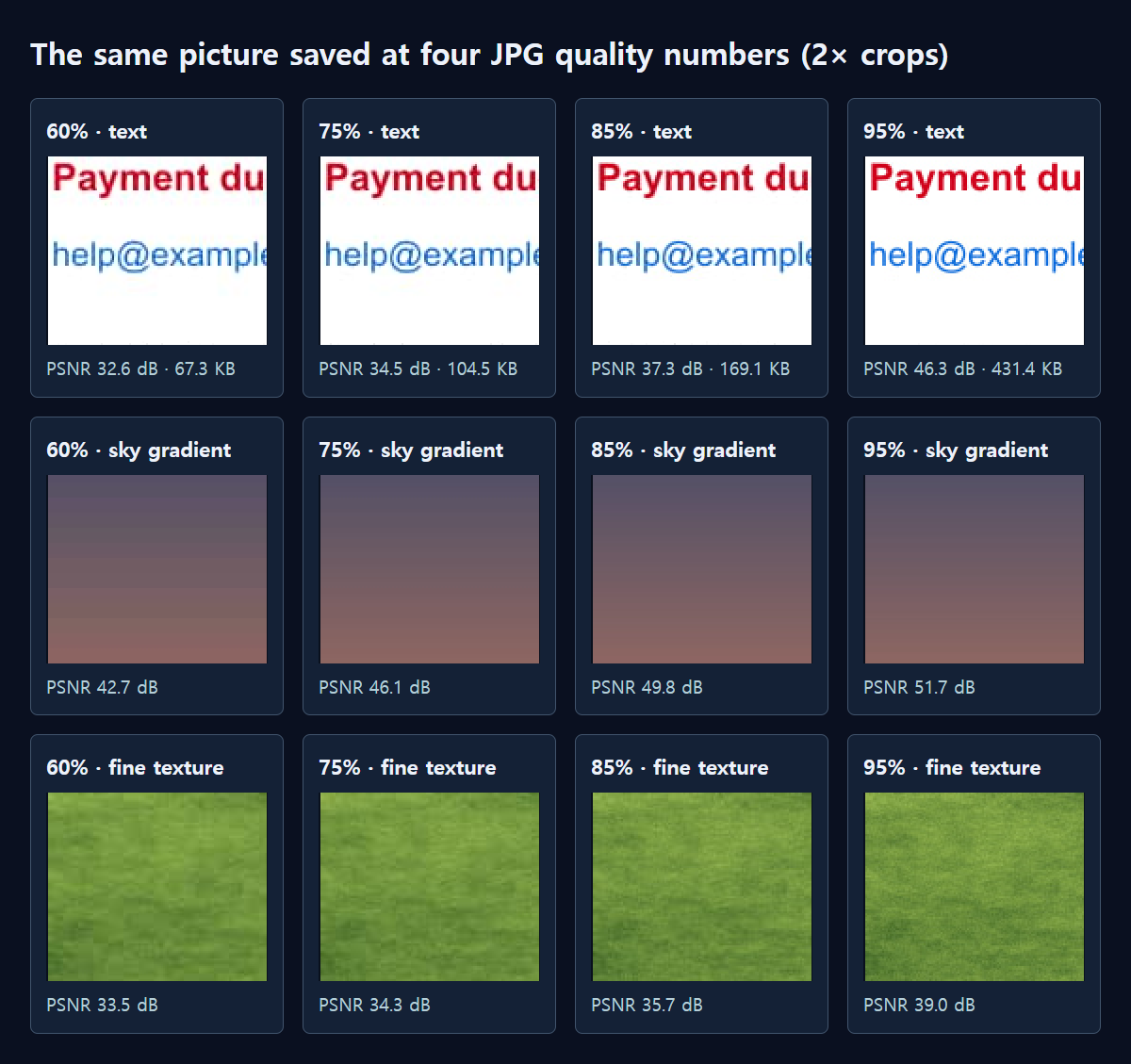
Quality 60 was 67.3 KB, 75 was 104.5 KB, 85 was 169.1 KB and 95 was 431.4 KB. Quality 100 made 1019.1 KB, six times the size at 85. Raising the number just 10, from 85 to 95, made the file about 2.6 times bigger. The higher you go, the more each step costs.
Each area showed the differences in its own way
We measured the difference from the original as PSNR for each area. A higher value means closer to the original.
The text area scored 32.6 dB at 60, 34.5 dB at 75, 37.3 dB at 85 and 46.3 dB at 95. The biggest jump came between 85 and 95: compression gets lighter, and from 95 the color information is kept at full resolution, so color bleeding around the red text drops too. In the enlarged crops, the red and blue text at 60 and 75 had smeared edges, while 95 was crisp.
The sky gradient held up well, scoring 42.7 dB even at 60 and 49.8 dB at 85. Smooth areas resist low numbers, but enlarged at 60, the color stepped in visible bands. The fine texture was the lowest at every number: 33.5 dB at 60, 35.7 dB at 85 and 39.0 dB at 95. The pattern is so busy, though, that the differences were hard to see.
Which number should I choose?
For photos viewed on screen, 85 was a safe choice, and it's also MiruKit Convert's default. If you need a smaller file, 75 worked too: it was 38% smaller than 85, with little visible change in the photo areas.
For pictures where text matters, such as screenshots, tables or notices with red text, use 95 or save as PNG instead. We recommend 60 only for things nobody will zoom into, like preview thumbnails. For photos you'll print or edit again later, 95 or above gives you peace of mind.
Does it mean the same as the WebP quality number?
We also saved the same picture as WebP at 60, 75, 85 and 95. They came to 57.9 KB, 79.9 KB, 183.0 KB and 402.0 KB. At 60 and 75, WebP was smaller than JPG, but at 85 it was actually larger than the JPG (169.1 KB). The same number means a different method and strength of compression in each format.
So when you switch formats, don't carry the number over; set it again by looking at the result size and the zoomed view. In MiruKit, the result size is recalculated as soon as you change Save as, so comparing is easy.
What if I resave at the same number?
Opening a JPG saved at 85 and saving it again at 85 won't make it any better than the first file. Each extra round of compression can add a little more damage. For pictures you'll edit several times, work in PNG and save as JPG only once, at the end.
How do I pick the number in MiruKit?
- Open Convert, add your picture and choose JPG under Save as.
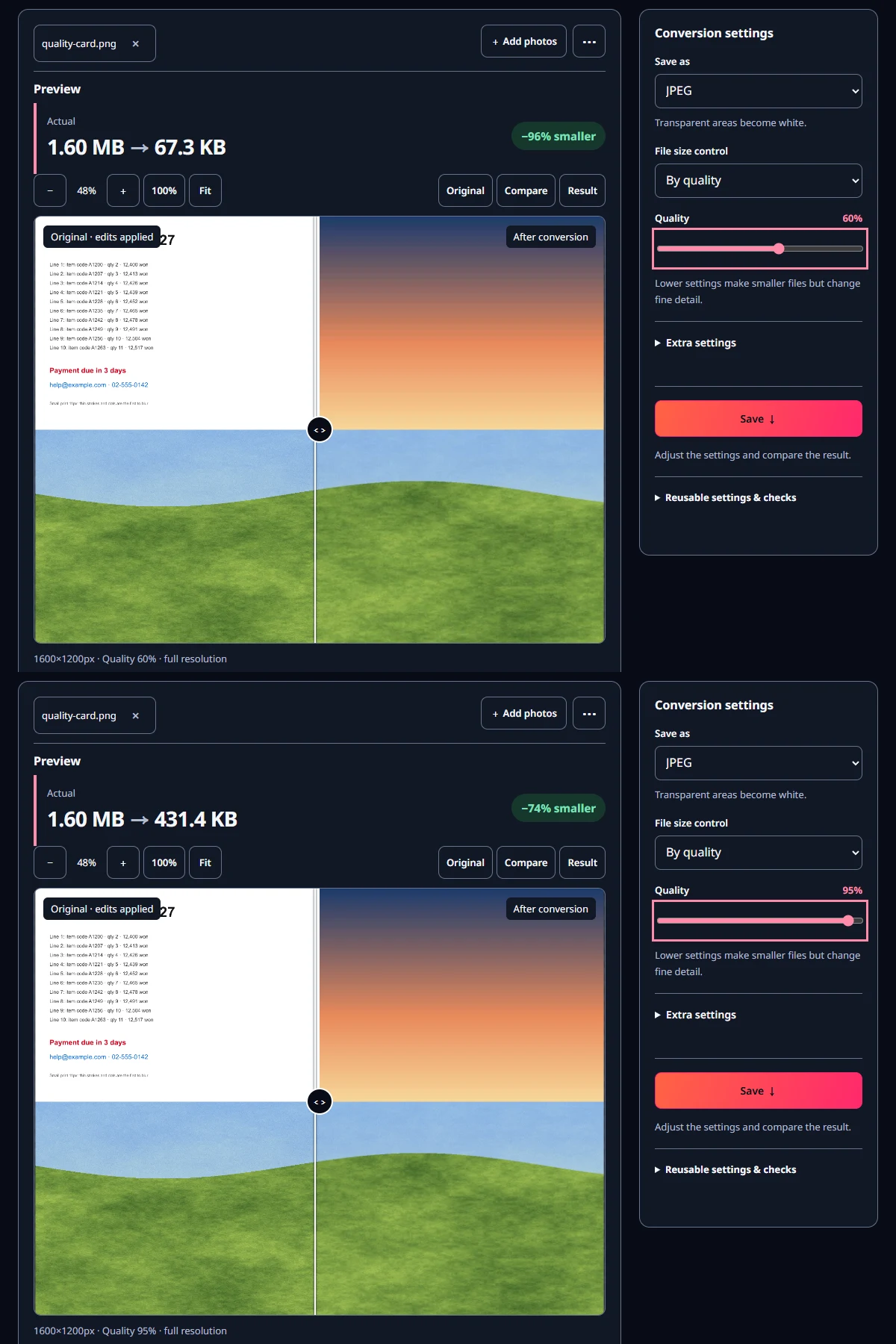
- Check that File size control is set to By quality, then move the Quality slider to the number you want.
- When the result size updates, click 100% in the preview and look at the text and smooth areas.
- If you have a fixed size limit, choose By file size and enter the target instead of picking a number. MiruKit finds the highest number that fits.
Measured with MiruKit
| Quality | File size | Text PSNR | Gradient PSNR | Texture PSNR | Color detail |
|---|---|---|---|---|---|
| 60% | 67.3 KB | 32.6 dB | 42.7 dB | 33.5 dB | half width and height |
| 75% | 104.5 KB | 34.5 dB | 46.1 dB | 34.3 dB | half width and height |
| 85% | 169.1 KB | 37.3 dB | 49.8 dB | 35.7 dB | half width only |
| 95% | 431.4 KB | 46.3 dB | 51.7 dB | 39.0 dB | full |
| 100% | 1019.1 KB | 67.9 dB | 53.0 dB | 50.8 dB | full |
| WebP 60% | 57.9 KB | — | — | — | for comparison |
| WebP 75% | 79.9 KB | — | — | — | for comparison |
| WebP 85% | 183.0 KB | — | — | — | for comparison |
| WebP 95% | 402.0 KB | — | — | — | for comparison |
A 1600×1200 PNG (1.60 MB) with text (11–40px), a sky gradient and fine texture was saved through the shipped processImage as JPG at quality 60, 75, 85, 95 and 100. PSNR is RGB per area; color resolution was read from each saved JPG header. For comparison, the same picture was also saved as WebP at 60, 75, 85 and 95.
Good to know
These numbers come from a single test picture we made ourselves. Depending on the content, the same quality number can give very different file sizes.
Each program calculates quality numbers its own way. Another app's 85 doesn't mean the same size or quality as MiruKit's 85, and WebP's 85 differs from JPG's 85 as well.
Resaving a JPG at a higher number won't bring back lost detail. Save from the original only once.