Compress many photos to a target size at once: we tried it with 15
Written · Updated · Operator (individual)
Shrinking travel or product photos one by one takes forever. In Compress, you can add up to 20 photos at once and set the target just once; MiruKit fits each photo separately and gives you a single ZIP file. We tried it on the real page with fifteen 4000×3000 photos, timed it, and checked every result to see whether they really all fit.
How much can I add at once?
MiruKit's limits are 20 photos at a time, 25 MB per photo and 100 MB for all the photos you add. The results together can't exceed 100 MB either, and each photo can be up to 8,192px per side and 16 megapixels. The processing code uses these same values.
When we tried adding 21 photos, MiruKit didn't open any of them and only showed "Up to 20 photos and 100MB in total." It tells you up front rather than stopping halfway, so add larger sets 20 at a time.
What happened when we fitted 15 photos under 1 MB?
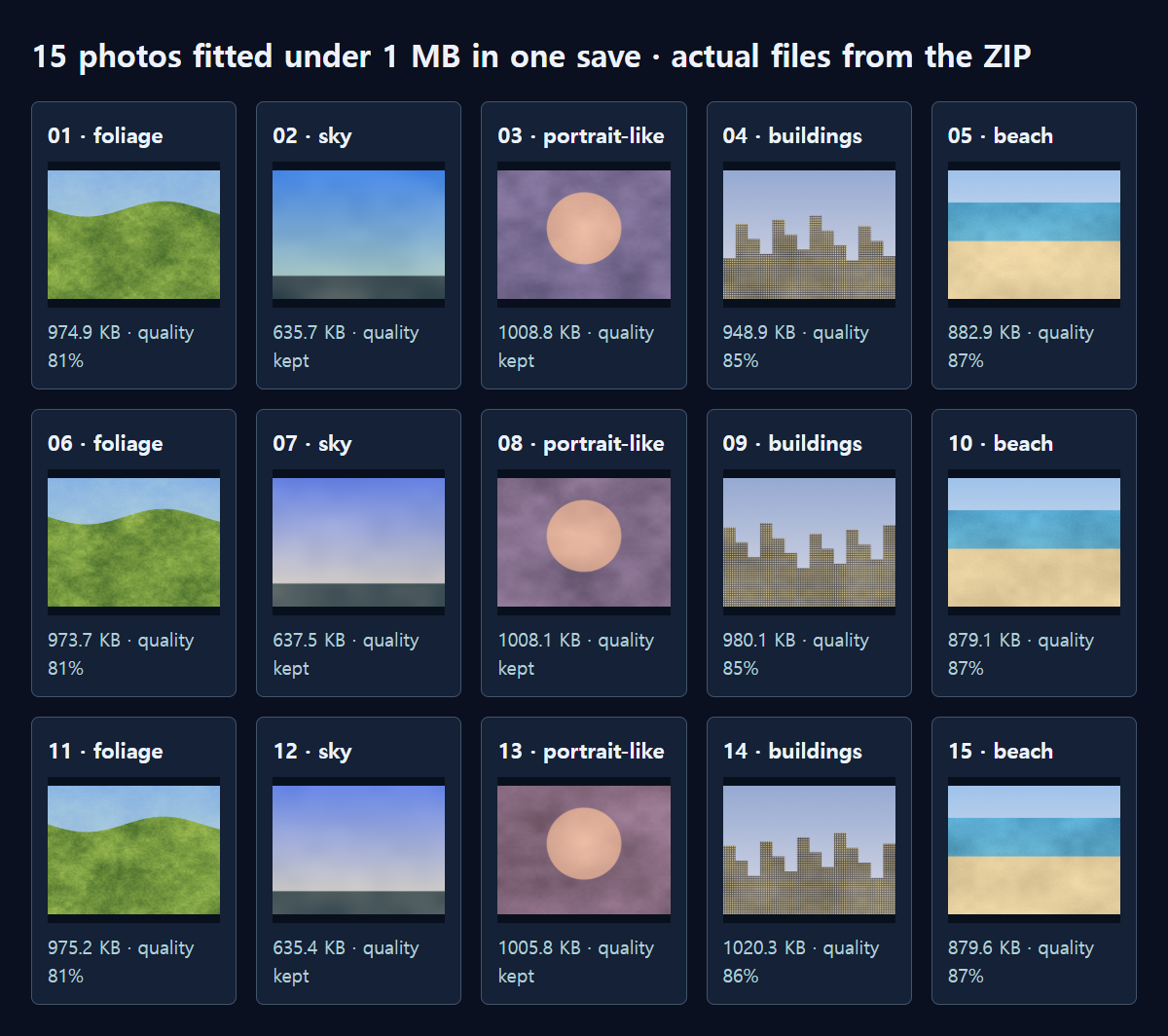
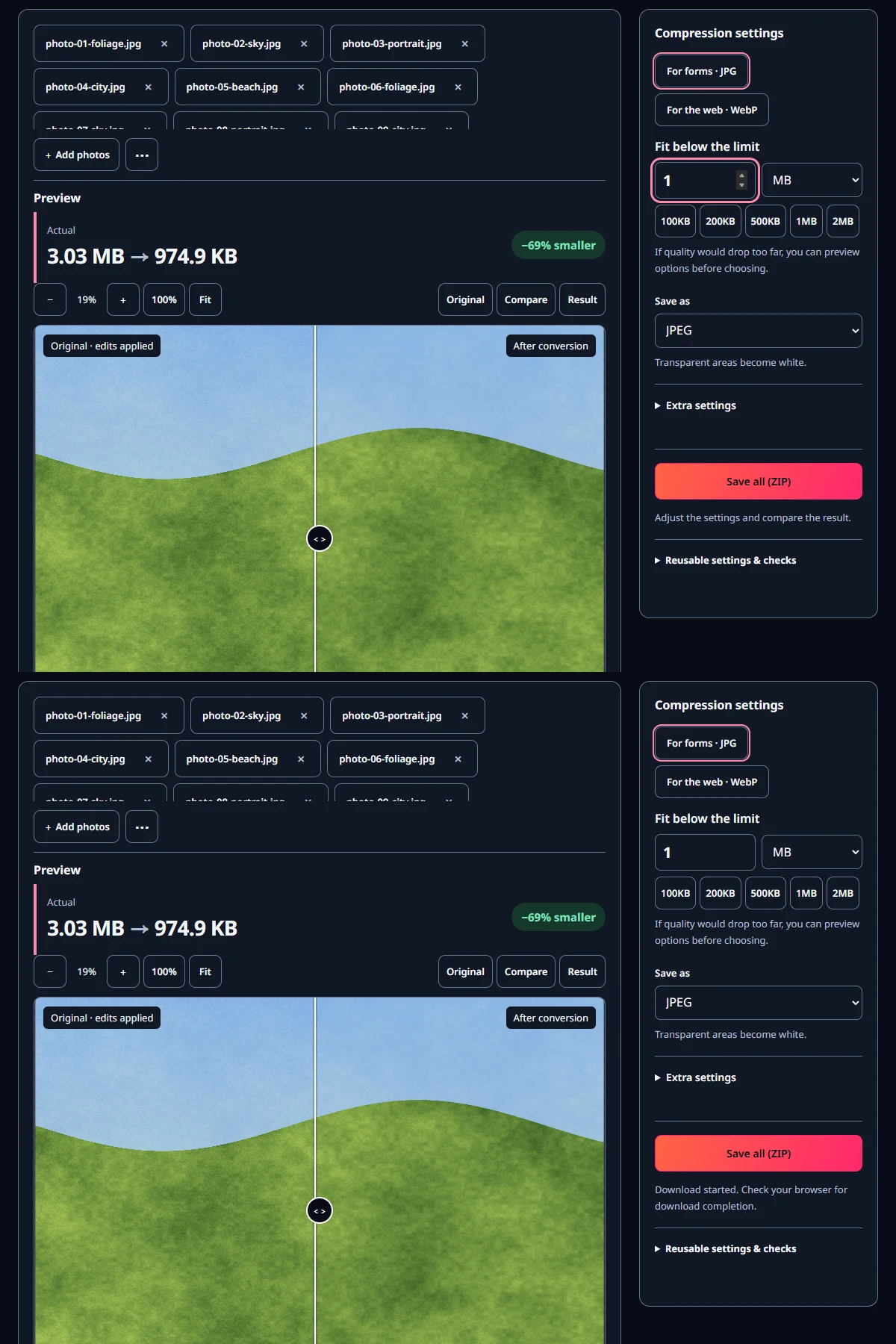
We made three photos each of foliage, sky, portrait-like scenes, buildings and a beach. All were 4000×3000 JPGs, 26.58 MB in total. We added all 15 at once, chose For forms · JPG and a 1 MB target, then saved.
From clicking save to receiving the ZIP took 50.1 seconds, about 3.3 seconds per photo on average. We unzipped it and measured all 15 again: the largest was 1020.3 KB, so every file was under 1 MB, and all kept their full 4000×3000 dimensions. The total came to 13.13 MB, about half of what we started with.
Each photo got its own quality
Even with the same target, MiruKit fits each photo separately. The detailed foliage photos got quality 81%, the buildings 85–86% and the beach 87%. The six sky and portrait-like photos were already around 1 MB, so MiruKit didn't touch their quality; it only tidied how they were stored to bring them under the target.
That's why the results ranged from 635.4 KB to 1020.3 KB. Keeping quality on simple photos and trimming only the busy ones stays closer to the originals than saving every photo at the same quality.
What if I lower the target?
Fitting the same 15 photos to 300 KB took 88.6 seconds, and all 15 fit. The largest file was 299.9 KB and the total was 3.99 MB. It took longer than the 1 MB run because more photos needed their quality searched downward.
At 100 KB, things changed. The three foliage and three building photos were still at least 133.1 KB even at quality 30%. After 56.0 seconds, MiruKit reported that 6 photos had failed, asked us to choose one of the options below first, and did not make a ZIP. It won't quietly slip an over-the-limit file into the ZIP. The page shows the first failed photo with an option to fit by reducing its dimensions, so you can choose per photo.
Is the result the same as doing them one at a time?
We also ran the same 15 photos one at a time through the same processing with a 1 MB target and compared them with the files from the ZIP. All 15 matched down to the last byte. Adding many photos at once doesn't cut corners; each photo goes through exactly the same calculation as a single one.
The one-at-a-time timings also show what takes longer. Sky photos already close to the target, whose quality wasn't touched, took 1.6–1.8 seconds, while foliage and building photos that needed a quality search took 4.8–5.4 seconds. The bigger the original is compared with the target, and the busier the pattern, the longer it takes.
How can I wait less?
With a lot of photos, set the target on one or two first. The preview shows the result size right away, so once you've checked the quality isn't dropping too low, add the rest at once. That way you're less likely to save again after a failure.
How do I compress many photos in MiruKit?
- Open Compress and select several photos at once with + Choose photos.
- Choose For forms · JPG at the top. For photos going on the web, For the web · WebP works too.
- Enter a number in Fit below the limit, or click a button such as 100KB, 500KB or 1MB.
- Check one or two photos at 100% in the preview, then click Save all (ZIP).
- Unzip the downloaded mirukit-images.zip and check the number of files and their sizes. Each name gets _mirukit added, so you won't mix them up with the originals.
While saving, a progress bar and the current photo number are shown, and you can click Stop at any time.
Open the related toolMeasured with MiruKit
| Target | Result | Total | Save time |
|---|---|---|---|
| 1 MB | All 15 under target · one ZIP · 635.4 KB–1020.3 KB each · quality 81–87% or kept | 13.13 MB | 50.1 s |
| 300 KB | All 15 under target · one ZIP · 188.0 KB–299.9 KB each | 3.99 MB | 88.6 s |
| 100 KB | 6 photos still over at quality 30% (smallest 133.1 KB) · no ZIP made | — | 56.0 s |
| Same photos one at a time | 15/15 files byte-identical at 1 MB | — | 1.6 s–5.4 s per photo |
| Adding 21 photos | Refused before any work (limits: 20 photos, 25 MB each, 100 MB total, 8,192px per side, 16 megapixels) | — | — |
Fifteen synthetic 4000×3000 JPGs (three each of foliage, sky, portrait-like, buildings and beach; 26.58 MB in total) were added at once to the real Compress page with For forms · JPG and a Fit below the limit target, then saved. Time runs from clicking Save to receiving the ZIP. Every file in the ZIP was re-measured.
Good to know
These numbers come from 15 test photos we made ourselves, processed in Edge on our test PC. Time and quality vary with photo content and device speed.
The target applies to each photo. If a service limits the total, such as email, divide that limit by the number of photos to get a per-photo target.
Your originals stay untouched. The reduced copies arrive in a ZIP, so there's no risk of overwriting your original folder.