Combine several photos into one image: vertical strip or grid?
Written · Updated · Operator (individual)
You want to send a before photo, an after photo and a close-up together. Separate attachments can lose their intended order, but one very long strip takes a lot of scrolling. Start with a vertical layout for a sequence and a grid for side-by-side comparison.
Which layout suits the story?
A vertical strip creates a clear top-to-bottom path. It works for a repair process, instructions or a detail sequence. The reader can follow one image down the page. As the strip grows longer, make sure each picture adds something useful rather than extending the scroll with similar views.
A grid keeps several views in one frame. It suits front-and-back views, color options and before-and-after comparisons. Each photo gets less screen space, though, so inspect fine writing or small components at full size before sharing the combined result.
Will mixed portrait and landscape photos stretch?
MiruKit preserves each image’s proportions. A vertical layout fits the photos to a shared width; a grid fits the whole photo within its cell. This can leave blank space. Keeping that space or cropping an individual source deliberately is usually more natural than stretching width and height separately.
Keeping proportions does not mean keeping the original pixel dimensions. A narrow source may be enlarged to match a wider image. That does not recover missing lettering or fine detail, so check those areas in the saved result rather than judging only the small preview.
We made both layouts from the same three inputs
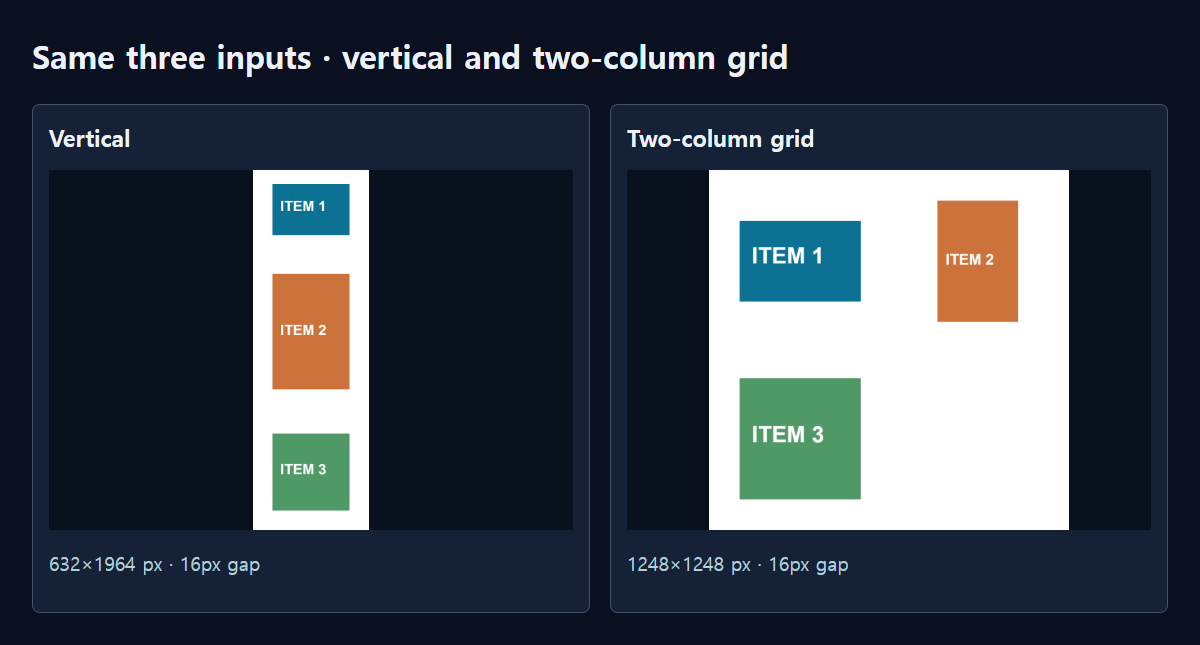
Our synthetic examples were 600×400 landscape, 400×600 portrait and 500×500 square. We labeled them ITEM 1, ITEM 2 and ITEM 3 so the order was visible. We used MiruKit’s shipped layout renderer with a 16px gap and white background. No customer or real listing photographs were involved.
The vertical output measured 632×1964. Its image area was 600px wide, with a 16px border on each side. The portrait input grew to 600×900 to match that width. Adding the three image heights and the outer and inner gaps produces the total height of 1964. A two-column grid with the same spacing produced a 1248×1248 image and one empty fourth cell.
For these inputs, we would choose the strip for an ordered explanation and the grid for a quick comparison. The square grid fits neatly in a message, but its empty cell is noticeable. Add a fourth useful photo if you have one, or compare another layout before deciding. The point is to make the set easy to read, rather than fill every available space.
How do I make the combined image?
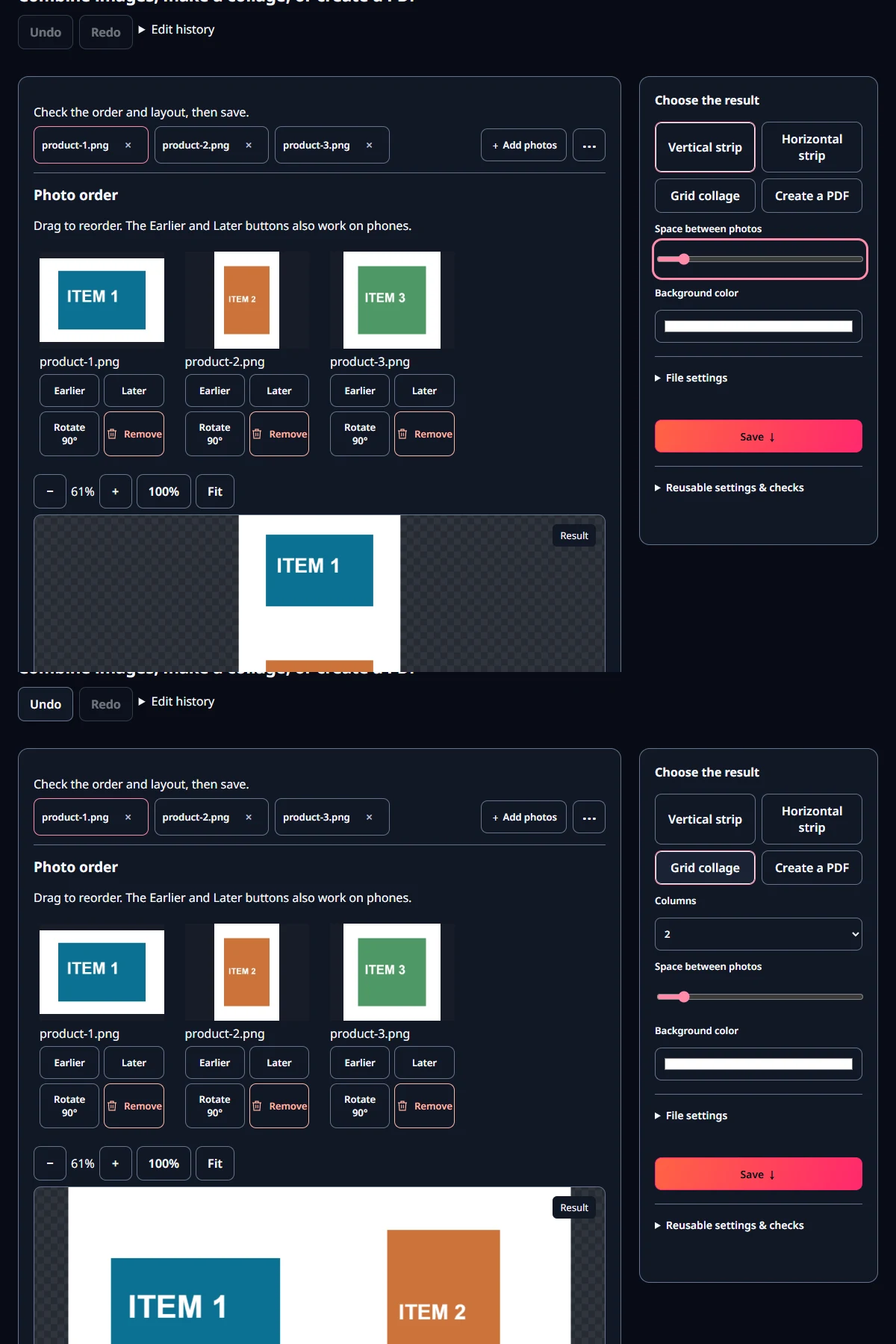
- Open Combine & PDF and choose your photos. Check their thumbnail order after adding the set.
- Choose Vertical for a reading sequence or Grid for simultaneous comparison.
- Set the number of grid columns. If the pictures look too small, reduce the columns or divide the set into smaller groups.
- Reorder with the Earlier/Later buttons or dragging, and rotate sideways photos.
- Adjust spacing and background, save, then reopen the output to check small text and the first and last images.
Should I save JPG or PNG?
JPG is a familiar choice for photographs sent through messages or forms. Compare PNG for diagrams with small lettering or flat shapes. WebP is useful for a web copy when the receiving service supports it. Also distinguish the tool’s background from blank space already inside a source photo: a zero gap does not remove a white border baked into the picture.
If the combined file exceeds an upload limit, check its final dimensions first. Dividing an extremely long strip into two readable images can be more useful than heavily compressing one. If you reduce the saved size, inspect the smallest text again rather than assuming the preview tells the whole story.
What if I need separate printed pages?
A long image has no page boundaries of its own. For receipts or forms that need one sheet per photo, choose PDF in the same tool. Keep an image layout for a comparison or a visual explanation intended to be viewed as one frame. These are different outputs for different reading tasks.
Open the related toolMeasured with MiruKit
| Layout | Output dimensions | Images |
|---|---|---|
| Vertical | 632×1964 px | 3 |
| Two-column grid | 1248×1248 px | 3 |
Three synthetic inputs (600×400, 400×600, 500×500) rendered with the shipped renderMerge. White background, 16px gap, vertical or two columns; aspect ratios retained, some smaller inputs enlarged.
Good to know
The dimensions shown here belong to our three inputs with a 16px gap. Different source sizes, counts or column settings produce different output dimensions.
A combined image still contains the original visible details. Zoom in and check personal information before sharing, even when a photo occupies only a small cell.