When should you use AVIF? We matched quality against WebP and JPG
Written · Updated · Operator (individual)
You've heard AVIF makes smaller files and wonder if switching is really worth it. In our test, the answer depended heavily on the photo. On a smooth photo, AVIF was a quarter the size of JPG; on a leafy photo, it was barely smaller than WebP. Use AVIF only where the destination accepts it, and stick with JPG or WebP otherwise.
How did we match quality?
Each format's quality number means something different, so comparing 85 with 85 isn't fair. Instead, we made two 2400×1600 photos and first measured how close a JPG saved at 85% was to the original, using SSIM. SSIM scores, from 0 to 1, how closely the brightness structure matches the original.
We then saved WebP and AVIF through MiruKit's actual processing at quality 30 to 95 in steps of 5, and in steps of 1 near the match. For each format, we picked the smallest file whose SSIM was equal to or higher than JPG 85%.
What happened with the leafy photo?
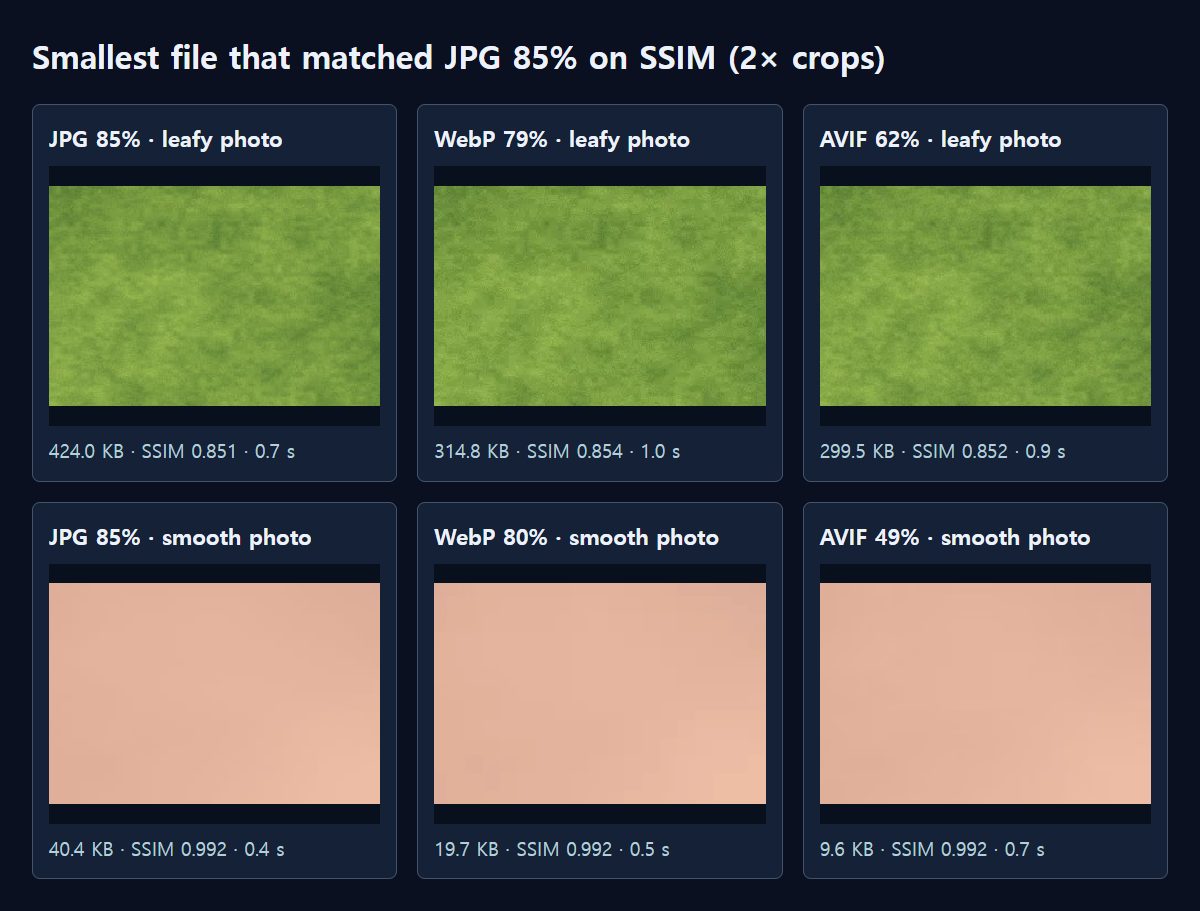
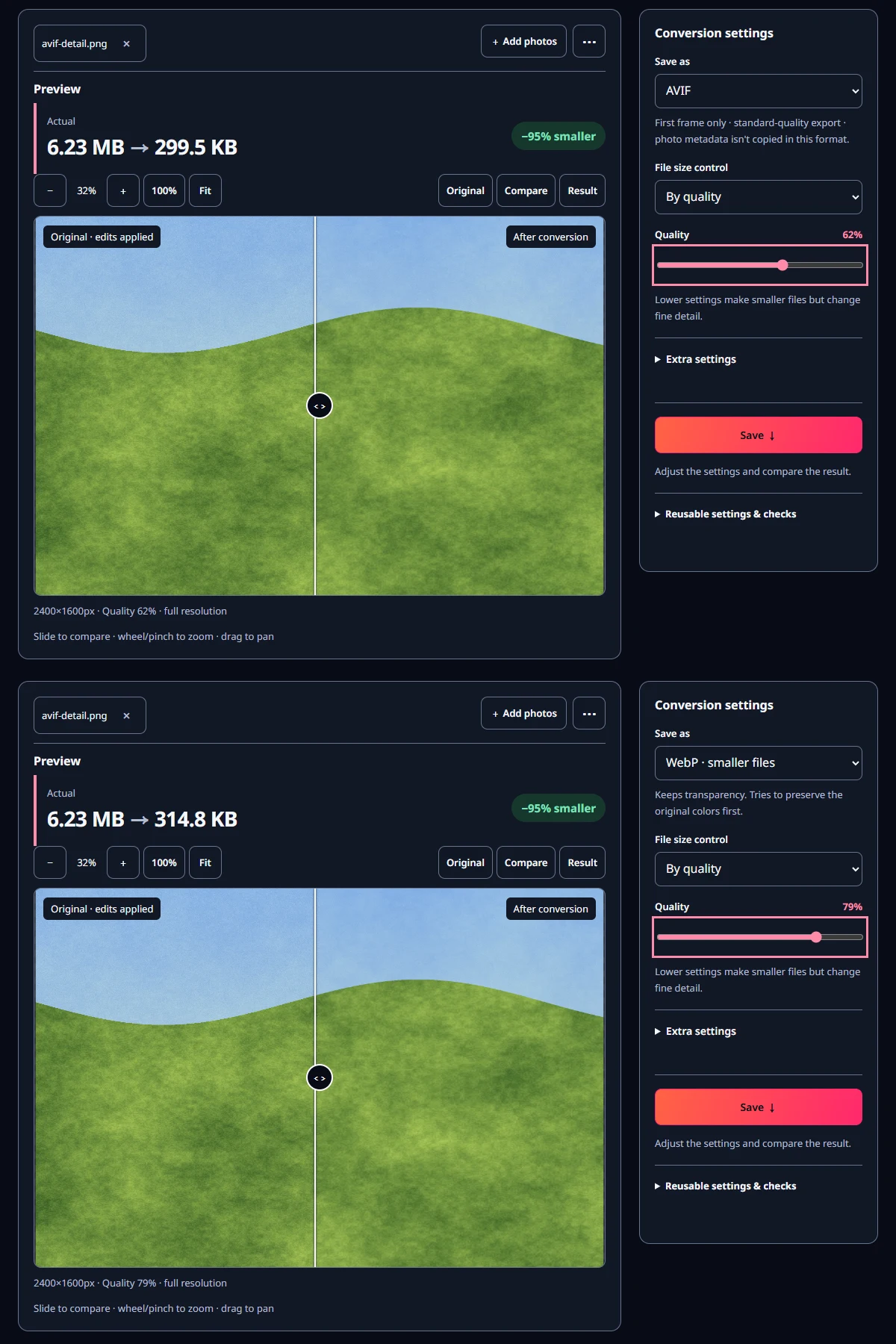
On a photo full of fine grass texture, JPG at 85% was 424.0 KB. The smallest WebP with the same SSIM was 314.8 KB at quality 79%, and the smallest AVIF was 299.5 KB at quality 62%. Compared with JPG, WebP was about 26% smaller and AVIF about 29% smaller.
AVIF was the smallest, but only 15.3 KB, or about 5%, smaller than WebP. In the enlarged crops, the leaves looked almost identical in all three. For photos like this, the more widely supported WebP gets you most of the benefit.
The smooth photo showed a big difference
The portrait-like photo, with soft color changes like skin, behaved differently. JPG at 85% was 40.4 KB, the matching WebP was 19.7 KB at quality 80%, and the matching AVIF was 9.6 KB at quality 49%. AVIF was about 24% of the JPG's size and half the size of the WebP.
AVIF is good at describing large, smooth areas with very little data. Where most photos have little fine texture, such as skies, walls or portrait backgrounds, AVIF's advantage was clear.
How long did saving take?
We list the middle value of three saves at the same setting. For the leafy photo, JPG took 0.7 s, WebP 1.0 s and AVIF 0.9 s. For the smooth photo, JPG took 0.4 s, WebP 0.5 s and AVIF 0.7 s. MiruKit saves AVIF with a fast setting, so each photo took under a second.
The first time you use AVIF, though, MiruKit downloads a processing file of about 15MB once. That download isn't included in the times above. Your browser keeps the file, so later saves start right away.
Check compatibility first
AVIF is a relatively new format, so if the receiver doesn't support it, the upload may be refused or the image may not show. On forms, older programs and some shop listing pages where the accepted formats are fixed, use AVIF only if it's listed. MiruKit's supported formats table also notes that AVIF uses the first frame only and saves at standard quality.
Take care with photos you send by messenger or email, too. If the recipient's phone or app can't open AVIF, the attachment may appear only as an icon. If you don't know who will open it on what device, JPG is the safest choice.
On places where you choose the format yourself, such as your own website, AVIF is worth testing. Even then, keep the original as a JPG or PNG so you can use it elsewhere later.
MiruKit may run the comparison for you
When you use Fit below the limit in Compress with JPG or PNG, and the result drifts noticeably from the original, MiruKit actually saves a WebP at the same target. If the gap is larger, it tries AVIF too. When one of these is clearly closer to the original, MiruKit shows a note starting with "Option · actual" along with its real file size.
Nothing changes until you click it. MiruKit never switches the format on its own, so check that the destination accepts that format before you choose it. It's handy when comparing by hand feels like too much work.
How do I save as AVIF in MiruKit?
- Open Convert and add your photo.
- Under Save as, choose AVIF.
- Move the Quality slider and watch the result size. AVIF comes out smaller than JPG at the same number, so start comparing around 50 to 65, as in our test.
- Click 100% in the preview to check the important parts, then click Save ↓.
Measured with MiruKit
| Photo · format | Quality number | File size | SSIM | Save time |
|---|---|---|---|---|
| Leafy · JPG | 85% | 424.0 KB | 0.851 | 0.7 s |
| Leafy · WebP | 79% | 314.8 KB | 0.854 | 1.0 s |
| Leafy · AVIF | 62% | 299.5 KB | 0.852 | 0.9 s |
| Smooth · JPG | 85% | 40.4 KB | 0.992 | 0.4 s |
| Smooth · WebP | 80% | 19.7 KB | 0.992 | 0.5 s |
| Smooth · AVIF | 49% | 9.6 KB | 0.992 | 0.7 s |
Two synthetic 2400×1600 photos (a leafy scene and a smooth portrait-like scene) went in as PNG and were saved through the shipped processImage as JPG, WebP and AVIF at quality 30–95 in steps of 5, then in steps of 1 near the match. For each format we picked the smallest file whose SSIM (luma, 8×8 windows) was at least that of JPG 85%. Time is the median of three saves at that setting and excludes the first-use processing file download.
Good to know
These numbers come from two test photos we made ourselves. With different content, the gaps between formats change too.
SSIM is just a single number for similarity. Compare important parts, such as faces or text, yourself at actual size.
Quality numbers mean different things in each format. AVIF at 62% is not the same quality as JPG at 62%.