Keep a transparent background: PNG, WebP, AVIF, GIF and JPG compared
Written · Updated · Operator (individual)
You saved a logo or sticker with its background removed, and when you uploaded it a white box appeared around it. To keep transparency, save as PNG, WebP or AVIF. JPG can't store transparency, so the clear areas get filled with white. We saved the same transparent image in five formats and counted how many transparent pixels actually survived.
What did we test?
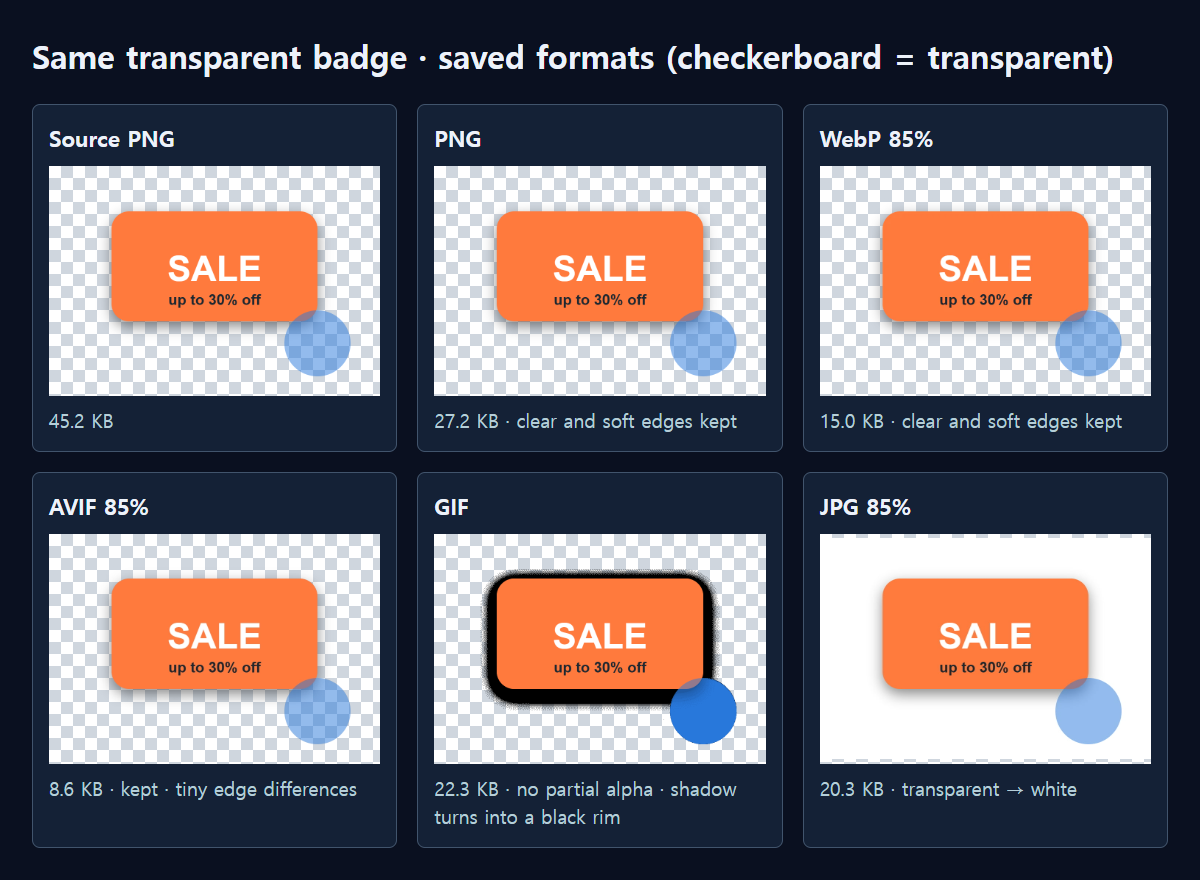
We drew a 900×600 sale badge ourselves. The background is fully transparent, the badge has a soft drop shadow, and a half see-through blue circle sits at the bottom right. It contains 278,048 fully clear pixels and 96,064 partly clear ones. The source PNG was 45.2 KB. We saved it in each format through the same processing that MiruKit's Convert tool uses, reopened every file and counted the transparency values.
What survived in each format?
PNG came out at 27.2 KB and kept all 278,048 fully clear and 96,064 partly clear pixels, exactly as in the source; the transparency difference was zero. WebP at quality 85% was 15.0 KB, smaller than the PNG, and its transparency was still identical to the source. The colors were compressed with loss, but the transparency itself was kept intact.
AVIF at quality 85% was the smallest at 8.6 KB. It kept 278,041 fully clear pixels, almost all of them. The average transparency difference was 0.06 and the largest was 13 on a 0–255 scale, so a few edge pixels change very slightly in a way that's hard to see. Keep in mind that AVIF downloads a processing file the first time you use it, and some older programs can't open it.
GIF was 22.3 KB and had zero partly clear pixels. A GIF pixel is either transparent or fully visible, with nothing in between. The soft shadow therefore became a black rim around the badge, and the see-through blue circle turned solid blue. MiruKit's own GIF note says partial transparency isn't supported.
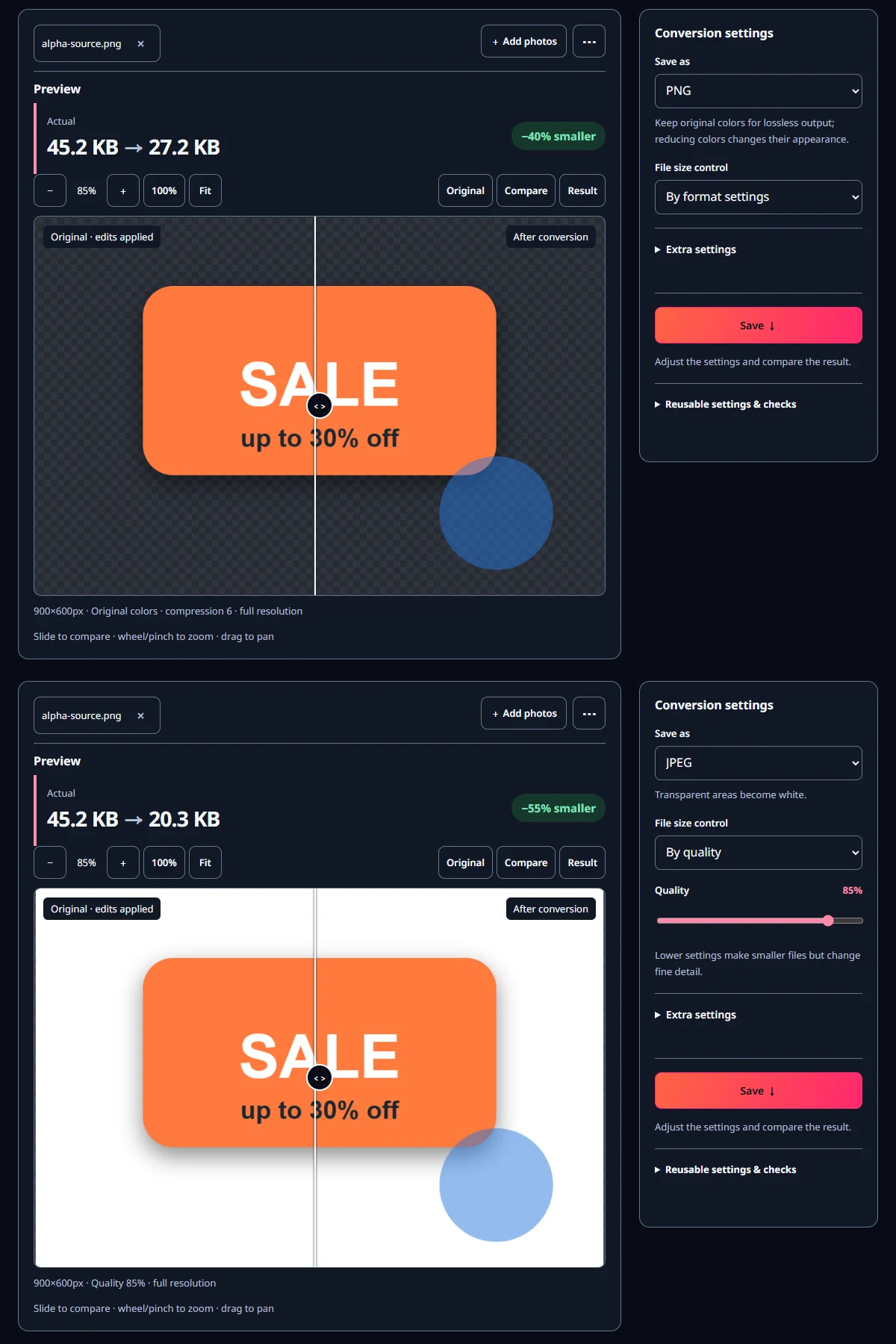
JPG at quality 85% was 20.3 KB and had no transparent pixels at all. The clear corners became RGB 255/255/255, which is white, and a shadow pixel that had a transparency value of 54 blended with the white into gray (200/200/200). When you choose JPEG in Save as, the note "Transparent areas become white." appears.
Which format should I choose?
If you don't know where the image will end up, PNG is the safest choice. It keeps everything exactly and opens in almost any program. For websites and blogs that accept WebP, WebP kept the transparency at a little over half the size of the PNG. If size really matters and the destination supports AVIF, AVIF is another option.
Save GIF for images without soft edges, such as simple icons with hard outlines. If there is a shadow or a blurry edge, you will get the same rough outline we saw in this test.
How do I save it in MiruKit?
- Open Convert and add your transparent image.
- Choose PNG or WebP in Save as. With WebP, the note "Keeps transparency." appears below it.
- In the preview, wherever the checkerboard shows through on the result side, that area stayed transparent. Switch to JPEG and you can see the same area turn white.
- Open the saved file where you plan to use it and check that there's no white rim, especially on a dark background.
What about fitting a size limit in Compress?
Compress opens with JPEG already selected in Save as. That default suits submission photos, but it means a transparent image put in as is will come out on white. When you need a transparent logo under a size limit, press "For the web · WebP" or switch Save as to PNG first, then enter the target.
What if it has to be a JPG?
MiruKit's JPG conversion always fills transparent areas with white, and there is no setting to choose another background color. If the image will sit on a white page, that's fine. If it will sit on a dark background, first check whether the destination accepts PNG or WebP instead.
Also check images you plan to reuse. A logo that will appear on several backgrounds, such as a white website header and a dark social media banner, is easiest to manage as one transparent PNG master. Make format-specific copies from that master, rather than converting a JPG copy back and forth.
Open the related toolMeasured with MiruKit
| Format | File size | Fully clear pixels | Partly clear pixels |
|---|---|---|---|
| PNG | 27.2 KB | 278,048 | 96,064 |
| WebP 85% | 15.0 KB | 278,048 | 96,064 |
| AVIF 85% | 8.6 KB | 278,041 | 96,395 |
| GIF | 22.3 KB | 300,328 | 0 |
| JPG 85% | 20.3 KB | 0 (filled white) | 0 |
A 900×600 PNG with a clear background and a soft shadow (278,048 fully clear and 96,064 partly clear pixels) was saved per format through the shipped processImage, reopened, and its alpha counted.
Good to know
These numbers come from one badge image we drew ourselves. File sizes will vary with the size and colors of your image.
Converting a JPG that already has a white background to PNG won't make the background transparent. To remove a background, use the Cutout & erase tool first.
Some services save uploaded images again and may drop the transparency. Check how the image looks after you upload it.