Drawing a mind map: branching from a central idea, tidying and exporting
Written · Updated · Operator (individual)
When ideas spread in several directions, such as planning a trip or a presentation, a mind map helps. Using the Mind map template in MiruKit’s Diagram maker, we built a “Trip plan” mind map in all three language versions. We added branches, compared the six Layout items one by one, and exported the result to see what each format contains.
What does the Mind map template look like?
Open Diagram maker and choose Mind map under Choose a template. An oval labelled Idea sits in the middle, with Thought 1 to Thought 4 boxes at the top left, top right, bottom left and bottom right, each joined to it by an arrow. The count reads 5 shapes. The basic frame of a mind map, one topic in the centre with four main branches, is already in place.
How do I rename the topic and main branches?
Double-click a shape, or type a new name in Selected shape text under Precise editing and press Update text. We renamed the centre Trip plan and the four branches Schedule, Budget, Stay and Packing. Choosing main branches that don’t overlap in meaning makes it obvious where each smaller branch belongs.
How do I attach smaller branches?
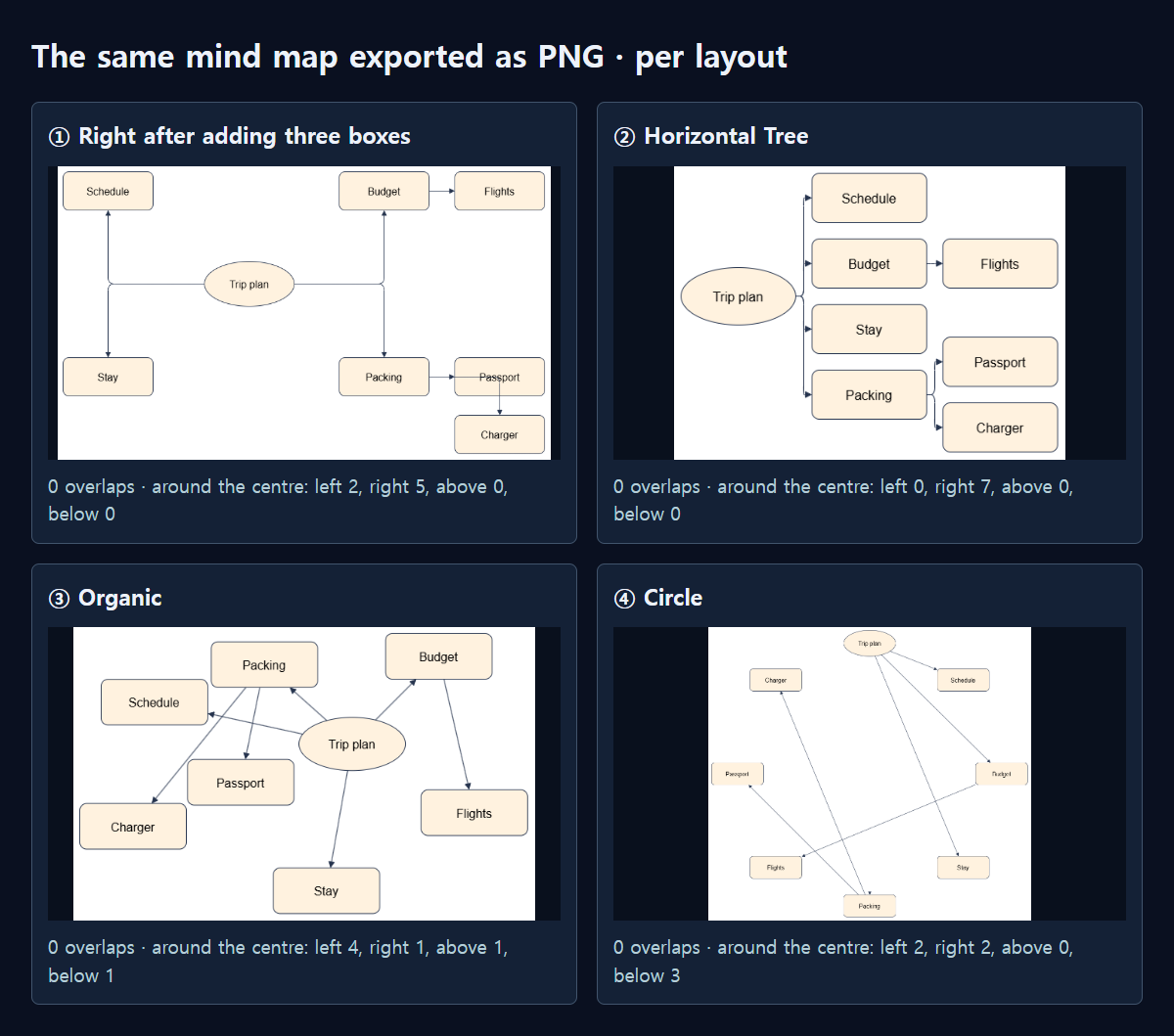
First select the main branch the new one belongs to, then choose Box and press Add shape. With Budget selected, a Flights box appeared right next to Budget. With Packing selected, a Passport box appeared to the right of Packing; pressing again for Charger found that spot taken by Passport, so the box went into the free space just below it. Each new box copied the selected box: 140×60, the same colors and font size 16. None of the three overlapped another shape, and a PNG exported at that point was 768×458 pixels.
A new box starts with the text “Title”, so rename it. To connect a box, hover over it and drag one of its connection arrows onto the parent branch. If you like the original look, with branches around the central topic, you can export right here.
Should I try the Layout menu?
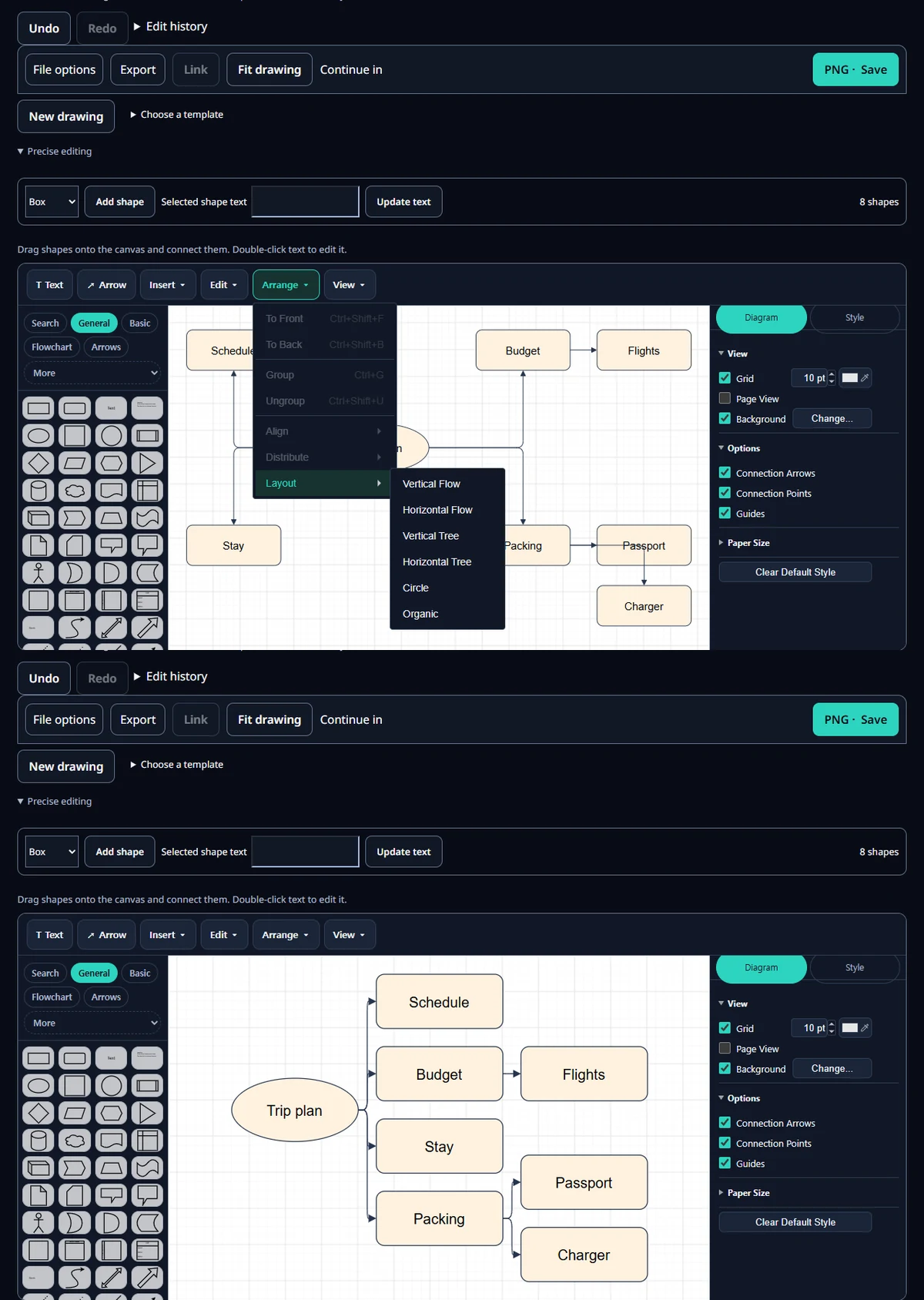
Arrange ▾ → Layout above the canvas offers six items: Vertical Flow, Horizontal Flow, Vertical Tree, Horizontal Tree, Circle and Organic. Trying each one from the same state, all six moved the shapes, and none left any shapes overlapping. Pressing Undo put everything back each time.
For a mind map the differences are large. Horizontal Tree put Trip plan at the far left and spread out the branches so that all seven sat to the right of their parent. At 460×340 it was the smallest and easiest to read, but every branch grows in one direction. Vertical Tree put all seven below their parent, making a wide, low 780×230 drawing. Organic scattered the branches around the central topic within 589×368, keeping most of the “growing out from the middle” feel. Circle laid everything on an 853×773 ring and moved the central topic onto the ring too, which made it hard to read as a mind map.
The two Flow layouts arrange shapes in steps, so the result looked more like a flowchart than a mind map: 820×390 for Vertical Flow and 620×420 for Horizontal Flow. In short, use Horizontal Tree when the map must read at a glance, as on a slide, Organic when you want to spread ideas out, and no layout at all if you want to keep the original four-direction look.
Which format should I export?
From the English version, the mind map arranged with Horizontal Tree exported as a 478×358-pixel PNG of 20.6 KB, a WEBP of the same size at 10.2 KB, and a 6.5 KB SVG in which all eight names remained as text. The PDF was one 11.0 KB page, but it held a single 478×358-pixel image and no searchable text. Web page (.html) was 20.2 KB, and the 4.6 KB Editable source (.xml) contained all 8 shapes and 7 connectors. For a mind map that will keep growing, save the editable source as well and continue later with Open file.
The whole process
- Open Mind map under Choose a template.
- Rename the central topic and the four branches.
- Select a parent branch, press Add shape to add a sub-branch, and rename it.
- Connect it to its parent branch with a connection arrow.
- If you like, pick a shape under Arrange ▾ → Layout, then check with Fit drawing.
- Choose a format under Export, and save the editable source too.
Measured with MiruKit
| Export · Layout menu | Result | What we checked |
|---|---|---|
| PNG | 20.6 KB | 478×358 px |
| SVG | 6.5 KB | 8 text elements |
| 11.0 KB | 1 page · 1 image of 478×358 px inside · no searchable text | |
| WEBP | 10.2 KB | 478×358 px |
| Web page (.html) | 20.2 KB | Drawing and editable source in one file |
| Editable source (.xml) | 4.6 KB | 8 shapes · 7 connectors |
| Vertical Flow | 820×390 · overlaps 0 | Of 7 children: 7 below the parent, 3 to its right |
| Horizontal Flow | 620×420 · overlaps 0 | Of 7 children: 4 below the parent, 7 to its right |
| Vertical Tree | 780×230 · overlaps 0 | Of 7 children: 7 below the parent, 1 to its right |
| Horizontal Tree | 460×340 · overlaps 0 | Of 7 children: 1 below the parent, 7 to its right |
| Circle | 853×773 · overlaps 0 | Of 7 children: 5 below the parent, 3 to its right |
| Organic | 589×368 · overlaps 0 | Of 7 children: 4 below the parent, 0 to its right |
In each language’s Diagram maker we opened the Mind map template and renamed its five shapes. With the parent branch selected, we pressed Add shape to add three small branches (one under Budget, two under Packing) and connected them; the connectors were inserted in the editor with the template’s own connector style. From that state we clicked each of the six Arrange ▾ → Layout items in the real menu, measured positions and branch directions, exported a PNG and pressed Undo. Finally we applied Horizontal Tree and downloaded and reopened all six Export formats. Values are from that language’s version.
Good to know
A Layout item recalculates every position, including shapes you moved by hand. If you don’t like the result, press Undo.
File sizes differed slightly by language: the Korean PNG was 18.7 KB and the Japanese one 20.2 KB. Drawings and editable sources stay in your browser and are not sent to a server.